Installation & Authentication
Follow these steps to Register Azure AD App for oAuth
– Register app in Azure AD:
– Login with Dynamics 365 and in a new tab browse the below URL:
https://portal.azure.com/
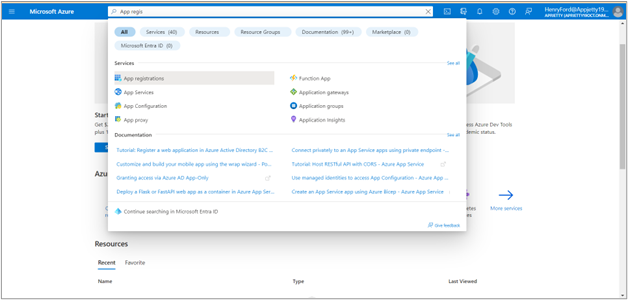
– The Azure portal home page will open, now from search input, search for Azure Active Directory. Open Azure Active Directory by clicking on it. [1]
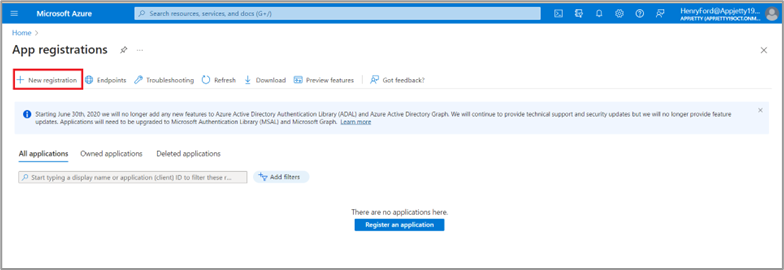
– To create the App, from the left menu click on New registration. [2]
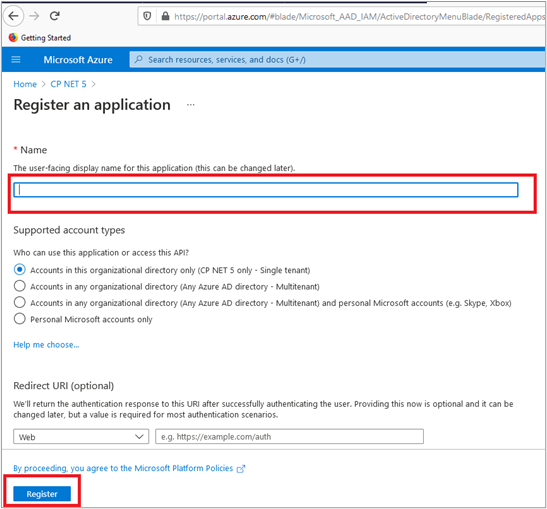
– The new app registration form will open, in the form enter the app name and click on Register.[3]
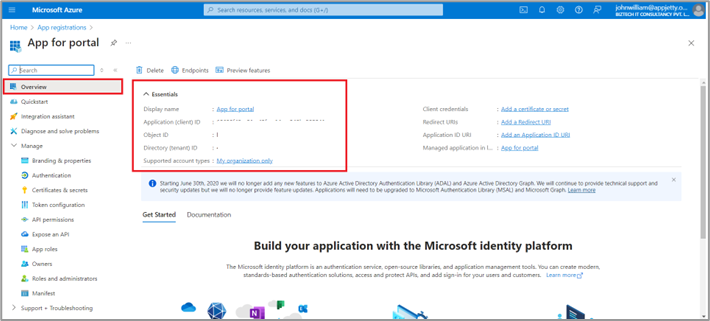
– After creating the app, a new app detail page will open. You need to copy the Application (client) ID, and Tenant ID from the detail for oAuth. [4]
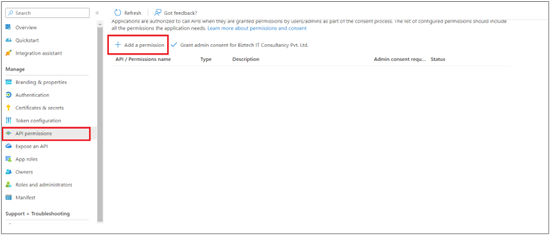
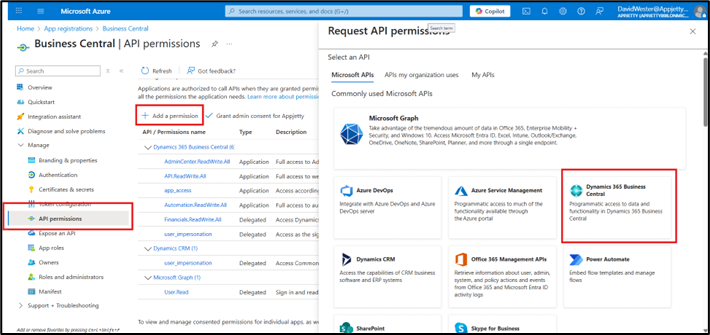
– Now Click on the API Permission section and click on “Add Permission” and select
“Microsoft Graph”
Permission List :-
User.read
“Dynamic 365 Business Central”
Permission List :-
AdminCenter.ReadWrite.All
API.ReadWrite.All
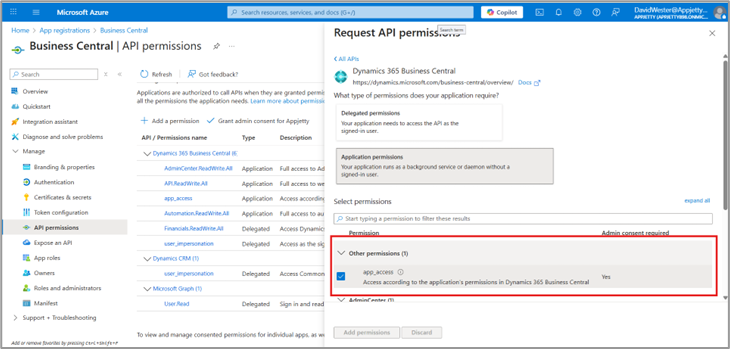
App_access
Automation.ReadWrite.All
Finacials.ReadWrite.All
User_impersonation
– To provide Dynamics 365 API permission click on API permission from the left side menu then click on Add a Permission. [6]
– The side panel will open from where you can see Dynamics CRM permission by clicking on “Dynamics CRM”. [7]
– In the second screen, check the user_impersonation checkbox and then click on Add permission. [8]
– The permission for CRM common data service was added to the App.
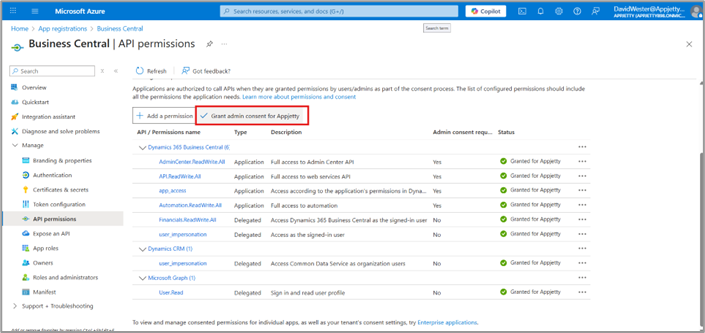
– To grant a user, click on Grant admin consent for [user].
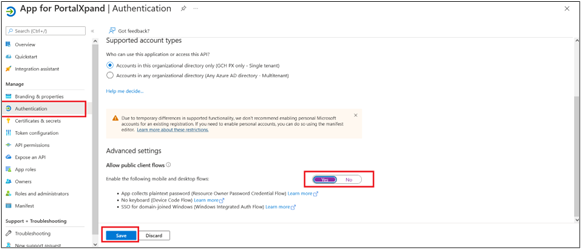
– Click on Authentication from the left menu. [9]
– After that click on Authentication from the left menu and in Advanced settings enable Allow public client flows by enabling the switch to Yes then click on Save.
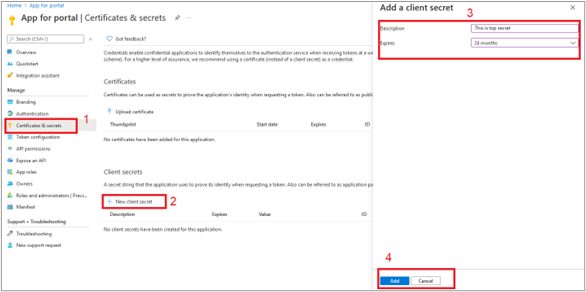
– After that to create a client secret for the app, click on Certificates & secrets from the left menu and then click on New client secret. [10]
– Add a description and select the client secret expiry time, click on Add to create a client secret.[11]
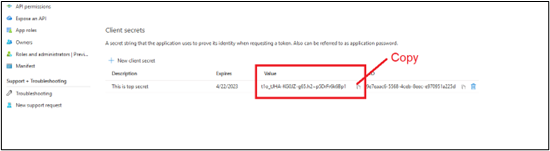
– After a successful client secret is added, it will display in the client secret list, from where you need to copy the client’s secret value(It is 1 time copyable) for oAuth.
– Step To generate the Microsoft Entra Applications
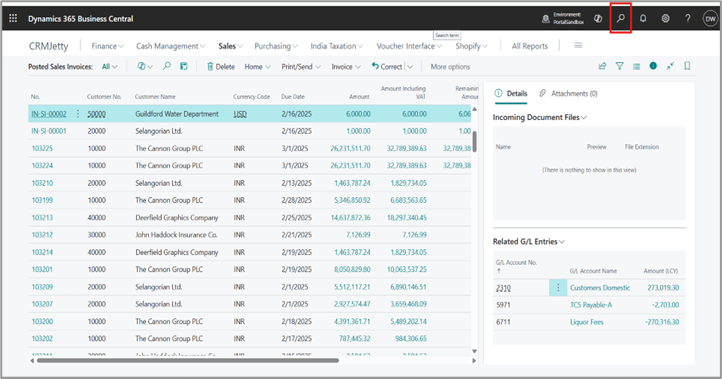
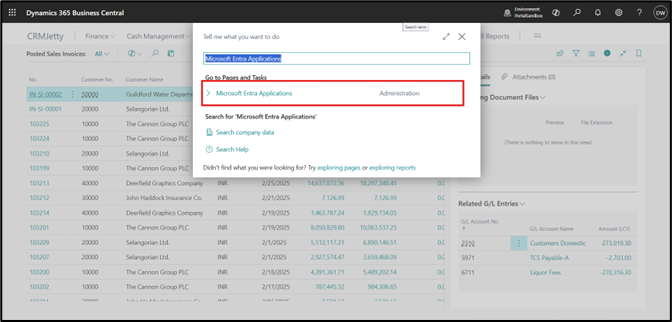
– Login to Businesscentrall → click on the search [12]
– Search for “Microsoft Extra Applications” → then Open page[13]
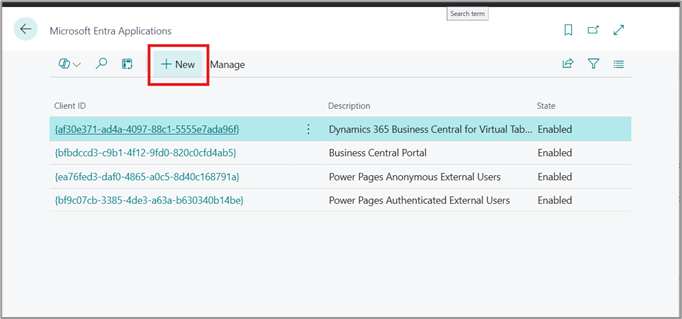
– Click on New [14]
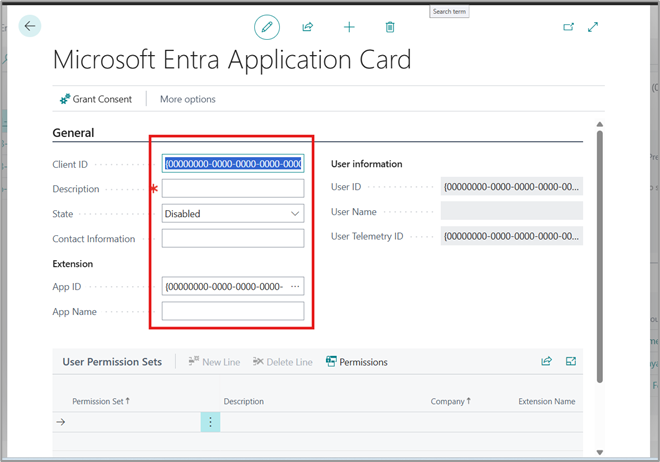
– Add Client Id → Description →sate (Enable) → appname [15]
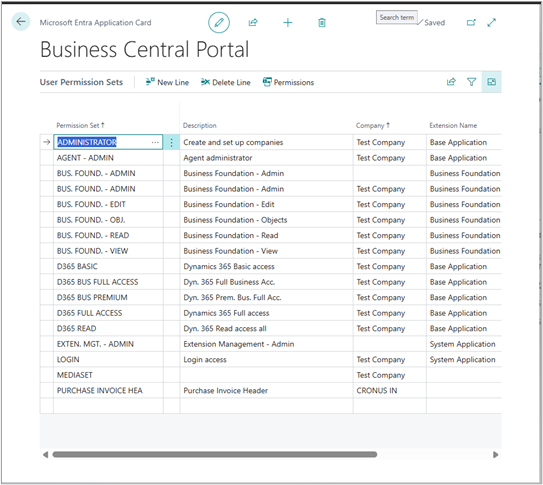
– Add USer Permission that was bellow [16]
– And Client Id Client Secret and Tenent Id that was give use To configure API
Once these steps are complete, your CRMJetty Portal is ready to use. [17]
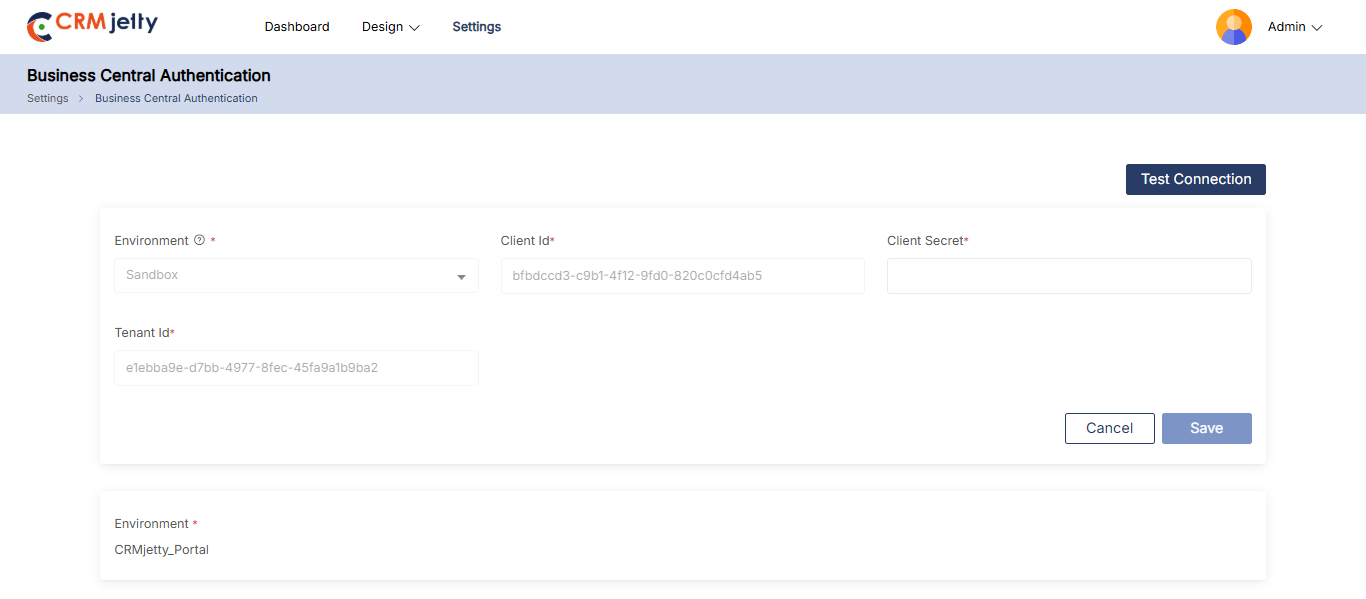
Step 2: Set Password
Check the registered Email: Access the registered email account, check the “Set Password” email sent to the Admin , and click on the link provided in the message. [1]
Create a New Password: Clicking the link will redirect the Admin user to the “Create New Password” page, where they can enter and confirm their desired password to complete the setup.
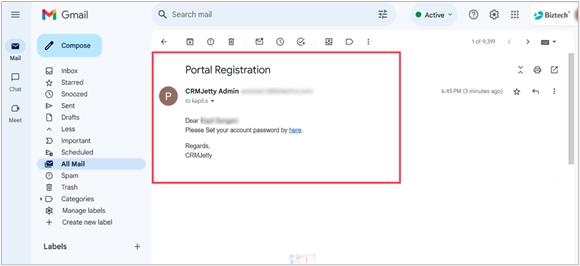
Step 3: Create New Password
Enter New Password: On the “Create New Password” page, type the desired new password in the “New Password” field. [1]
Confirm Password: Re-enter the same password in the “Confirm Password” field. [1]
Click “Save”: After entering and confirming the password, click the “Save” button.
–If successful, Admin will be redirected to the Admin login screen.
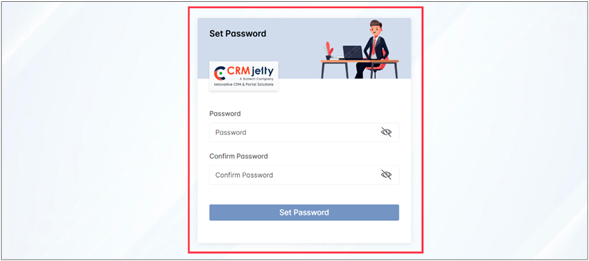
Step 4: Admin Portal Login
– Enter Login Credentials: On the Admin login page, enter the registered Admin email address and the password set via the link sent to the registered email.[1]
– Click “Login”: If the credentials are correct, the Admin will be redirected to the Dashboard.
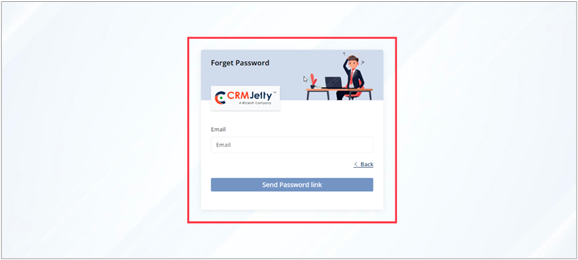
– Forgot Password: If the Admin has forgotten their password, click the “Forgot Password” link
Forgot Password
Enter Registered Email Address: On the “Forgot Password” page, enter the registered Admin email address and click the “Send” button.
– If the email is valid, a “Password Reset” link will be sent to the Admin ‘s registered email.[1]
Click the Reset Link: Click the link in the email to be redirected to the “Create New Password” page.
– Follow the instructions in Step 3- Create a new password to set a new password.[1]
Note: The password reset link will only be sent to the registered email address associated with the Admin account. If the Admin does not receive the email, please contact a CRM-authorized person for assistance.
Step 1: SMTP Settings
– Once the Admin successfully logs into the Admin Portal, the Admin first needs to set up the SMTP configuration for email.
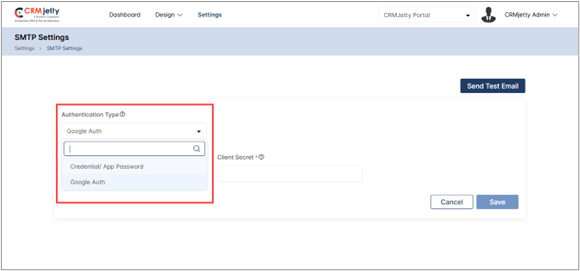
– Authentication Type: First, the Admin needs to select the Authentication Type according to the requirement. [1]
Credential/App Password: In this option, Admin needs to enter a username and password for specific apps like social media, Outlook, Gmail, Apple Mail, etc.
Google Auth: Auth is a security protocol that allows applications to access Admin data without requiring passwords. This is integrated with Google services like Gmail, Google Calendar, Google Contacts, etc.
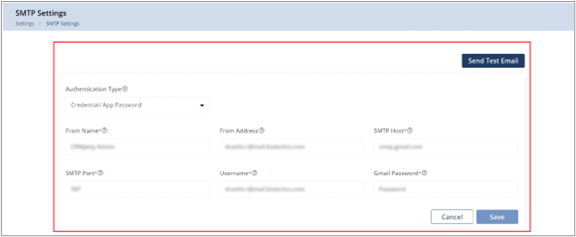
Credential/ App password
In this option Admin enters the selected app Email ID and password (for ex: Outlook, Gmail, Apple Mail, etc.)
For example: Admin uses the Gmail ID and Password for SMTP configuration.[2]
To establish a reliable connection for sending emails Admin needs to add the following details:
-From Name: Enter the name that Admin wants to display in the receiver’s Email.
– From Address: Enter the email address that Admin wants to display in the receiver email.
– SMTP Host: Enter the host address of an email.
– SMTP Port: Enter the port number used by outgoing mail servers.
– Username: Enter the app username/email.
– Password: Enter the password of the email/username entered above.
Note: The Admin has the flexibility to use any set of credentials for the SMTP configuration, regardless of the credentials used to log into the Admin portal. This allows the Admin to choose credentials freely without being restricted to the ones used for portal access.
After entering the details click on the “Save” button.
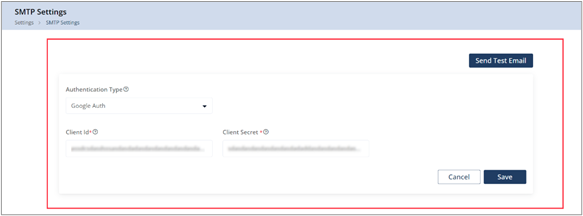
Google Auth
In this Authentication type, the Admin can connect Google Account with the portal by entering Client ID and Client secret. [3]
– Client ID: Enter Admin client ID.
– Client Secret: Enter Admin client secret.
After entering the ‘necessary’ details, click on the “Save” button to complete the SMTP settings.
Test Email Connection
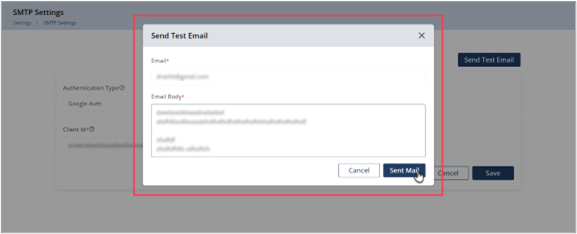
Send Test Email: Click on the “Send Test Email” button to initiate a test of the SMTP connection.
Click Sent Mail: In the popup box, the Admin should enter the recipient’s email address and a description, then click the “Send Mail” button.[4]
Connection Status
Connected: If the test email is received successfully on the above-entered mail, then the SMTP configuration has been established correctly.
Not Connected: If the email is not received, the Admin should verify that all SMTP configuration details—such as the SMTP Host, Port, Username, and Password—are entered correctly or not.
Note: Each SMTP server has different authentication methods, so the Admin must follow the specific rules of their mail server.
Popular SMTP Server Configurations
Microsoft Exchange:
– Server: smtp-mail.outlook.com
–Port: 587
Yahoo:
– Server: smtp.mail.yahoo.com
–Port: 587
Gmail:
– Server:smtp.gmail.com
–Port: 587
Hotmail:
– Server: smtp.live.com
–Port: 587
AOL:
– Server: smtp.aol.com
–Port: 587
Note: Please note that these configurations are commonly used, but the Admin should always check with the respective email service provider for the most current and accurate SMTP server settings.
Step 2: Business Central Authentication
After setting up the SMTP configuration, the Admin must configure Business Central authentication to connect Business central data with the Portal.
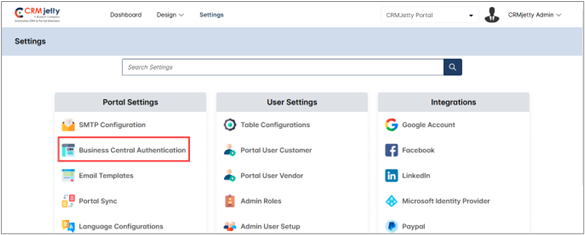
To do this the Admin should navigate to Settings > Portal Setting > Business Central Authentication. [1]
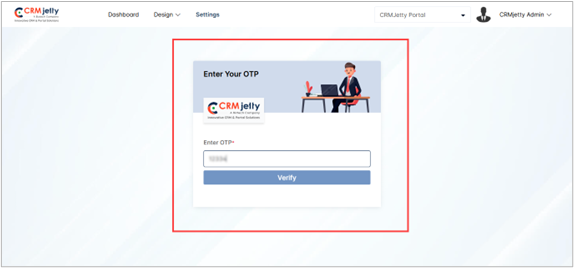
To access the Business Central authentication screen, the user must validate their id Table through the OTP verification process.
OTP Verification: On the Business Central authentication page Admin will see an OTP verification screen. The Admin needs to enter the OTP received on the registered email ID. [2]
Note: Only super Admin receives the OTP, on their registered mail Id.
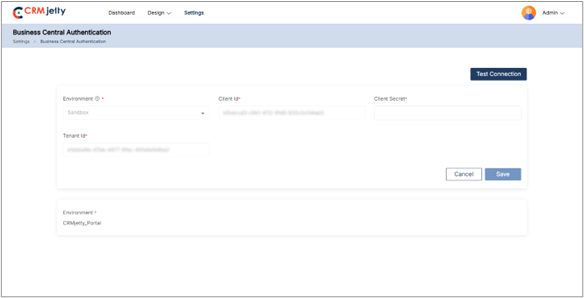
Once the verification process is complete then the Admin needs to configure the CRM authentication by entering the following details:[3]
– Environment: Admin can select the two types of Environment.
– Live: the production environment where real-time data and transactions occur.
– Sandbox: A testing environment for developing and testing applications without affecting live data.
– Client ID: Enter the Client identification number.
-Client Secret: Enter the secret key for client authentication.
– Tenant ID: Enter the tenant ID number.
After entering the required details, click on the “Save” button to complete the Business Central Authentication process.
Test Business Connection
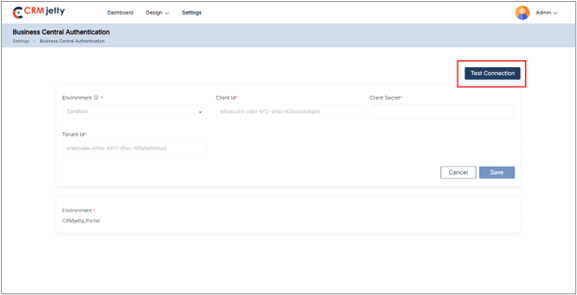
Test connection: By clicking on the “Test Connection” button the portal verifies whether the entered credentials are correct or not. [4]
Connection Status:
Connected: If the connection is successful, then the Admin can see the success token message on the right side of the page.
Not connected: If the connection is unsuccessful, the Admin should verify all the details – such as the service URL, App ID and Client Secret – are entered correctly. If the issue persists, the Admin should contact the Business Central authorized person for further assistance.
Sub-Admin Roles
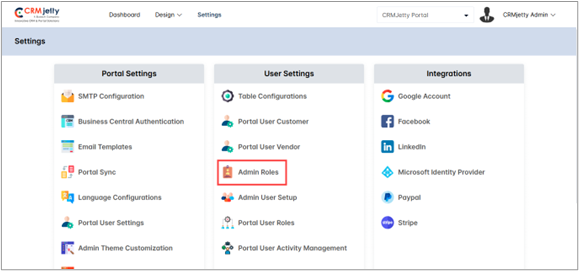
The Super Admin can assign multiple roles to sub-Admin , each with different responsibilities. To create a role, navigate to Settings > User Settings > Admin Roles. [1]
Note: These roles apply only to the Admin portal. Both Super Admin and sub-Admin with Admin role permissions can add new roles.
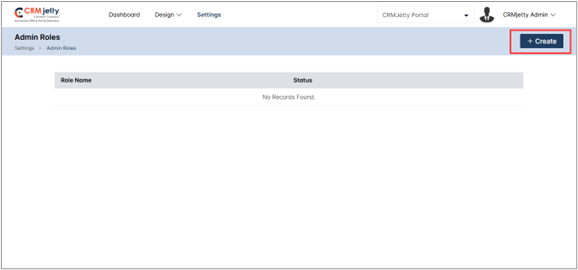
On the Admin role page Admin can view Role Name and Status. On the right side of the page Admin can view the “+Create” button. By clicking on the button Admin can add a new Admin role for the Admin portal. [2]
Creating a New Role
On the “Add Role” page, the Admin needs to enter below details:
– Role Name: Enter a unique name for the sub-Admin role.
– Status: Click on the toggle button to set the role as “Active” or “Inactive.”
– Description: Provide a brief description of the sub-Admin role for future reference. [3]
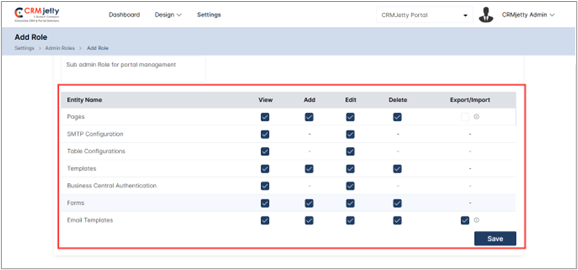
– Permissions: Select the checkbox next to each Table to set the permissions for View, Add, Edit, Delete and Export/Import actions. The sub-Admin access to specific Tables will be determined by these permissions. [4]
Note: Sub-Admin users can only access the Tables that the super Admin has allowed.
Edit Admin Role:
To edit an Admin role, navigate to the Admin role list and click the three dots (…). This will reveal the Edit icon. Clicking the icon will redirect the Admin to the edit role page. [5]
On the Edit page, the Admin can modify the role’s name, status, description, and permissions as needed. [6]
After making the changes, click the “Save” button to apply the updates.
Delete Admin Role:
To delete an Admin role, go to the Admin role list and click the three dots (…). Click the delete icon, and a pop-up will appear. [7]
In the pop-up, click the “OK” button to permanently delete the role from the portal, or click the “Cancel” button to keep the role.[8]
![Add Role Details [3]](https://docs.crmjetty.com/wp-content/uploads/2026/02/Add-Role-Details-3.png "Add Role Details [3]")
![Edit Icon [5]](https://docs.crmjetty.com/wp-content/uploads/2026/02/Edit-Icon-5.png "Edit Icon [5]")
![Edit Admin Role [6]](https://docs.crmjetty.com/wp-content/uploads/2026/02/Edit-Admin-Role-6.png "Edit Admin Role [6]")
![Delete Admin Role [7]](https://docs.crmjetty.com/wp-content/uploads/2026/02/Delete-Admin-Role-7.png "Delete Admin Role [7]")
![Delete Admin Role [8]](https://docs.crmjetty.com/wp-content/uploads/2026/02/Delete-Admin-Role-8.png "Delete Admin Role [8]")
Sub-Admin User Setup
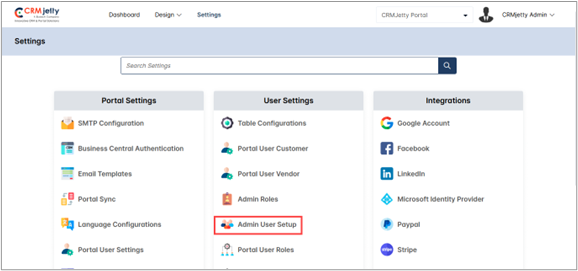
The Super Admin can add multiple sub-Admin users for different responsibilities. To do so navigate to Settings > User Setting > Admin Users Setup. [1]
Note:. This setup applies only to the Admin portal. Super Admin and sub-Admin with Admin user setup rights can add new users
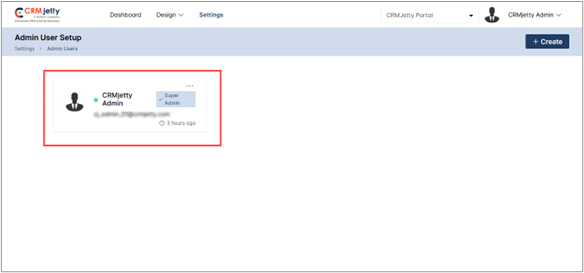
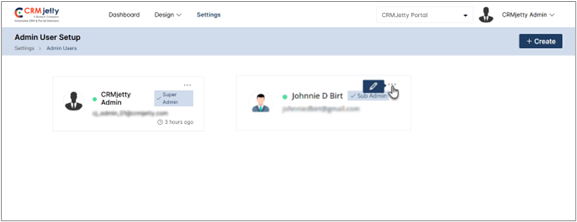
Admin User Card: On the Admin user page, the Admin will be able to see the card view with the below-mentioned details. [2]
Name
Role
Email ID
Last login information
The Super Admin can assign different roles to various sub-Admin users. To add a new sub Admin follow these steps:
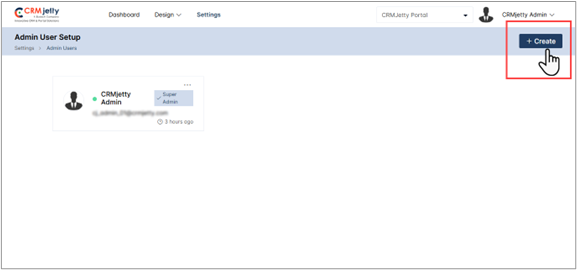
– Create New User: Click on the “Create” button to add a new Admin user.[3]
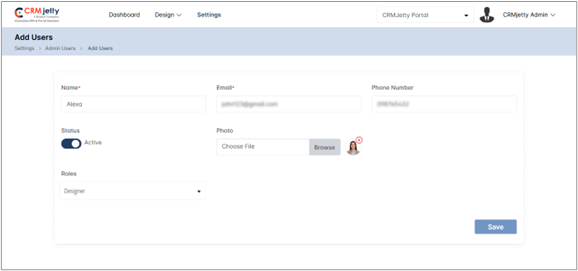
– Enter User Details: By entering the following details super Admin can configure the sub Admin user:
– Name: Enter a unique name for the sub-Admin user.
– Email: Enter a registered email ID for sub-Admin.
– Phone No: Add a support contact number for assistance. (Optional)
– Status: Click on the toggle button to set the user as “Active” or “Inactive.”
– Photo: Upload the profile photo for identification. (Optional)
– Roles: Select a role for the sub-Admin from the drop-down menu. [4]
– Note: The super Admin can create roles from the “Admin Roles” panel, and any roles created there will appear in the Roles drop-down. By default, the ‘Admin‘ and ‘Sub-Admin‘ roles are available.
– Note: Sub-Admin users who have rights to add a new user can only add users. Sub-Admin with the rights to add new users can only add users and cannot modify their own permissions.
Edit Sub-Admin User
– To update a sub Admin ’s details, click the three dots (…) in the card view, click on the “Edit” icon to be redirected to the edit page. [5]
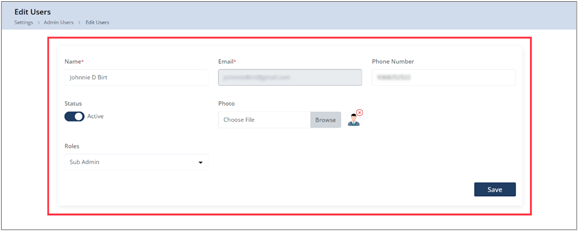
– Here Admin can view the “Edit” button by clicking on the edit button, Admin is redirected to the edit page. [6]
Note: The Super Admin cannot modify the sub-Admin’s email address during editing
Portal Data Sync
The Portal Sync feature ensures that the CRMJetty Admin portal stays updated with the latest data from the Admin Business Central system. This means that whenever the Admin updates Tables or modifies specific data within the Business Central, it’s essential to synchronize with the portal to maintain data consistency.
Admin can perform synchronization using options like Table Level Sync for syncing Business Central data at a Table level, or Portal-Level Table Sync to synchronize specific portal Tables. They also have the flexibility to Sync All Tables at once or Sync Specific Tables based on their requirements.
To synchronize the Business Central data, the Admin should navigate to Settings > Portal Settings > Portal Sync. [1]
Portal Sync Options:
On the Portal Sync page, the Admin has access to three key synchronization options:
– Table Level Sync
– Portal-level Table Sync
– Sync All Tables
– Sync Specific Tables
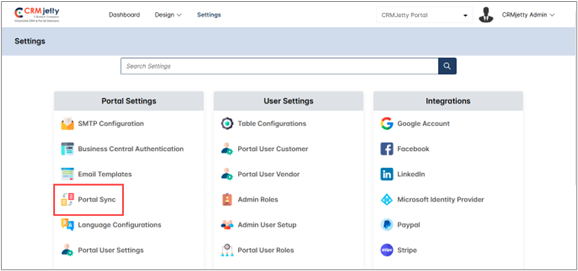
Table Level Sync
If Admin have made any changes at the table level from Business Central
The Admin should use this “Table level Sync” option if the Admin modifies the structure or any Tables (like currency or Country/region, etc.) in the Business Central system.
If the Admin performs such operations as adding new fields, modifying existing ones, or even deleting fields. So the Admin needs to use this Table sync option.
The Admin can perform the Table level sync by clicking on the “Business Central Sync” button that is shown in the screenshot. [2]
Once the Table syncs successfully, the Admin can view the success toggle message on the right side of the page.
![Table Level Sync [2]](https://docs.crmjetty.com/wp-content/uploads/2026/02/Table-Level-Sync-2.png "Table Level Sync [2]")
Portal-level Tables Sync
This feature allows Admin to update portal data based on changes made at the table level in the Business Central system. When Tables or specific fields are modified within the Business Central, Admin needs to synchronize those updates to the portal using this feature.
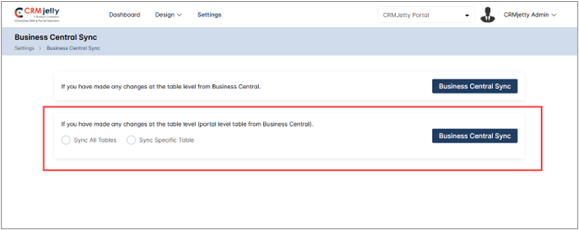
There are two synchronization options available: [3]
Sync All Tables
This option allows Admin to sync all Table-level data to the CRMJetty portal in one action, ensuring that all Tables are updated simultaneously.
To perform this sync, select the Sync All Table radio button and click the Business Central Sync button. [3]
Sync Specific Tables
Instead of syncing all tables, Admin can choose to sync specific Tables (e.g., currency or Country/region). This is useful when changes are limited to one or a few tables, allowing for targeted updates without affecting other data.
To perform this sync, select the Sync Specific table radio button.
A Select Table to Sync dropdown will appear. Choose the specific Table to update, and then click the Business Central Sync button. [4]
Note: The synchronization process may take a few minutes. Please avoid logging out or making changes in the Business Central system during this time.
![Sync All Tables [3]](https://docs.crmjetty.com/wp-content/uploads/2026/02/Sync-All-Tables-3.png "Sync All Tables [3]")
![Sync Specific Table [4]](https://docs.crmjetty.com/wp-content/uploads/2026/02/Sync-Specific-Table4.png "Sync Specific Table [4]")
Admin Theme Customization
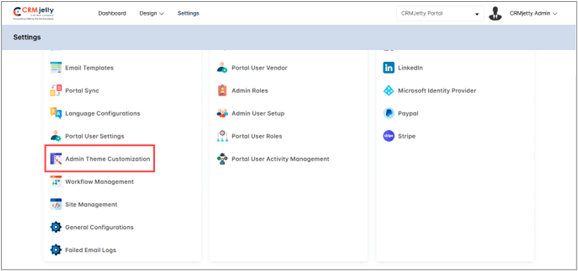
Admin can customize the theme colors, font style, and font colors by navigating to Settings > Portal Setting > Admin Theme Customize Theme Elements: [1]
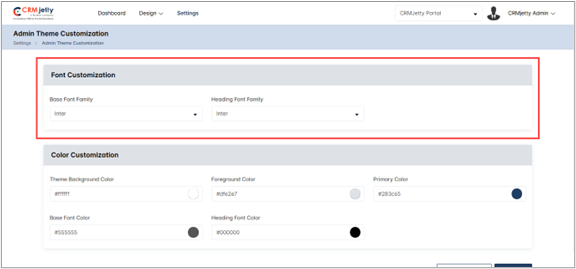
Customize Theme Elements:
– Base Font Family: Choose a font for the main body text and menus
– Title/Heading Font Family: Choose a font for all the headings and titles throughout the portal. [2]
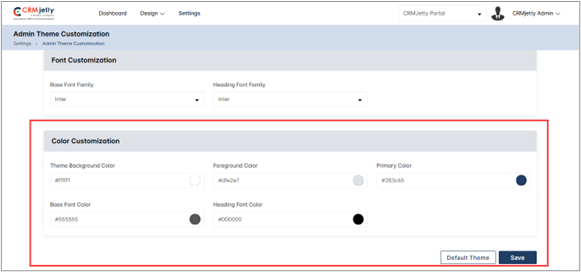
Color Customization:
– Theme Background Color:Choose a background color for the overall body of the portal.
– Foreground Color: Select a background color for content areas.
– Primary Color: Choose a primary color used throughout the portal, including text and icons.
– Base Font Color: Choose a color for the body text and main content descriptions.
– Base Font Color: Choose a color for the body text and main content descriptions.
Click the Save button to apply the theme and font updates. To revert to the default theme settings, click the Default Theme button.[3]
General Configurations
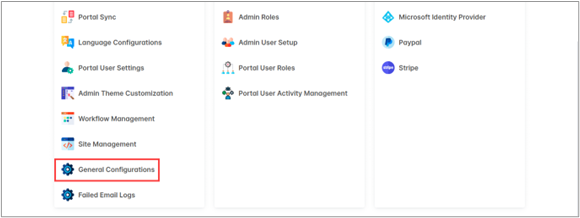
Admin can customize the portal’s name, logo, and favicon through the General Settings. To do this, navigate to Settings > Portal Settings > General Settings. [1]
Admin can set the Admin portal by entering the following details:
– Portal Name: Enter the name of the Admin portal.
– Portal Admin Language: Set the Admin portal language. This language will be used across the portal.
– Portal Logo : Upload a logo that will be displayed in the top left corner of the Admin interface.
– Portal Favicon: Upload a favicon that will be shown in the browser tab for the Admin interface.[2]
– Base Font Color: Choose a color for the body text and main content descriptions.
Click the Save button to apply the theme and font updates. To revert to the default theme settings, click the Default Theme button.[3]
![Admin Portal Logo & Favicon Icon [2]](https://docs.crmjetty.com/wp-content/uploads/2026/02/Admin-Portal-Logo-Favicon-Icon2.png "Admin Portal Logo & Favicon Icon [2]")
Email Templates
The CRMJetty portal allows the Admin to manage various email templates for different actions . To configure these templates, the Admin should navigate to Settings > Portal Setting > Email Templates. [1]
Viewing and Managing Email Templates
CRMJetty portal provides 11 types of email action templates as follows:
– Customer Approve: Notifies Customer your portal access is approved.
– Vendor Approve: Notifies Vendor your portal access is approved.
– Customer Confirm Email: Send email confirmation link to customer.
– Vendor Confirm Email: Send email confirmation link to vendor.
– Customer Registration: Send set password link to customer.
– Vendor Registration: Send set password link to vendor.
– Admin Registration: Send the set password to the admin user.
– Forgot Password : Send the reset password link to the user.
– Portal Login OTP : Send portal login OTP to the user.
– Forgot User Name: Helps the user to recover their username via email.
Create New Template :
To add a new template:
– Click the Create button to open the Create Email Template page. The Admin can add multiple templates for a single action. [3]
– Fill in the required details:[4]
– Name: Enter a template name to identify the email action.
– Subject: Enter the subject of the email.
– Status: Set the template as ‘Active’ or ‘Inactive’.
– Email Action: Select the action from the drop-down menu.
Note: The email actions are pre-defined, super Admin can not add more action in the drop-down.
– Body: In the email body the Admin needs to write the email content also the Admin can use editing options for formatting.
– Admin needs to enter the required parameters in the description box that is shown below the email body.
Note: Based on the email actions the parameters will be shown.
For example: Admin creates a new template for “Approved Customer User” then the Admin is required to add the following parameters. [4]
– [FULLNAME]: It will be replaced with the portal user’s “First Name”.
– [PORTALNAME]: It will be replaced with Portal Name.
Note: Ensure all mandatory parameters are included in the template for each action.
– After completing the template, click Save. A pop-up message will appear: “Old email will be inactive once the Admin activates this template.” Click OK to activate the new template, which will deactivate the previous one. [5]
Note: If Admin creates a new template for the same action, the previous template will automatically become inactive. Admin users can select the templates in the Form widget configuration.
Editing an Email Template :
Admin can modify default email templates by:
– Clicking the three dots (…) next to the template on the listing page.
– Selecting Edit to open the Edit Template page. [6]
– Editing the Name, Action, Subject, and Description fields as needed. [7]
Note: The email action type and status cannot be edited.
Deleting an Email Template :
To delete an email template:
– Select the email template listing page.
– Click Delete action from dropdown. A warning pop-up will appear. [8]
– Click OK to permanently delete the template, or Cancel to keep it. [9]
Note: Only active templates can be deleted from the portal.
![Email Templates [1]](https://docs.crmjetty.com/wp-content/uploads/2026/02/Email-Templates1.png "Email Templates [1]")
![Templates list [2]](https://docs.crmjetty.com/wp-content/uploads/2026/02/Templates-list-2.png "Templates list [2]")
![Create a New Template [3]](https://docs.crmjetty.com/wp-content/uploads/2026/02/Create-a-New-Template-3.png "Create a New Template [3]")
![Add Template Details [4]](https://docs.crmjetty.com/wp-content/uploads/2026/02/Add-Template-Details-4.png "Add Template Details [4]")
![Warning Message [5]](https://docs.crmjetty.com/wp-content/uploads/2026/02/Warning-Message-5.png "Warning Message [5]")
![Edit Email Template [6]](https://docs.crmjetty.com/wp-content/uploads/2026/02/Edit-Email-Template6.png "Edit Email Template [6]")
![Edit Email Template [7]](https://docs.crmjetty.com/wp-content/uploads/2026/02/Edit-Email-Template-7.png "Edit Email Template [7]")
![Delete Email Template [8]](https://docs.crmjetty.com/wp-content/uploads/2026/02/Delete-Email-Template-8-1.png "Delete Email Template [8]")
![Delete Confirmation [9]](https://docs.crmjetty.com/wp-content/uploads/2026/02/Delete-Confirmation-9.png "Delete Confirmation [9]")
Portal User Settings
The Admin can design a “Form” and “List” for the portal users(Vendor and Customer) from the Portal User Settings. This Form and List will be shown to the users who are added by the Admin from the backend.
By using this form, Admin can directly add portal users from the backend.
To design a List and Form the Admin will navigate to Settings > Portal Setting > Portal User Settings [1]
First select the user type from “Select User Type”. Both vendor and customer have different roles and permission.[2]
Note: The form and list will be displayed in the Admin backend only.
List Page:
The Admin can see all the “List” fields on the right side of the page, to create a “List” the Admin can search for fields or simply drag and drop them to the page. [3]
Note: The Admin cannot remove the required fields. If the Admin is trying to remove it, they have shown a toggle message on the right side of the page.
Form Page:
The Admin can add/Edit the portal user form for the customer portal, for that click on the Add/Edit radio button which is highlighted on the image. [4]
To design a form the Admin can follow Add Section > Add Grid > Add Fields.
Add Section: On the left side of the page, the Admin can view the sections and by clicking on the “+” icon the Admin can add a new section as shown in the mentioned screenshot. [5]
Add Grid: After adding the section the Admin needs to select the grid, for that, the Admin needs to click on the “Add Grid” button as shown in the mentioned screenshot. [6]
By clicking on the button, the Admin can view the different grid options, when selecting the grid it will directly add to the selected section as shown in the below screenshot. [7]
Add fields: After adding the grid the Admin adds fields to the grid, the Admin needs to drag and drop the fields to the section as shown in the screenshot. [8]
Note: The grid supports only one field per box. Admin should ensure the sections are designed accordingly.
Once the form design is complete the Admin needs to click on the “Save” button. The Admin can also view the form by clicking on the “Save & Preview” button. [9]
Preview:
When the Admin adds a portal user through the Admin Portal, the configured form and list will be displayed.
To view form and List Navigate to the Settings > User Setting > Portal User Setup section, where the Admin can view the form and list that have been previously configured. [10] [11]
![Portal User Settings [1]](https://docs.crmjetty.com/wp-content/uploads/2026/02/Portal-User-Settings-1.png "Portal User Settings [1]")
![Select User Type [2]](https://docs.crmjetty.com/wp-content/uploads/2026/02/Select-User-Type-2.png "Select User Type [2]")
![Portal User List [3]](https://docs.crmjetty.com/wp-content/uploads/2026/02/Portal-User-List-3.png "Portal User List [3]")
![Add_Edit [4]](https://docs.crmjetty.com/wp-content/uploads/2026/02/Add_Edit-4.png "Add_Edit [4]")
![Add Section [5]](https://docs.crmjetty.com/wp-content/uploads/2026/02/Add-Section-5.png "Add Section [5]")
![Add Grid [6]](https://docs.crmjetty.com/wp-content/uploads/2026/02/Add-Grid-6.png "Add Grid [6]")
![Select section [7]](https://docs.crmjetty.com/wp-content/uploads/2026/02/Select-section-7.png "Select section [7]")
![Add Fields [8]](https://docs.crmjetty.com/wp-content/uploads/2026/02/Add-Fields-8.png "Add Fields [8]")
![Save Preview [9]](https://docs.crmjetty.com/wp-content/uploads/2026/02/Save-Preview-9.png "Save Preview [9]")
![List Preview [10]](https://docs.crmjetty.com/wp-content/uploads/2026/02/List-Preview-10-1.png "List Preview [10]")
![Form Preview [11]](https://docs.crmjetty.com/wp-content/uploads/2026/02/Form-Preview-11-1.png "Form Preview [11]")
Portal User Role
Admin can set permissions that determine what actions portal users(Vendor & Customer) can perform and what information they can access within a system.
To role for the portal user navigate to Settings > User Setting > Portal User Roles.[1]
Creating a Role:
On the portal user role page, the Admin can view the pre-existing “Default” role which is set up with standard permissions and access controls. [2]
Admin can modify that default role or add a new role. To add a new role Admin needs to click on the “Create” button. [3]
The Admin can see all the “List” fields on the right side of the page, to create a “List” the Admin can search for fields or simply drag and drop them to the page. [3]
– By clicking on the create button the Admin will be redirected to the “Add Role” page where they can see the below-mentioned fields.
– Role Name: Enter the name for the role.
– Status: Select the status role “active” and “inactive”.
– Is Default: Enable this toggle to set this role as a default.
– Role Type : Select the role type “Vendor” or “Customer”.
– Description: Provide a short description for the role.
Table Permissions:
After adding basic details, the Admin can manage table permissions for portal users by defining their roles. To define the role the Admin needs to follow below steps:
– Table: Admin can view the Business Central portal tables names.
– View: By clicking on the “View” checkbox Admin allowed the portal user to view this particular table.
– Relationship Type: The Admin can set the relationship type for the portal user.
– Add: Click the checkbox to allow portal users to add data.
– Edit: Click the checkbox to allow portal users to edit data.
– Delete: Click the checkbox to allow portal users to delete data.
– Enable Logs: Click the checkbox to record the logs for the following permission.[4]
Edit Role:
– To edit a portal role, navigate to the portal role list and click the three dots (…). This will show the Edit icon. Clicking the icon will redirect to the edit role page. [5]
– Admin can update all the details and after updating the details click on the “Save” button.
Delete Role:
– To Delete a portal role, navigate to the portal role list and click the three dots (…). [6]
– By clicking on the dots the Admin can see the Delete button and by clicking on that they can see one warning (pop-up) message. [7]
– Click on the “Ok” button and the role will be permanently deleted from the portal.
– Note: Default roles cannot be deleted.
Replace Role:
– The Admin can replace a role assigned to users (contacts) with another role from the list of portal user roles.
– To replace the role the Admin needs to click on the “Replace Role” icon from the (…) dots. [8]
– Then one pop-up will appear that allows the Admin to select a new role from the drop-down list. Once the Admin chooses a new role, it will replace the current role and be assigned to all contacts (portal users). [9]
Set as Default Role:
– The Admin can set the default role with another role from the list of portal user roles.
– To set a default role, the Admin needs to click on the “Default Role” icon from the (…) dots. [10]
– When the default button is clicked, a warning pop-up will appear with the warring message. Admin can either click “OK” to confirm, which will replace the default role with the selected one, or click “Cancel” to keep the current default role unchanged.
– After the default role is changed, the Admin can view the “Is Default” status set to “Yes”. [11]
![Portal User roles [1]](https://docs.crmjetty.com/wp-content/uploads/2026/02/Portal-User-roles1.png "Portal User roles [1]")
![Default Roles [2]](https://docs.crmjetty.com/wp-content/uploads/2026/02/Default-Roles2.png "Default Roles [2]")
![Create Portal User Roles [3]](https://docs.crmjetty.com/wp-content/uploads/2026/02/Create-Portal-User-Roles-3.png "Create Portal User Roles [3]")
![Create Role [3]](https://docs.crmjetty.com/wp-content/uploads/2026/02/Create-Role3.png "Create Role [3]")
![Tables [4]](https://docs.crmjetty.com/wp-content/uploads/2026/02/Tables-4.png "Tables [4]")
![Edit Roles [5]](https://docs.crmjetty.com/wp-content/uploads/2026/02/Edit-Roles5.png "Edit Roles [5]")
![Delete Role [6]](https://docs.crmjetty.com/wp-content/uploads/2026/02/Delete-Role6.png "Delete Role [6]")
![Delete Role [7]](https://docs.crmjetty.com/wp-content/uploads/2026/02/Delete-Role-7.png "Delete Role [7]")
![Replace Role [8]](https://docs.crmjetty.com/wp-content/uploads/2026/02/Replace-Role-8.png "Replace Role [8]")
![Replace Role [9]](https://docs.crmjetty.com/wp-content/uploads/2026/02/Replace-Role9.png "Replace Role [9]")
![Set Default [10]](https://docs.crmjetty.com/wp-content/uploads/2026/02/Set-Default10-1.png "Set Default [10]")
![Warning message [11]](https://docs.crmjetty.com/wp-content/uploads/2026/02/Warning-message-11-1.png "Warning message [11]")
Portal Customer User Setup
Portal Customer User Setup involves configuring and managing settings for customers who access the portal. This setup ensures that Customers have the appropriate access, permissions, and functionality needed for their roles within the portal.
To manage the portal users the admin will navigate to Settings > User Setting > Portal User Customer. [1]
On the Portal user setup page, the admin can view contact information which is created in the below-mentioned ways,
– Contact created from the Business Central.
– Contact created from the Admin portal
– Contacts that are registered from the Website.
To create a new contact from the Admin portal the admin needs to click on the “Create” button. [2]
Create Contact:
– After clicking on the “Create” button admin will be redirected to the Create Contact page.
– Enter the Portal Contact Details
Note: The “portal contact details” form will be shown as per the admin created in the portal user settings. [3]
– The admin needs to enter all the mandatory details to create a contact.
Note: If the admin won’t select any role from the “Role” lookup list, so the contact will be created as “Default”
– Once the admin fills all the information then they need to click on the “Save” button. By clicking on the save button the created contact will not receive any verification link.
Note: If saved as Not Approved, the admin can later approve and generate credentials from the contact’s listing page.
– If the admin clicks on the “Save & Generate credential” option, the created contact will receive an email with the verification link. [4]
Bulk Update
– CRMJetty Portal Approval: If the ‘User approval’ flow is enabled then admin approval is required after registration. Consider the below cases for approval.
– Case-1: The admin needs to select the Contact from the list manually (they can select one or multiple contacts) and click on the bulk action checkbox so they will be able to see the Approve button to send the verification link the admin needs to click on the approve button. (credentials pending). [5]
– Case-2: Select Approved and click Save & Generate Credentials to approve and generate credentials, sending an access link via email. [6]
Note: Only admin users with access can add contacts
– Enabling Portal Users: To give contacts access to the portal, the admin can use the ‘Enable’ option to approve the portal user.
Generate Credentials:
– The admin needs to select the Contact from the list manually.
– Use the Bulk Action drop-down menu to select “Enable” for the contacts. This can include both newly added contacts and those previously disabled.[7]
– After clicking the “Enable” button, a pop-up will appear. In this pop-up, the Admin needs to select the role to assign the same role permissions to the user. Once the role is selected, click the “Save” button. [7.2]
– In the compilation process, a popup will display the summary report for below-mentioned detail. [7.3]
– Selected User
– Disabled Users
– Conversion Pending
– Disabling Portal Users: With use of this feature admin can temporarily remove portal access by disabling user accounts.
– To disable the accounts, Admin needs to Select the contacts that need to be disabled from the portal.
– From the Bulk Actions drop-down menu, select “Disable.” button [8]
– A popup will display the summary report for below-mentioned detail. [9]
– Selected User
– Disabled Users
– Conversion Pending
– Assigning New Roles : If an admin needs to assign a new role to contacts then they can use the “Role New Assign” option.
– The admin needs to Select the contacts that need to assign a new role.
– From the Bulk Actions drop-down menu, select “Assign New Role.” [10]
– Open the Assign New Role popup.
– Choose the new role the admin wishes to assign.
– Click “Save” to assign a role for the selected contact. [11]
– Sending Password Link: The admin uses this option to send a password reset link to contacts so they can update their credentials.
– The admin needs to Select the contacts that need a password reset link.
– From the Bulk Actions drop-down menu, select “Send Password Link.” [12]
– A popup will appear showing the status of the password link delivery status.
– Assign New Sites: If the admin needs to assign new sites or multi-sites to customer users, the admin can use the “Assign New Site” option.
– Select the Customer user that needs to assign new sites.
– Select the assign new site option from the bulk action dropdown.[13]
– A dropdown list appears in the Assigned Sites column.
– Select the site and click on Save button. Admin can assign multiple sites to a single user. [14]
Edit Contact:
To edit a portal user, navigate to the portal user list and click the three dots (…). This will show the Edit icon. Clicking the icon will redirect to the portal user edit page. [15]
Admin can update all the details and after updating the details click on the “Save” button. [16]
Delete Contact:
To Delete a portal user, navigate to the portal user list and click the three dots (…). By clicking on the dots the admin can see the Delete icon and by clicking on that they can see one warning (pop-up) message. [17]
Click on the “Ok” button and the role will be permanently deleted from the portal. [18]
Admin can also delete users from the bulk action dropdown.
![Create Portal Customer User [2]](https://docs.crmjetty.com/wp-content/uploads/2026/02/Create-Portal-Customer-User-2.png "Create Portal Customer User [2]")
![Profile Details [3]](https://docs.crmjetty.com/wp-content/uploads/2026/02/Profile-Details-3.png "Profile Details [3]")
![Save & Generate Credentials [4]](https://docs.crmjetty.com/wp-content/uploads/2026/02/Save-Generate-Credentials-4.png "Save & Generate Credentials [4]")
![Approve Portal Customer User [5]](https://docs.crmjetty.com/wp-content/uploads/2026/02/Approve-Portal-Customer-User-5.png "Approve Portal Customer User [5]")
![Approve and Generate Credentials [6]](https://docs.crmjetty.com/wp-content/uploads/2026/02/Approve-and-Generate-Credentials-6.png "Approve and Generate Credentials [6]")
![Enable Customer user [7]](https://docs.crmjetty.com/wp-content/uploads/2026/02/Enable-Customer-user-7.png "Enable Customer user [7]")
![Assign Role [7.2]](https://docs.crmjetty.com/wp-content/uploads/2026/02/Assign-Role-7.2.png "Assign Role [7.2]")
![Enable Report [7.3]](https://docs.crmjetty.com/wp-content/uploads/2026/02/Enable-Report-7.3.png "Enable Report [7.3]")
![Disable User [8]](https://docs.crmjetty.com/wp-content/uploads/2026/02/Disable-User-8.png "Disable User [8]")
![Disable Report [9]](https://docs.crmjetty.com/wp-content/uploads/2026/02/Disable-Report-9.png "Disable Report [9]")
![Assign New Role [10]](https://docs.crmjetty.com/wp-content/uploads/2026/02/Assign-New-Role-10.png "Assign New Role [10]")
![Select New Role [11]](https://docs.crmjetty.com/wp-content/uploads/2026/02/Select-New-Role-11.png "Select New Role [11]")
![Send Password Link [12]](https://docs.crmjetty.com/wp-content/uploads/2026/02/Send-Password-Link-12.png "Send Password Link [12]")
![Assign Sites [13]](https://docs.crmjetty.com/wp-content/uploads/2026/02/Assign-Sites-13.png "Assign Sites [13]")
![Assign New Sites [14]](https://docs.crmjetty.com/wp-content/uploads/2026/02/Assign-New-Sites-14.png "Assign New Sites [14]")
![Edit Customer User [15]](https://docs.crmjetty.com/wp-content/uploads/2026/02/Edit-Customer-User-15.png "Edit Customer User [15]")
![Edit Details [16]](https://docs.crmjetty.com/wp-content/uploads/2026/02/Edit-Details-16.png "Edit Details [16]")
![Delete Customer User [17]](https://docs.crmjetty.com/wp-content/uploads/2026/02/Delete-Customer-User-17.png "Delete Customer User [17]")
![Delete Pop-up [18]](https://docs.crmjetty.com/wp-content/uploads/2026/02/Delete-Pop-up-18.png "Delete Pop-up [18]")
Portal Vendor User Setup
Portal Vendor User Setup involves configuring and managing settings for Vendors who access the portal. This setup ensures that Vendors have the appropriate access, permissions, and functionality needed for their roles within the portal.
To manage the portal users the admin will navigate to Settings > User Setting > Portal User Vendor. [1]
On the Portal user setup page, the admin can view contact information which is created in the below-mentioned ways,
– Contact created from the Business Central.
– Contact created from the Admin portal
– Contacts that are registered from the Website.
To create a new contact from the Admin portal the admin needs to click on the “Create” button. [2]
Create Contact:
– After clicking on the “Create” button admin will be redirected to the Create Contact page.
– Enter the Portal Contact Details
Note: The “portal contact details” form will be shown as per the admin created in the portal user settings. [3]
– The admin needs to enter all the mandatory details to create a contact.
Note: If the admin won’t select any role from the “Role” lookup list, so the contact will be created as “Default”
– Once the admin fills all the information then they need to click on the “Save” button. By clicking on the save button the created contact will not receive any verification link.
Note: If saved as Not Approved, the admin can later approve and generate credentials from the contact’s listing page.
– If the admin clicks on the “Save & Generate credential” option, the created contact will receive an email with the verification link. [4]
Bulk Update
– CRMJetty Portal Approval: If the ‘User approval’ flow is enabled then admin approval is required after registration. Consider the below cases for approval.
– Case-1: The admin needs to select the Contact from the list manually (they can select one or multiple contacts) and click on the bulk action checkbox so they will be able to see the Approve button to send the verification link the admin needs to click on the approve button. (credentials pending). [5]
– Case-2: Select Approved and click Save & Generate Credentials to approve and generate credentials, sending an access link via email. [6]
Note: Only admin users with access can add contacts
– Enabling Portal Users: To give contacts access to the portal, the admin can use the ‘Enable’ option to approve the portal user.
Generate Credentials:
– The admin needs to select the Contact from the list manually.
– Use the Bulk Action drop-down menu to select “Enable” for the contacts. This can include both newly added contacts and those previously disabled.[7]
– After clicking the “Enable” button, a pop-up will appear. In this pop-up, the Admin needs to select the role to assign the same role permissions to the user. Once the role is selected, click the “Save” button. [7.2]
– In the compilation process, a popup will display the summary report for below-mentioned detail. [7.3]
– Selected User
– Disabled Users
– Conversion Pending
– Disabling Portal Users: With use of this feature admin can temporarily remove portal access by disabling user accounts.
– To disable the accounts, Admin needs to Select the contacts that need to be disabled from the portal.
– From the Bulk Actions drop-down menu, select “Disable.” button [8]
– A popup will display the summary report for below-mentioned detail. [9]
– Selected User
– Disabled Users
– Conversion Pending
– Assigning New Roles : If an admin needs to assign a new role to contacts then they can use the “Role New Assign” option.
– The admin needs to Select the contacts that need to assign a new role.
– From the Bulk Actions drop-down menu, select “Assign New Role.” [10]
– Open the Assign New Role popup.
– Choose the new role the admin wishes to assign.
– Click “Save” to assign a role for the selected contact. [11]
– Sending Password Link: The admin uses this option to send a password reset link to contacts so they can update their credentials.
– The admin needs to Select the contacts that need a password reset link.
– From the Bulk Actions drop-down menu, select “Send Password Link.” [12]
– A popup will appear showing the status of the password link delivery status.
– Assign New Sites: If the admin needs to assign new sites or multi-sites to Vendor users, the admin can use the “Assign New Site” option.
– Select the Vendor user that needs to assign new sites.
– Select the assign new site option from the bulk action dropdown.[13]
– A dropdown list appears in the Assigned Sites column.
– Select the site and click on Save button. Admin can assign multiple sites to a single user. [14]
Edit Contact:
– To edit a portal user, navigate to the portal user list and click the three dots (…). This will show the Edit icon. Clicking the icon will redirect to the portal user edit page. [15]
– Admin can update all the details and after updating the details click on the “Save” button. [16]
Delete Contact:
– To Delete a portal user, navigate to the portal user list and click the three dots (…). By clicking on the dots the admin can see the Delete icon and by clicking on that they can see one warning (pop-up) message. [17]
– Click on the “Ok” button and the role will be permanently deleted from the portal. [18]
– Admin can also delete users from the bulk action dropdown.
![Portal User Vendor [1]](https://docs.crmjetty.com/wp-content/uploads/2026/02/Portal-User-Vendor-1.png "Portal User Vendor [1]")
![Create Portal Vendor User [2]](https://docs.crmjetty.com/wp-content/uploads/2026/02/Create-Portal-Vendor-User-2.png "Create Portal Vendor User [2]")
![Profile Details [3]](https://docs.crmjetty.com/wp-content/uploads/2026/02/Profile-Details-3.1.png "Profile Details [3]")
![Save & Generate Credentials [4]](https://docs.crmjetty.com/wp-content/uploads/2026/02/Save-Generate-Credentials-4.1.png "Save & Generate Credentials [4]")
![Approve Portal Vendor User [5]](https://docs.crmjetty.com/wp-content/uploads/2026/02/Approve-Portal-Vendor-User-5.png "Approve Portal Vendor User [5]")
![Approve and Generate Credentials [6]](https://docs.crmjetty.com/wp-content/uploads/2026/02/Approve-and-Generate-Credentials-6.1.png "Approve and Generate Credentials [6]")
![Enable Vendor user [7]](https://docs.crmjetty.com/wp-content/uploads/2026/02/Enable-Vendor-user-7.png "Enable Vendor user [7]")
![Assign Role [7.2]](https://docs.crmjetty.com/wp-content/uploads/2026/02/Assign-Role-7.2.1.png "Assign Role [7.2]")
![Enable Report [7.3]](https://docs.crmjetty.com/wp-content/uploads/2026/02/Enable-Report-7.3.1.png "Enable Report [7.3]")
![Disable User [8]](https://docs.crmjetty.com/wp-content/uploads/2026/02/Disable-User-8.1.png "Disable User [8]")
![Disable Report [9]](https://docs.crmjetty.com/wp-content/uploads/2026/02/Disable-Report-9.1.png "Disable Report [9]")
![Assign New Role [10]](https://docs.crmjetty.com/wp-content/uploads/2026/02/Assign-New-Role-10.1.png "Assign New Role [10]")
![Select New Role [11]](https://docs.crmjetty.com/wp-content/uploads/2026/02/Select-New-Role-11.1.png "Select New Role [11]")
![Send Password Link [12]](https://docs.crmjetty.com/wp-content/uploads/2026/02/Send-Password-Link-12.1.png "Send Password Link [12]")
![Assign Sites [13]](https://docs.crmjetty.com/wp-content/uploads/2026/02/Assign-Sites-13.1.png "Assign Sites [13]")
![Assign New Sites [14]](https://docs.crmjetty.com/wp-content/uploads/2026/02/Assign-New-Sites-14.1.png "Assign New Sites [14]")
![Edit Vendor User [15]](https://docs.crmjetty.com/wp-content/uploads/2026/02/Edit-Vendor-User-15.png "Edit Vendor User [15]")
![Edit Details [16]](https://docs.crmjetty.com/wp-content/uploads/2026/02/Edit-Details-16.1.png "Edit Details [16]")
![Delete Vendor User [17]](https://docs.crmjetty.com/wp-content/uploads/2026/02/Delete-Vendor-User-17.png "Delete Vendor User [17]")
![Delete Pop-up [18]](https://docs.crmjetty.com/wp-content/uploads/2026/02/Delete-Pop-up-18.1.png "Delete Pop-up [18]")
Portal User Activity Management
The User Activity Management feature allows the admin to track, audit, and manage all portal user actions, including logins and logouts, document views, edits, creations, and deletions, through a centralized admin panel. Each activity is logged with timestamps, user IDs, and action types, ensuring accountability, security, and regulatory compliance. The admin can monitor all user actions from a single, fully searchable module, providing quick insights and easy reporting.
– To manage activities navigate to Settings > User Settings > Portal User Activity Management[1].
All user activities are displayed in a list view. The columns include:
– Activity Type – The action performed by the user.
– Page Name – The page where the activity was performed.
– Table Name – The table accessed by the user.
– Record Name – The name of the record involved in the activity.
– Widget Record – The widget that the user added, removed, or updated.
– Timestamp – The date and time when the activity was performed.
– Performed By – The name of the user who performed the activity.[2]
Admin can filter user activities using advanced filter options. Filters are available for Activity Type, Table Name, and Date Range.
– Click Apply to apply the selected filters.
– Click Reset to clear the filters activities. [3]
Delete:
– To delete a record, click the three dots (…) beside the Performed By column, and then select the Delete icon.[4]
– To delete a record, click the three dots (…) beside the Performed By column, and select the Delete icon. In the confirmation pop-up, click OK to delete or Cancel to abort the operation.[5]
– To delete multiple activities, select the rows and choose Delete from the Bulk Operation dropdown menu. A confirmation pop-up will appear click OK to confirm deletion or Cancel to abort the operation.[6]
![Portal User Activity Management [1]](https://docs.crmjetty.com/wp-content/uploads/2026/02/Portal-User-Activity-Management-1.png "Portal User Activity Management [1]")
![User Activity Management List View [2]](https://docs.crmjetty.com/wp-content/uploads/2026/02/User-Activity-Management-List-View-2.png "User Activity Management List View [2]")
![Filter [3]](https://docs.crmjetty.com/wp-content/uploads/2026/02/Filter-3.png "Filter [3]")
![Delete [4]](https://docs.crmjetty.com/wp-content/uploads/2026/02/Delete-4.png "Delete [4]")
![Delete Pop-up [5]](https://docs.crmjetty.com/wp-content/uploads/2026/02/Delete-Pop-up-5.png "Delete Pop-up [5]")
![Bulk Delete [6]](https://docs.crmjetty.com/wp-content/uploads/2026/02/Bulk-Delete-6.png "Bulk Delete [6]")
Site Management
Admin can create and configure multiple sites for the current portal instance. To manage sites, navigate to Settings > Portal Settings > Site Management.[1]
![Site Management [1]](https://docs.crmjetty.com/wp-content/uploads/2026/02/Site-Management-1.png "Site Management [1]")
Managing Sites
When Admin users log in to the Portal-Admin and authenticate the Business Central, they will see the published sites. The Admin can choose to edit the sites or create a new one. [2]
![Managing Site [2]](https://docs.crmjetty.com/wp-content/uploads/2026/02/Managing-Site-2.png "Managing Site [2]")
Creating a New Site
– Click on the “Create” button on the top-right corner of the screen. [3]
– Configure the following settings in the new site creation form.
![Create Site [3]](https://docs.crmjetty.com/wp-content/uploads/2026/02/Create-Site-3.png "Create Site [3]")
General Settings
In the general settings, the Admin can add basic details such as: [1]
– Name: The name of the portal or system (e.g., CRMJetty).
– Portal Enabled Language: The language in which the portal will be available (e.g., English).
– Default Language: The default language used when no other language preference is set.
– Portal Home Page: The main or landing page of the portal.
– Portal Name: The name of the portal (e.g., Hospital).
– Portal Logo: Upload a logo image for branding, displayed on the portal.
– Portal Favicon: Upload a favicon image that appears in the browser tab.
– Select Company: Select the company to link the portal site.
– Domain: Enter the name of the Domain
– Date Format: The format in which dates will be displayed (e.g., MM/DD/YYYY).
– Time Format: The format in which times will be displayed (e.g., 24-hour or 12-hour).
– Enable User Activity logging : Enable this to log user actions like logging, page visit and form submission.
– Site Under Maintenance: Enable this option to display a maintenance message while the site is being updated.
![General Settings [1]](https://docs.crmjetty.com/wp-content/uploads/2026/02/General-Settings-1.png "General Settings [1]")
reCAPTCHA Configuration
reCAPTCHA helps protect portal pages, forms, and widgets from spam. Admin can configure either reCAPTCHA V2 or V3 to enhance security.[1]
General Settings
– Enable reCAPTCHA: Check the box to enable reCAPTCHA.
– Choose reCAPTCHA Version: Select between reCAPTCHA V2 or V3 based on the security requirement.
reCAPTCHA V2
– Site Key: Used to render the reCAPTCHA on the page.
– Secret Key: Used for secure, server-side validation to verify a user’s interaction with a portal.
– Front-View: Displays an “I’m not a robot” checkbox that users must click to validate.
– Applied To:
– Form widget
– Login widget
– Registration widget
– Forgot Password widget
– Subgrid Forms in the Form Builder
– Visible at the end of forms and widgets where reCAPTCHA V2 is enabled.
reCAPTCHA V3
– Site Key: Used to render the reCAPTCHA on the page.
– Secret Key: Used for secure, server-side validation to verify a user’s interaction with a portal.
– Front-View: Verifies user actions with a score and provides a token automatically.
– Applied To:
– Page
– Form widget
– Login widget
– Registration widget
– Forgot Password widget
– List widget
– Recent Activity widget
– Case Deflection widget
– Chart widget
– Counter widget
– Knowledge Base widget
– Search widget
– Subgrid Forms in the Form Builder
Note: Choose the version that best fits the security needs and apply it to the relevant widgets and pages within the Admin portal.
![reCAPTCHA Settings [1]](https://docs.crmjetty.com/wp-content/uploads/2026/02/reCAPTCHA-Settings-1.png "reCAPTCHA Settings [1]")
Security
Admin can enhance portal security by configuring various login methods.
1. Password Lock : Temporarily locks portal access after a set number of incorrect password attempts.[1]
Configuration:
– No. of Wrong Attempts: Maximum failed login attempts before locking the user.
– Password Lock Timer: Duration of the lockout period.
2. Two Factor Authentication (2FA): Adds an extra security layer by requiring users to verify an OTP sent to their registered email upon login. [2]
Configuration:
– OTP Active Duration: Set the time period for which the OTP is valid.
– No. of Wrong OTP Attempts: Define how many times users can enter incorrect OTPs.
– Set OTP Timer: Set the countdown timer displayed with the OTP in the user’s email.
– Disable Resend OTP: Specify the time period during which users cannot request a new OTP.
3. Email Verification: Sends an email verification link to new portal users to confirm their registration. [3]
– Users logging in with social media accounts (Google, Facebook, Microsoft) will also receive an email verification.
4. User Approval: Requires Admin approval for new portal users, including those authenticated via social media. [4]
5. Custom Password Complexity: Enforces password complexity rules to enhance security. [5]
Configuration :
– Password Range: Set the minimum and maximum length of passwords.
– Character Requirements: Define required character types (uppercase, lowercase, digits, special characters).
– Reset To Default: Reverts the password complexity settings to default values.
Example Password Requirements:
– Length: 8 to 16 characters.
– Uppercase Letter: At least one.
– Lowercase Letter: At least one.
– Digit: At least one.
– Special Character: At least one from the set (!, @, #, $, %, ^, &, *, (, )).
6. Password Expiration: Admin can set password expiration periods. [6]
Options: Never Expire, 1 Day, 2 Days, 1 Month, 3 Months, 6 Months, 1 Year.
Portal Front-End Behavior
When a new contact is created, the Password Update Date field is set to null by default. Depending on the selected password expiration setting, the system will handle password updates as follows:
If “Never Expire” is Selected:
No checks related to password expiration will be performed, providing uninterrupted access without any expiration-related prompts. The following scenarios are excluded from expiration checks:
– User registration via the Register Widget.
– User login via the Login Widget.
– When a user sets a new password.
– During the Forgot Password process.
– When a user updates their password via the Profile Widget.
– User Account Profile updates.
If “Never Expire” is Not Selected:
The portal enforces password expiration through the following procedures:
– Registration via Register Widget:
a. Upon registration, Password Update Date is set to the current date (UTC).
– Login via Login Widget:
– Case 1: If Password Update Date is null, the system sets Password Update Date to the current date and time (UTC) in encrypted format for both the contact and CRM user details upon successful login.
– Case 2: If Password Update Date is not null, the system decrypts and compares it with the configured password expiry duration.
– If Valid: The user is redirected to the Dashboard.
– If Expired: The user is redirected to the Set Password screen. After the user successfully updates the password, the system updates Password Update Date to the current date and time (UTC) in encrypted format for the contact.
– Forgot Password Procedure:
The process follows the same flow as Case 1 and Case 2 mentioned above, ensuring Password Update Date is appropriately set or updated after the password reset.
– Profile Widget Password Update:
After a user successfully updates their password through the Profile Widget, Password Update Date is updated to the current date and time (UTC) in encrypted format for the contact.
Note: During the password update procedure, the new password must be different from the old password. This is enforced across all scenarios, including when resetting or updating passwords.
![Password Lock [1]](https://docs.crmjetty.com/wp-content/uploads/2026/02/Password-Lock-1.png "Password Lock [1]")
![Two Factor Authentication [2]](https://docs.crmjetty.com/wp-content/uploads/2026/02/Two-Factor-Authentication-2.png "Two Factor Authentication [2]")
![Verify Email [3]](https://docs.crmjetty.com/wp-content/uploads/2026/02/Verify-Email-3.png "Verify Email [3]")
![User Approval [4]](https://docs.crmjetty.com/wp-content/uploads/2026/02/User-Approval-4.png "User Approval [4]")
![Custom Password Complexity [5]](https://docs.crmjetty.com/wp-content/uploads/2026/02/Custom-Password-Complexity-5.png "Custom Password Complexity [5]")
![Password Expiration [6]](https://docs.crmjetty.com/wp-content/uploads/2026/02/Password-Expiration-6.png "Password Expiration [6]")
External Logins
Admin can manage external login accounts set up through integrations. The Admin will only see the accounts that have been configured in integrations.[1]
– Google : Enable Google-based authentication.
– Facebook : Configure and connect to Facebook for login integration.
– Microsoft Idtable: Link Admin Microsoft Idtable account for authentication purposes.
– LinkedIn : Setup and connect to LinkedIn for login integration.
![External Logins [1]](https://docs.crmjetty.com/wp-content/uploads/2026/02/External-Logins-1.png "External Logins [1]")
CSS Editor
Admin can add custom CSS for the portal and apply styles to various sections. Adjust class names and CSS properties to customize different sections as needed.[1]
Note: Adjust the class names and CSS properties according to Admin -design preferences to customize different sections and weights.
![CSS Editor [1]](https://docs.crmjetty.com/wp-content/uploads/2026/02/CSS-Editor-1.png "CSS Editor [1]")
JSS Editor
Admin can add custom JSS for the portal and apply styles to various sections. Adjust class names and JSS properties to customize different sections as needed.[1]
![JSS Editor [1]](https://docs.crmjetty.com/wp-content/uploads/2026/02/JSS-Editor-1.png "JSS Editor [1]")
Theme
Admin can customize the site theme according to their requirements.
– Font Customization:
– Base Font Family: Select the font family for general text.
– Heading Font Family: Select the font family for headings. [1]
– Color Customization:
– Theme Background Color: Select the overall background color of the theme.
– Foreground Color: Select the color used for text and other foreground elements.
– Primary Color: Select the color for primary buttons, links, and accents.
– Base Font Color: Select the color for general text content.
– Heading Font Color: Select the color for headings. [1]
– Menu Customization:
– Menu Background Color: Select the background color for the menu.
– Menu Text Color: Select the color of the text in the menu.
– Menu Hover Color: Select the color of the menu item when hovered over.
– Menu Font Size: Adjusts the font size for menu items. (Range: 14 to 30)
– Menu Font Weight: Select the font weight for menu items (e.g., normal, bold).
– Menu Alignment: Aligns the menu items (e.g., left, center, right). [2]
– Submenu Customization:
– Submenu Background Color: Select the background color for the submenus.
– Submenu Text Color: Select the color of the text in the submenu.
– Submenu Hover Color: Changes the color of the submenu item when hovered over.
– Submenu Font Size: Adjust the font size for submenu items. (Range: 14 to 30)
– Submenu Font Weight: Select the font weight for submenu items (e.g., normal, bold). [2]
– Admin can reset the theme to the default settings using the “Reset to Default” button. [3]
![Font & Color Customization [1]](https://docs.crmjetty.com/wp-content/uploads/2026/02/Font-Color-Customization-1.png "Font & Color Customization [1]")
![Menu & Sub-Menu Customization [2]](https://docs.crmjetty.com/wp-content/uploads/2026/02/Menu-Sub-Menu-Customization-2.png "Menu & Sub-Menu Customization [2]")
![Save & Rest To Default [3]](https://docs.crmjetty.com/wp-content/uploads/2026/02/Save-Rest-To-Default-3.png "Save & Rest To Default [3]")
Payment
In the Payment Settings, Admin can select from the payment accounts that have been configured through the Integrations section. Only the accounts set up by the Admin will appear in the dropdown list. [1]
To configure a payment account:
– Open the Payment Settings.
– Choose a payment account from the dropdown menu.
– Click the Save button to apply the selected account.
The selected payment account will now be used for processing transactions in the portal.
![Payment [1]](https://docs.crmjetty.com/wp-content/uploads/2026/02/Payment-1.png "Payment [1]")
Multisite Support
Enable the creation and configuration of multiple branded sites under one portal platform—each with independent content, domain, and access rules. Ideal for managing different partners, regions, or business units from a single centralized admin panel.
– The admin can switch between all associated sites using the dropdown menu in the top-left corner.[1]
– Select the preferred site from the dropdown menu and click on it to switch. When the admin switches between sites, the portal loads the corresponding data accordingly. [2]
![Sites Dropdown [1]](https://docs.crmjetty.com/wp-content/uploads/2026/02/Sites-Dropdown-1.png "Sites Dropdown [1]")
![Site Dropdown [2]](https://docs.crmjetty.com/wp-content/uploads/2026/02/Site-Dropdown-2.png "Site Dropdown [2]")
Workflow Management
The CRMJetty allows the Admin to add rules and set conditions to display specific table data in the front portal or control portal users’ access to certain table data.
To create a workflow Admin needs to navigate to Settings > Portal Setting > Workflow Management. [1]
Viewing Workflows
By clicking on “Workflow Management”, the Admin will be navigated to the listing page, where the Admin can view, search, and filter workflows by Action Type, Table, Owner and Date. [2]
Creating a Workflow:
To create a new workflow, click on the “+ Create” button, which will redirect the Admin to the Create Workflow page. On this page, the Admin needs to configure the following details:
– Title: Enter a name for the workflow for easy identification.
– Roles: Choose the roles that this workflow will apply to. Admin can multi-select roles.
– Table: Select the table to which the conditions will apply.(e.g. Currency, Customer)
– Action Type: The Admin can choose the action type between Load Data and Update Assign Rights. [3]
Action Types:
– Load Data: This action allows the Admin to filter and display only specific table data in the customer/vendor portal.
– Data will be sorted and displayed in various formats (e.g., List view, Data card, Recent Activity, etc.) based on the rules Admin set.
– Select the fields, operators, and values to determine the data that portal users can view. [4]
– Update Assigned Rights: This action type is used to manage portal users access rights (Edit, View, Delete) based on conditions. [5]
– For example: The Admin can restrict delete rights for certain records by setting specific conditions
Setting Workflow Conditions:
After selecting an action type, the Admin can set conditions based on the specific fields.
Admin can add multiple condition rules, the Admin can ensure that portal users see data or have access rights only when specific conditions are met. [6]
Enabling Workflows
– To apply a workflow to a page, navigate to Design > Page, open the page in Edit mode, configure the widget, and enable the workflow.
– Admin can apply workflows to various widgets like Chart, Counter, Data Card, etc.
– Admin can assign workflows to a page by navigating to Design > Page. First, the Admin should configure the appropriate widget on the page and ensure that the workflow is enabled.
– Workflows can be applied to various widgets, including Charts, Counters, Data Cards, and more.
Workflows in Forms and List Builders
– Workflows can also be assigned at the field level in forms and list builders, particularly for lookup-type fields. Ensure that the lookup field is related to a table with an active workflow.
Widget Classification
– Widgets may support either “Load Data Workflow” or both “Load Data” and “Update Assigned Rights” workflows:
– Load Data Only: Supported by Charts, Counters, Knowledge Base, and Case Deflection widgets.
– Both Workflows: Supported by Lists, Data Cards, Recent Activity, and Forms widgets.
![Workflow Management [1]](https://docs.crmjetty.com/wp-content/uploads/2026/02/Workflow-Management-1.png "Workflow Management [1]")
![View Workflow [2]](https://docs.crmjetty.com/wp-content/uploads/2026/02/View-Workflow-2.png "View Workflow [2]")
![Create Workflow [3]](https://docs.crmjetty.com/wp-content/uploads/2026/02/Create-Workflow-3.png "Create Workflow [3]")
![Load Data Action Type [4]](https://docs.crmjetty.com/wp-content/uploads/2026/02/Load-Data-Action-Type-4.png "Load Data Action Type [4]")
![Update Assigned Rights [5]](https://docs.crmjetty.com/wp-content/uploads/2026/02/Update-Assigned-Rights-5-1.png "Update Assigned Rights [5]")
![Workflow Condition [6]](https://docs.crmjetty.com/wp-content/uploads/2026/02/Workflow-Condition-6-1.png "Workflow Condition [6]")
Table Configuration
The Admin can enable or disable a table in the portal using the Table Configuration feature. Table configuration is necessary when the Admin adds a new table to the Business Central. To enable the table for the portal, select specific Business central tables and drag and drop them into the Portal Table section.
Note: Before configuring the table, Admin must first sync the Business Central with the portal.
Enabling or Disabling a tables
To sync a table, navigate to Settings > User Settings > Table Configurations. [1]
In this section, Admin can drag and drop “BC Tables” into the “Portal Tables” section to sync them between the BC and the portal.
Admin can search for a BC table by name or manually drag and drop it into the portal table section.
Once the configuration is complete, click the “Save” button to add the BC table to the portal.[2]
If an Admin wants to remove a table from the portal, they can simply drag and drop the portal table into the BC table list. This action will remove access to that specific data through the portal.
Note: If an Admin removes a table from the portal, it will no longer be accessible through the portal. Additionally, this specific table cannot be used in lists, forms, pages, etc. However, certain tables like currency or customer cannot be removed, as they are primary tables required to manage the portal.
![Table Configurations [1]](https://docs.crmjetty.com/wp-content/uploads/2026/02/Table-Configurations-1.png "Table Configurations [1]")
![Drag and drop table [2]](https://docs.crmjetty.com/wp-content/uploads/2026/02/Drag-and-drop-table-2.png "Drag and drop table [2]")
Language Configurations
Admin can manage and customize the languages used in the portal to ensure it meets users preferences. To set up languages for the customer portal, follow these steps:
– Navigate to Language Configuration:
Go to Settings > Portal Settings > Language Configuration. [1]
– Enable Multi-language Support:
– On this page, Admin can enable multi-language support for the portal. CRMJetty Portal provides support for 41 languages. [2]
Note: In Business Central language only shows the language which is enabled into the Business Central system
The list of available languages includes:
○ English
○ Arabic
○ Basque
○ Bulgarian
○ Catalan
○ Chinese (Hong Kong S.A.R.)
○ Croatian
○ Czech
○ Danish
○ Dutch
○ Estonian
○ Finnish
○ French
○ Galician
○ German
○ Greek
○ Hebrew
○ Hindi
○ Hungarian
○ Indonesian
○ Italian (Italy)
○ Japanese
○ Kazakh
○ Korean
○ Latvian
○ Lithuanian
○ Malay – Malaysia
○ Norwegian (Bokmål)
○ Polish
○ Portuguese – Brazil
○ Romanian
○ Russian
○ Serbian (Cyrillic)
○ Slovak
○ Slovenian
○ Spanish – Spain (Modern Sort)
○ Swedish
○ Thai
○ Turkish
○ Ukrainian
○ Vietnamese
Admin can enable any of these languages in the portal by dragging and dropping the respective language from the Business Central Languages section to the CRMJetty portal Languages section. [3]
– Save Configurations:
After making the necessary changes, click on the Save button. [4]
Note: English is the default language and cannot be disabled.
Multi-Language
Navigating to Multi Language, Admin will be able to configure the labels for multiple languages. [5]
The first step is to Select Language for the respective labels. [6]
Further, choose Portal, CRM or Admin from the dropdown menu of Select Language Label.
– Portal: Select this option in order to change the label in the portal. [7]
– Once Admin selects this option then Admin will get the list of the default text of the message which is currently displayed in the portal. [8]
– On the right side Admin will get the value tab. Admin can insert the translated value of the default text on the left side. [9]
– CRM: If Admin selects this option then Admin can change the language for all the text labels present in that CRM.
– After selecting CRM select the Table from dropdown to translate selected language.[10]
– For example: we have selected Contact CRM.
Now all the default text in the case CRM will be loaded below.
– Admin: If Admin selects this option then Admin can change the language for all the text labels present in that CRM. [11]
Admin can insert the translated value for the default text on the left side.
Import Text labels:
Admin can also import translated text labels:
1. Export Template
First, the Admin needs to click on the Export Template button. The template file will be downloaded into the Admin system. [13]
1. Export Template
First, the Admin needs to click on the Export Template button. The template file will be downloaded into the Admin system. [13]
2. Add Translations:
The template file will have information like Text Key, Default Text, and Language Specific Text. Admin has to add the translated text in the Language Specific Text column. [14]
3. Import the file:
After adding the details in the sample file, Import the file. The value will be populated with translated labels. Now, the Admin has to “Save” the settings to make it work properly. [15]
Auto Translate:
– Admin can also auto-translate the labels rather than translating each label manually. There is one button on the top right corner of the language setting named Add Google Translate key. [16]
-Once the button is clicked, insert the Google Translation key. [17]
Click on the “Save” button and Admin Key will be saved successfully.
Note: The Admin must enable the “Translate API” from Google developer console for the website domain (portal domain).
Once Admin have inserted the Translate API key, Admin are able to Auto Translate the Portal labels by selecting the language(s).
Now, click on the ‘Auto Translate’ button, to translate all the labels at once based on the language selection. [18]
Now, save the labels to make it work on the portal. [19]
Admin can as well remove all the labels at once by clicking on the “Clear All” button and then, Admin can see all the fields would be cleared. [20]
![Language Configurations [1]](https://docs.crmjetty.com/wp-content/uploads/2026/02/Language-Configurations-1.png "Language Configurations [1]")
![Business Central Languages [2]](https://docs.crmjetty.com/wp-content/uploads/2026/02/Business-Central-Languages-2.png "Business Central Languages [2]")
![Drag and Drop languages [3]](https://docs.crmjetty.com/wp-content/uploads/2026/02/Drag-and-Drop-languages-3.png "Drag and Drop languages [3]")
![Save Language Configuration [4]](https://docs.crmjetty.com/wp-content/uploads/2026/02/Save-Language-Configuration-4.png "Save Language Configuration [4]")
![Multi language [5]](https://docs.crmjetty.com/wp-content/uploads/2026/02/Multi-language-5.png "Multi language [5]")
![Select Language [6]](https://docs.crmjetty.com/wp-content/uploads/2026/02/Select-Language-6.png "Select Language [6]")
![Select language label [7]](https://docs.crmjetty.com/wp-content/uploads/2026/02/Select-language-label-7.png "Select language label [7]")
![Default Text [8]](https://docs.crmjetty.com/wp-content/uploads/2026/02/Default-Text-8.png "Default Text [8]")
![Value Text [9]](https://docs.crmjetty.com/wp-content/uploads/2026/02/Value-Text-9.png "Value Text [9]")
![CRM Language [10]](https://docs.crmjetty.com/wp-content/uploads/2026/02/CRM-Language-10.png "CRM Language [10]")
![Admin Language [11]](https://docs.crmjetty.com/wp-content/uploads/2026/02/Admin-Language-11.png "Admin Language [11]")
![Save Language Configuration [12]](https://docs.crmjetty.com/wp-content/uploads/2026/02/Save-Language-Configuration-12.png "Save Language Configuration [12]")
![Export Templates [13]](https://docs.crmjetty.com/wp-content/uploads/2026/02/Export-Templates-13.png "Export Templates [13]")
![Add Translation [14]](https://docs.crmjetty.com/wp-content/uploads/2026/02/Add-Translation-14.png "Add Translation [14]")
![Import File [15]](https://docs.crmjetty.com/wp-content/uploads/2026/02/Import-File-15.png "Import File [15]")
![Add Google Translate Key [16]](https://docs.crmjetty.com/wp-content/uploads/2026/02/Add-Google-Translate-Key-16.png "Add Google Translate Key [16]")
![Add Google Transition Key [17]](https://docs.crmjetty.com/wp-content/uploads/2026/02/Add-Google-Transition-Key-17.png "Add Google Transition Key [17]")
![Auto Traslate [18]](https://docs.crmjetty.com/wp-content/uploads/2026/02/Auto-Traslate-18.png "Auto Traslate [18]")
![Save [19]](https://docs.crmjetty.com/wp-content/uploads/2026/02/Save-19.png "Save [19]")
![Clear All [20]](https://docs.crmjetty.com/wp-content/uploads/2026/02/Clear-All-20.png "Clear All [20]")
List Builder
CRMJetty allows Admin to design and configure the listing view for various tables. Admin can create, edit, preview, and publish lists that will be used in page builders. The dynamic layout of the list view can be designed using Business Central fields.
The List Builder enables Admin to create, duplicate, delete, filter, preview, and translate list views. To access these features, Admin need to navigate to Design > Lists. [1]
On the listing page, Admin can view the following columns: Title, Status, Language, Owner, Table, and Created On dates.[2]
The Admin can apply filters based on Title, Status, and Table. Additionally, the Admin can use Advanced Filters to further refine the list data.[3]
![Lists [1]](https://docs.crmjetty.com/wp-content/uploads/2026/02/Lists-1.png "Lists [1]")
![Lists Column [2]](https://docs.crmjetty.com/wp-content/uploads/2026/02/Lists-Column-2-1.png "Lists Column [2]")
![Advance Filter [3]](https://docs.crmjetty.com/wp-content/uploads/2026/02/Advance-Filter-3-1.png "Advance Filter [3]")
Create New List
Admin can create a listing page for any table. By clicking on the + Create button, a popup will appear where the Admin needs to insert the ‘Title’ of the list page.[1]
Click on the “Save” button to design the listing page layout. This will redirect the Admin to the List layout design page.[2]
Admin needs to select the table for which the list view layout needs to be created. [3]
After selecting the “Table”, Admin will see a list of fields enabled from the Business Central. The required fields can be drag and drop from the right to the left to add columns to the list.
There will be search functionality available for the Admin to search for a field. [4]
By clicking on the Settings icon, the Field Name and Data Type of the field will be displayed. The Admin can also edit the field details. [5]
After configuring the list, Admin can either save it as a “Draft” or “Publish” it.
– Draft: For internal use, editing, and review. Not visible to portal users. [6]
– Publish: Final version; once published successfully, it can be used by Admin while configuring the list widget in the page builder. [7]
Note: Admin cannot use draft lists while configuring the page; the list must be published to be used in the page builder while configuring the “list widget”.
![Create List [1]](https://docs.crmjetty.com/wp-content/uploads/2026/02/Create-List-1.png "Create List [1]")
![List Title [2]](https://docs.crmjetty.com/wp-content/uploads/2026/02/List-Title-2.png "List Title [2]")
![Select Table [3]](https://docs.crmjetty.com/wp-content/uploads/2026/02/Select-Table-3.png "Select Table [3]")
![Field Configuration [4]](https://docs.crmjetty.com/wp-content/uploads/2026/02/Field-Configuration-4.png "Field Configuration [4]")
![Field Settings [5]](https://docs.crmjetty.com/wp-content/uploads/2026/02/Field-Settings5-1.png "Field Settings [5]")
![Draft List [6]](https://docs.crmjetty.com/wp-content/uploads/2026/02/Draft-List-6-1.png "Draft List [6]")
![Publish List [7]](https://docs.crmjetty.com/wp-content/uploads/2026/02/Publish-List7.png "Publish List [7]")
Enabling The Filter Option
Admin can Enable the filter option to allow portal users to filter listing records on the front portal side.
By checking the “Enable for Filter” checkbox, portal users will have a searchable option for the BC Fields. [1]
![Enable Filter Option [1]](https://docs.crmjetty.com/wp-content/uploads/2026/02/Enable-Filter-Option-1.png "Enable Filter Option [1]")
Enabling the Show as Image Option
If the Admin wants to display a field as an image, the Admin can use the “Show as Image” option in the Field Configuration that allows the string value to be shown as an image.
Note: To ensure a proper view in the portal, the Admin should add the correct image path.
Otherwise, a dummy image will be displayed. The Admin needs to click on the “Settings icon” to open the field configurations and check mark the “Show as Image” option. [1]
Note: If the “Show As Image” checkbox is checked, the “Enable for Filter” checkbox will be disabled, as filtering is not applicable to image-type data.
![Show as Image [1]](https://docs.crmjetty.com/wp-content/uploads/2026/02/Show-as-Image-1.png "Show as Image [1]")
Enabling Lookup Global Actions
The Admin can enable filters globally for lookup fields by selecting the “Lookup Global Access” checkbox during configuration. [1]
Enabling Lookup Global Access ensures the data displayed in the lookup field is global, representing all data for the associated table.[1]
Example:
If City Lookup Global Access is enabled, the lookup will display all city data, regardless of any specific filters or restrictions.
This feature provides flexibility to access a comprehensive dataset for the selected table.
![Custom lookup View [1]](https://docs.crmjetty.com/wp-content/uploads/2026/02/Custom-lookup-View-1.png "Custom lookup View [1]")
Enabling the Workflow Configuration
If the field’s data type is a lookup and the “Enable for Filter” checkbox is checked, the Workflow Setting will become visible.[1]
By clicking ‘Workflow Setting’, the “Data Load” dropdown will appear, showing the workflows (with Data Load action type and target table of the field) created in the Workflow Management. [2]
Note: Admin will only view the specific lookup workflows.
Admin can select the workflow according to the requirement.
Admin can also add a new workflow by clicking on the “+” icon. [3]
By clicking on the “+” icon, the Admin will be redirected to the “Add Workflow” page from there they can create a new workflow for that table by entering the below details where the table will be selected by default. [4]
After selecting the workflow, click on the Save button. [5]
![Enable Workflow [1]](https://docs.crmjetty.com/wp-content/uploads/2026/02/Enable-Workflow-1.png "Enable Workflow [1]")
![Data Load [2]](https://docs.crmjetty.com/wp-content/uploads/2026/02/Data-Load-2.png "Data Load [2]")
![Add New Lookup [3]](https://docs.crmjetty.com/wp-content/uploads/2026/02/Add-New-Lookup-3.png "Add New Lookup [3]")
![Create New Workflow [4]](https://docs.crmjetty.com/wp-content/uploads/2026/02/Create-New-Workflow-4.png "Create New Workflow [4]")
![Save Field Settings [5]](https://docs.crmjetty.com/wp-content/uploads/2026/02/Save-Field-Settings-5.png "Save Field Settings [5]")
Custom Lookup View
The Custom Lookup View allows you to customize how lookup fields display data in the List Builder.
Steps to Configure
1. Enable the Feature
– Go to the Field Configuration Settings for the lookup field.
– Enable Custom Lookup View.[1]
2. Select Fields
– In the Custom Lookup Settings, the Admin can view all the lookup Tables enabled from the BC for the specific field. This allows the Admin to select and configure targeted Tables for the lookup, ensuring personalized and relevant data display in the List Builder.
– For example, if the Post Code table is enabled, the dropdown will display: [2]
– City (primary field, fixed at the top). [2]
– Country (additional field). [2]
Note: The City field is mandatory and is automatically selected as the primary field. Its position is fixed at the top of the field list.
3. Set Sequence
– The Admin can configure these fields and their sequence for a customized lookup view. [3]
– Arrange the fields in the desired order.
– Example sequence:
– City
– Code
– After all the configuration, click on the “Save” button to apply changes to the front-end view.
Note:
– Field Limit: Maximum of 5 fields (1 primary + 4 additional).
– Language Support: Names appear in configured languages or default to English.
– This setup streamlines lookups, displaying only relevant fields in your preferred order.
![Enable Custom Lookup View [1]](https://docs.crmjetty.com/wp-content/uploads/2026/02/Enable-Custom-Lookup-View-1.png "Enable Custom Lookup View [1]")
![Select Fields [2]](https://docs.crmjetty.com/wp-content/uploads/2026/02/Select-Fields-2-1.png "Select Fields [2]")
![Set Sequence [3]](https://docs.crmjetty.com/wp-content/uploads/2026/02/Set-Sequence-3-1.png "Set Sequence [3]")
Using the JS Code Editor
Admin can create or update the layout of the list view using the JavaScript Code Editor if custom JS code is available.
By clicking on the JS Editor, an editor will pop up where the Admin can add or paste the JS code. [1]
Once edited or pasted, click the “Apply” button and publish the List Builder record.
![JS Editor [1]](https://docs.crmjetty.com/wp-content/uploads/2026/02/JS-Editor-1.png "JS Editor [1]")
Enable Payment Configuration
The Admin can enable the “Payment Configuration” option to facilitate the integration of payment processing within the list views. This allows the portal users to interact with payment-related fields directly from the list view, making it easier to manage transactions, view payment statuses, and perform payment actions without navigating away from the current page.
Steps to Configure Payment Options:
Enable Payment Configuration:
– To activate this feature, the Admin must check the “Enable Payment” toggle is active.[1]
Button Label:
– The Admin should enter the text label to be displayed as an option in the record’s context menu. [2]
Select Amount Field:
– The Admin should choose the table field to be used as the amount field for processing payments. [2]
Set Conditional Field to Enable Pay Button:
– The Admin must select the table field that determines when the Pay button will be displayed. [2]
Set Conditional Field Value to Enable Pay Button:
– The Admin should choose the conditional value field that triggers the display of the “Pay” button. Multiple values can be selected as needed. [2]
Transaction Log Settings:
The Admin should configure the Transaction Log Settings to synchronize transaction data with the BC.
– Select Transaction Table: The Admin must choose the transaction table to record transaction details. [3]
– Select Description Field: The Admin should choose the table field for a short description. [3]
– Select Payment Table: The Admin should select the field in the transaction table to use as the payment table field. [3]
– Select Payment Record: The Admin needs to choose the field in the transaction table to use as the payment record field. [3]
– Select Payment Method: The Admin must select the field in the transaction table to use as the payment method field. [3]
– Set Amount Field: The Admin should choose the field in the transaction table for the payment amount. [3]
– Select Payment Transaction Log: The Admin needs to choose the field in the transaction table for the Payment Transaction Log. [4]
– Select Payment Status: The Admin should select the field in the transaction table for the Payment Status. [4]
After configuring the payment method, the Admin should “Update” the changes and publish the list.[5]
![Enable Payment Configuration [1]](https://docs.crmjetty.com/wp-content/uploads/2026/02/Enable-Payment-Configuration-1.png "Enable Payment Configuration [1]")
![Payment Configuration [2]](https://docs.crmjetty.com/wp-content/uploads/2026/02/Payment-Configuration-2.png "Payment Configuration [2]")
![Payment Transition Configuration [3]](https://docs.crmjetty.com/wp-content/uploads/2026/02/Payment-Transition-Configuration-3.png "Payment Transition Configuration [3]")
![Payment Transaction Configuration [4]](https://docs.crmjetty.com/wp-content/uploads/2026/02/Payment-Transaction-Configuration-4.png "Payment Transaction Configuration [4]")
![Update List [5]](https://docs.crmjetty.com/wp-content/uploads/2026/02/Update-List-5.png "Update List [5]")
Enable Rating Field for list
CRMJetty provides Admin to configure a list field as a rating field. To initiate this setup, Admin must first activate the “Enable Rating” option. This function allows Admin to designate a specific field to display ratings.
Supported Data Types for Rating Field:
– Integer
– Decimal
– Big Int
– Double
In the rating field configuration, Admin can choose icons from the icon picker, with available options including thumbs and stars. Furthermore, Admin can select various colors using the color picker. [1]
![Rating Setting [1]](https://docs.crmjetty.com/wp-content/uploads/2026/02/Rating-Setting-1.png "Rating Setting [1]")
Translating List Records (Multi- language)
From the listing page of the ‘List’ builder records, all available languages will appear in the Language column.
Translated languages will be shown in dark-coloured buttons, while untranslated languages will appear in light-coloured buttons.
The Admin can translate the list record in two ways, one is by clicking on the light-coloured button and second is by selecting the specific record and clicking the ‘Translate’ icon from the record options.[1]
Once the Admin clicks on the list builder record it will automatically translate to the selected language.
Admin can also translate the list layout records from the edit list. At the top, the Admin can see the“Languages” option and enabled languages will be displayed.[2]
Select the language and click on the “Update” button, it will take a few seconds to translate all the CRM content, such as text labels and messages.
Once the list layout record is translated in a listing page you can view the language in highlighted color, which will ensure that the language is translated successfully.
Multiple List Translation
1. Translating Lists in Bulk:
The Admin can translate multiple list layout records simultaneously by selecting multiple lists. [3]
2. Language Selection:
If multiple languages are enabled, a dropdown menu will appear, allowing the Admin to select one language for translation. [4]
3. Translation Report:
After translating the selected lists, a pop-up will appear on the screen, displaying the translation status of the records/list.[5]
Note: Ensure that all fields are translated in Settings > Portal Settings > Language Settings to guarantee proper translation of the fields.
![Translate Language [1]](https://docs.crmjetty.com/wp-content/uploads/2026/02/Translate-Language-1.png "Translate Language [1]")
![Language Translate [2]](https://docs.crmjetty.com/wp-content/uploads/2026/02/Language-Translate-2.png "Language Translate [2]")
![Bulk Language Translation [3]](https://docs.crmjetty.com/wp-content/uploads/2026/02/Bulk-Language-Translation-3.png "Bulk Language Translation [3]")
![Select Language [4]](https://docs.crmjetty.com/wp-content/uploads/2026/02/Select-Language-4-1.png "Select Language [4]")
![Translation Report [5]](https://docs.crmjetty.com/wp-content/uploads/2026/02/Translation-Report-5-1.png "Translation Report [5]")
Preview List (View from list page)
To preview the list, Admin needs to either save the list as a draft or publish it. In both scenarios, Admin can preview the list to see how it will appear on the front end.[1]
Note : In preview mode, Admin can click on any fields, the preview only displays the layout of the list.
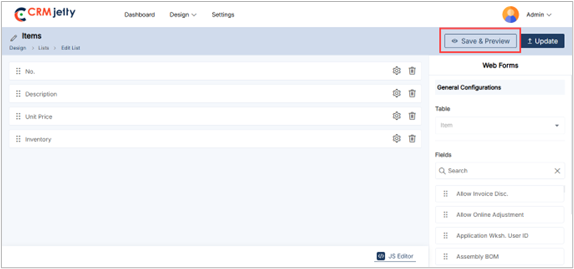
Preview List
To preview a portal list, navigate to the list and click the three dots (…). Clicking on the dots will reveal the “Preview” icon. Selecting this button will open a preview window displaying the layout of the list. [1]
Note: The Admin cannot add or modify any content within the list during this preview, it is just a list layout. [2]
![Preview [1]](https://docs.crmjetty.com/wp-content/uploads/2026/02/Preview-1.png "Preview [1]")
![Preview [2]](https://docs.crmjetty.com/wp-content/uploads/2026/02/Preview-2.png "Preview [2]")
Duplicate List
1. Duplicating a List:
– To duplicate a portal list, navigate to the list and click the three dots (…). Clicking on the dots will reveal the “Duplicate” icon. Selecting this button will initiate the duplication process. [1]
2. Confirmation Process:
– Once the “Duplicate” button is clicked, the list will be copied, and a new duplicate list will appear in the portal.
– By clicking on the duplicate icon the selected list will be duplicated, and added to the list as “List name – Copy”. [2]
– After duplication the Admin can view the success message on the right side of the page.
Bulk Duplicate Lists
1. List Selection:
– The Admin should start by selecting the lists to be duplicated. This can be done by clicking on the checkboxes beside each list table. [3]
2. Choosing Bulk Action:
– After selecting the lists, the Admin needs to click on the bulk action checkbox. From the available options, select the “Duplicate” option.
– By clicking on the duplicate icon the selected list will be duplicated, and added in a list as a “List name – Copy”. (e.g. items-Copy) [4]
– After duplication the Admin can view the success message on the right side of the page. [4]
![Duplicate List [1]](https://docs.crmjetty.com/wp-content/uploads/2026/02/Duplicate-List-1.png "Duplicate List [1]")
![Duplicated list [2]](https://docs.crmjetty.com/wp-content/uploads/2026/02/Duplicated-list-2.png "Duplicated list [2]")
![Bulk Duplicate [3]](https://docs.crmjetty.com/wp-content/uploads/2026/02/Bulk-Duplicate-3.png "Bulk Duplicate [3]")
![Bulk Duplicate [4]](https://docs.crmjetty.com/wp-content/uploads/2026/02/Bulk-Duplicate-4.png "Bulk Duplicate [4]")
Publish List
1. Publishing a List:
To publish a portal list, navigate to the list and click the three dots (…). Clicking on the dots will reveal the “Publish” Icon. [1]
By clicking on the icon the list will be published and the Admin can view the success message on the right side of the page. [2]
Bulk Publish Lists
1. List Selection:
The Admin should start by selecting the lists to be published. This can be done by clicking on the checkboxes beside each list table.
2. Choosing Bulk Action:
After selecting the lists, the Admin needs to click on the bulk action checkbox. From the available options, select the “Publish” option. [3]
By clicking on the publish option the selected list will be published and the Admin can view the success message on the right side of the page. [4]
![Publish Site [1]](https://docs.crmjetty.com/wp-content/uploads/2026/02/Publish-Site-1.png "Publish Site [1]")
![Publish Site [2]](https://docs.crmjetty.com/wp-content/uploads/2026/02/Publish-Site-2.png "Publish Site [2]")
![Bulk Publish [3]](https://docs.crmjetty.com/wp-content/uploads/2026/02/Bulk-Publish-3.png "Bulk Publish [3]")
![Bulk Publish [4]](https://docs.crmjetty.com/wp-content/uploads/2026/02/Bulk-Publish-4.png "Bulk Publish [4]")
Delete List
To Delete a portal list, navigate to the portal list and click the three dots (…). [1]
By clicking on the dots the Admin can see the Delete icon and by clicking on that they can see one warning (pop-up) message. Click on the “Ok” button and the list will be permanently deleted from the portal. [2]
Bulk Delete lists:
To delete a multiple list at once follow the below steps:
1. List Selection:
The Admin should start by selecting the lists for deletion. This can be done by clicking on the checkboxes beside each list.
Choosing Bulk Action:
After selecting the lists, the Admin needs to proceed to click on the bulk action checkbox. From the available options, select the “Delete” option. [3]
2. Confirmation Process:
A confirmation pop-up will appear after selecting the “Delete” option. To finalize and permanently remove the selected lists, the Admin must click the “OK” button. If the deletion is not required then the Admin can simply click the “Cancel” button to exit the process. [4]
![Delete List [1]](https://docs.crmjetty.com/wp-content/uploads/2026/02/Delete-List-1.png "Delete List [1]")
![Delete Pop-up [2]](https://docs.crmjetty.com/wp-content/uploads/2026/02/Delete-Pop-up-2.png "Delete Pop-up [2]")
![Bulk Delete [3]](https://docs.crmjetty.com/wp-content/uploads/2026/02/Bulk-Delete-3.png "Bulk Delete [3]")
![Delete Confirmation [4]](https://docs.crmjetty.com/wp-content/uploads/2026/02/Delete-Confirmation-4.png "Delete Confirmation [4]")
Edit List
To edit a list, navigate to the portal lists and click the three dots (…). This will show the Edit icon. Clicking the icon will redirect to the edit list page. [1]
Admin can update all the details and configurations, after updating the details click on the “Update” button. [2]
![Edit List [1]](https://docs.crmjetty.com/wp-content/uploads/2026/02/Edit-List-1.png "Edit List [1]")
![Update List [2]](https://docs.crmjetty.com/wp-content/uploads/2026/02/Update-List-2.png "Update List [2]")
Form Builder
CRMJetty allows Admin to design and configure forms for various tables. Admin can create, edit, preview, and publish forms that will be used in page builders. The dynamic layout of the form can be designed using Business Central fields.
The Form Builder enables Admin to manage forms by creating, duplicating, deleting, filtering, previewing, and translating them. To access these features, navigate to Design > Form Builder. [1]
![Navigation to Form Builder [1]](https://docs.crmjetty.com/wp-content/uploads/2026/02/Navigation-to-Form-Builder-1.png "Navigation to Form Builder [1]")
![Form List [2]](https://docs.crmjetty.com/wp-content/uploads/2026/02/Form-List-2.png "Form List [2]")
Creating From Layout
– Admin can create a form for any table. By clicking on the “+ Create” button, a popup will appear where the Admin needs to insert the ‘Title’ of the form.
– Click on the “Save” button to design the form page layout. This will redirect Admin to the Form layout design page. [1]
– The Admin can create the portal user form for the customer portal. To create the form, the first Admin needs to create a form layout for that Admin can follow: Add Section > Add Grid > Add Fields.
– Add Section: On the left side of the page, the Admin can view the sections and by clicking on the “+” icon the Admin can add a new section. Admin can edit the panel and update the “Panel Title”. After editing, click the Save button. [2]
– Add Grid: After adding the section the Admin needs to select the grid, for that, the Admin needs to click on the “Add Grid” button. [3]
– By clicking on the button, the Admin can view the different grid options, by selecting the grid it will directly add to the selected section. [4]
– Add fields: After adding the grid the Admin adds fields to the grid.
![Add Title [1]](https://docs.crmjetty.com/wp-content/uploads/2026/02/Add-Title-1.png "Add Title [1]")
![Add Section [2]](https://docs.crmjetty.com/wp-content/uploads/2026/02/Add-Section-2.png "Add Section [2]")
![Add Grid [3]](https://docs.crmjetty.com/wp-content/uploads/2026/02/Add-Grid-3.png "Add Grid [3]")
![Add Section [4]](https://docs.crmjetty.com/wp-content/uploads/2026/02/Add-Section-4.png "Add Section [4]")
Manual Setup for Creating New Forms
– After designing a layout, the Admin first needs to select the Table from the drop-down list. [1]
Note: The Admin can only see tables that are synced with the portal. If the Admin cannot find the table in the list, they must first sync the “Business Central Tables” to the “Portal Table”.
– Once the table is selected, the Admin can design the layout for the Add, Edit, and Detail pages of the new Form. [2]
There are two Copy options available: “Copy to Edit” and “Copy to Detail”. The Admin can copy the ‘Add’ form design to both the ‘Edit’ form and the ‘Detail’ form. [3]
Note: If the Admin is creating a Detail type form, the options “Copy to Add” and “Copy to Edit” will not be available.
– After selecting the table, the Admin will see a list of fields enabled from CRM. The required fields can be dragged and dropped from the right side to the left side of the grid layout.
A search functionality is available for the Admin to find specific fields. [4]
To configure the fields, the Admin can perform the following actions:
Field Settings: By clicking on the Settings icon, the Admin can configure following settings
– Label: Define the field’s name visible to the portal user.
– Placeholder: Insert text that appears inside the field before data entry.
– Help Tip: Provide additional guidance or information about the field.
– Default Value: Set an initial value that populates the field by default. [5]
Attributes Configuration: The Admin can also set the field attributes such as Read Only and Required:
– Read Only: When this checkbox is enabled, portal users will not be able to enter data in the field.
– Required: Enabling this option makes the field mandatory, ensuring that portal users must fill it out before proceeding. [6]
![Select Table [1]](https://docs.crmjetty.com/wp-content/uploads/2026/02/Select-Table-1.png "Select Table [1]")
![From Type [2]](https://docs.crmjetty.com/wp-content/uploads/2026/02/From-Type-2.png "From Type [2]")
![Copy to Edit & Detail from [3]](https://docs.crmjetty.com/wp-content/uploads/2026/02/Copy-to-Edit-Detail-from-3.png "Copy to Edit & Detail from [3]")
![Drag and Drop field [4]](https://docs.crmjetty.com/wp-content/uploads/2026/02/Drag-and-Drop-field-4.png "Drag and Drop field [4]")
![Field Configuration [5]](https://docs.crmjetty.com/wp-content/uploads/2026/02/Field-Configuration-4-1.png "Field Configuration [5]")
![Configure Attribute [5]](https://docs.crmjetty.com/wp-content/uploads/2026/02/Configure-Attribute-5.png "Configure Attribute [5]")
Enabling Lookup Global Actions
The Admin can enable filters globally for form fields by selecting the “Lookup Global Access” checkbox during configuration. [1]
Enabling Form Global Access ensures the data displayed in the form field is global, representing all data for the associated table. [1]
Example:
If Customer Lookup Global Access is enabled, the form field will display all customer data, regardless of any specific filters or restrictions.
This feature provides flexibility to access a comprehensive dataset for the selected table.
![Lookup Global Access [1]](https://docs.crmjetty.com/wp-content/uploads/2026/02/Lookup-Global-Access-1.png "Lookup Global Access [1]")
Custom Lookup View Form
The Custom Form View allows you to customize how form fields display data in the Form Builder.
Steps to Configure
1. Enable the Feature
– Go to the Field Configuration Settings for the form field.
– Enable Custom Lookup View. [1]
2. Select Fields
In the Custom Lookup Settings, the Admin can view all the lookup Tables enabled from the BC for the specific field. This allows the Admin to select and configure targeted Tables for the lookup, ensuring personalized and relevant data display in the Form builder.
For example, if the Customer table is enabled, the dropdown will display: [2]
– City (primary field, fixed at the top). [2]
– Country (additional field). [2]
Note: The City field is mandatory and is automatically selected as the primary field. Its position is fixed at the top of the field list.
3. Set Sequence
The Admin can configure these fields and their sequence for a customized lookup view. [3]
Arrange the fields in the desired order.
Example sequence:
– City
– Code
After all the configuration, click on the “Save” button to apply changes to the front-end view.
Note:
– Field Limit: Maximum of 5 fields (1 primary + 4 additional).
– Language Support: Names appear in configured languages or default to English.
– This setup streamlines lookups, displaying only relevant fields in your preferred order.
![Enable Custom Lookup View [1]](https://docs.crmjetty.com/wp-content/uploads/2026/02/Enable-Custom-Lookup-View-1-1.png "Enable Custom Lookup View [1]")
![Select Fields [2]](https://docs.crmjetty.com/wp-content/uploads/2026/02/Select-Fields-2-2.png "Select Fields [2]")
![Set Sequence [3]](https://docs.crmjetty.com/wp-content/uploads/2026/02/Set-Sequence-3-2.png "Set Sequence [3]")
![Enable Hidden Toggle [1]](https://docs.crmjetty.com/wp-content/uploads/2026/02/Enable-Hidden-Toggle-1.png "Enable Hidden Toggle [1]")
Enable Rating Fields
A rating field allows portal users to provide a numerical rating or feedback for items like products, services, or content.
This functionality can be applied to specific data types like Integer, BigInt, Decimal, and Double.
The rating is visually represented through stars or thumb symbols. Admin can configure the rating fields into various components such as Form (Add, Edit, and Detail views), List, and Data Card widgets.
Note: CRMJetty’s default configuration supports a maximum of 5-star ratings, and this setup is not adjustable by the Admin .
Rating Fields Configuration
In the Form Builder, Admin can configure the rating field by selecting the “Enable Rating” option within the field settings. [1]
Icon Picker: Admin can choose between different icons (e.g., thumbs, stars) for the rating field using the icon picker.
Color Picker: Different colors can be selected for the icons, allowing customization of the rating field’s appearance.
Compatibility: Rating fields can be configured for Add, Edit, and Detail form types.
Note: If the Barcode input feature is enabled, Admin cannot configure the rating feature. It can not be used simultaneously on the same field.
Read-Only Setting: Admin can enable the “Read-Only” attribute to prevent portal users from modifying the rating field. This can be applied to both Add and Edit forms. [2]
Note: If this feature is enabled, the rating field will be disabled for front-end users, displaying only the default value or passing a null value if default is not set.
Front-End View for Rating Field:
On the front-end, portal users can interact with the rating field by assigning both whole and half-star ratings (e.g., 2, 4, 4.5, 1.5).
The icon and color will appear as configured by the Admin , providing a user-friendly visual representation of the rating. [3]
![Enable Rating [1]](https://docs.crmjetty.com/wp-content/uploads/2026/02/Enable-Rating-1.png "Enable Rating [1]")
![Ready Only [2]](https://docs.crmjetty.com/wp-content/uploads/2026/02/Ready-Only-2.png "Ready Only [2]")
![Front End View [3]](https://docs.crmjetty.com/wp-content/uploads/2026/02/Front-End-View-4.png "Front End View [3]")
Enable Barcode/QR
Admin can enhance data entry efficiency by enabling barcode or QR input within relevant forms. This feature allows portal users to scan barcodes or QR codes, speeding up data collection and reducing manual input errors.
Form Builder Settings:
In the field settings within the Form Builder, Admin can enable the “Barcode/QR Code Input” option. This setting is applicable to fields with data types such as String, Integer, Decimal, and Big Int.
The barcode/QR code input feature can be configured for Add, Edit, and Detail form types. [1]
Enable Input Text:
If this checkbox is enabled, portal users can enter data manually in addition to scanning barcodes or QR codes. If disabled, the field will be read-only, accepting input only through scanning. [1]
Note: If the rating input feature is enabled, Admin cannot configure the Barcode/QR feature. It can not be used simultaneously on the same field.
Front-End View for Barcode/QR:
When the barcode/QR code input is enabled, a camera icon will appear in the form field.
Portal users can click this icon to activate their device’s camera and scan barcodes or QR codes for efficient data input. [2]
Supported Barcode/QR Formats:
CRMJetty supports a variety of barcode and QR formats, including QR Code, AZTEC, CODE_39, CODE_93, CODE_128, ITF, EAN_13, EAN_8, PDF_417, UPC_A, UPC_E, DATA_MATRIX, MAXICODE, RSS_14, and RSS_EXPANDED.
![Enable Barcode & QR [1]](https://docs.crmjetty.com/wp-content/uploads/2026/02/Enable-Barcode-QR-1.png "Enable Barcode & QR [1]")
![Frontend View [2]](https://docs.crmjetty.com/wp-content/uploads/2026/02/Frontend-View-2.png "Frontend View [2]")
Payment Configuration
The Admin can enable the “Payment Configuration” option to integrate payment processing directly within the form. This setup allows portal users to interact with payment-related fields within the form itself, facilitating easier management of transactions, viewing payment statuses, and performing payment actions without needing to leave the form page.
Note: The payment configuration feature is enabled for the Add – Edit – Detail Form Type.
Steps to Configure Payment Options:
To enable payment functionality for a specific table’s form record, follow these steps:
– Enable Payment: Enable the toggle button from the right side of the panel “Payment Configuration” to activate payment options.
– Button Label: Enter the text the Admin wants to display as a title of the field.
– Amount Field: The Admin should choose the field that represents the payment amount.
– Set Conditional Field to Enable Pay Button: The Admin must select the conditional field that will control when the Pay button gets enabled.
– Set Conditional Field Value to Enable Pay Button: The Admin needs to select the conditional value that will trigger the Pay button. Multiple values can be chosen if needed.
– Transaction Log Settings: The Admin should configure settings for syncing transaction data with the portal.
– Select Transaction Table: The Admin must choose the table where transaction details will be stored.
– Select Description Field: The Admin should select the field to be used for a short description of the transaction.
– Select Payment Table: The Admin must pick the field from the transaction table that will serve as the payment table.
– Select Payment Record: The Admin should choose the field in the transaction table to be used as the payment record.
– Select Payment Method: The Admin needs to select the field that represents the payment method.
– Set Amount Field: The Admin should identify the field where the payment amount will be recorded.
– Select Payment Transaction Log: The Admin must choose the field that will act as the Payment Transaction Log.
– Select Payment Status: The Admin needs to select the field that will display the Payment Status.
Once all configurations are complete, the Admin should click the Save button at the end of the process. Finally, Publish the page to apply these changes in the customer portal.
![Payment Configuration [1]](https://docs.crmjetty.com/wp-content/uploads/2026/02/Payment-Configuration-1.png "Payment Configuration [1]")
Parent-Child Link
This configuration allows the Admin to link data or records where one table (the parent) is associated with one or more other tables (the children).
Note: The Parent-Child Link feature is only enabled in the Add Form Type.
On the Add Form configuration, the Admin can view the Parent-Child Link toggle button. The Admin needs to click on it to activate the feature. After that, the Admin needs to configure the following details:
Child Table: Choose the table that will act as the child in the relationship.
Relationship Type: Select the type of relationship that defines how the parent and child tables will be connected.
Create Unique Records On: Identify the field that will ensure each record is unique.
Fields Display: The fields will be shown based on the selected relationship type.
![Parent - Child Form [1]](https://docs.crmjetty.com/wp-content/uploads/2026/02/Parent-Child-Form-1.png "Parent - Child Form [1]")
Multi-Step Form Configuration
Admin can display the form content of any table in a step-by-step manner in the customer portal by enabling the “Multi-Step Form” option. This feature allows portal users to navigate through the form in sections, making it easier to manage complex forms.
1. Enable Multi-Step Form: In the Form configuration panel under “Web Forms,” check the “Enable Multi-Step Form” option.
2. Configure Navigation Buttons:
Previous Button Label: Set the label for the button that allows users to navigate back to the previous section of the form.
Next Button Label: Set the label for the button that allows users to move to the next section of the form.
Once you set up the Multi-Step Form configuration, click “Update” or “Publish” the form.
3. Select Layout: Set the layout for the form, that helps the admin to manage multi step forms.[1]
Note: The Multi-Step Form feature is available for Add/Edit type forms. Once configured, the form can be placed in the Page Builder, and its multi-step navigation can be previewed.
![Parent Child link [1]](https://docs.crmjetty.com/wp-content/uploads/2026/02/Parent-Child-link-1.png "Parent Child link [1]")
Progress Bar in Field Configuration
Admin can enhance the user experience in the customer portal by configuring a progress bar for specific dropdown fields in any table form. This feature is applicable to dropdown-type fields such as Picklist, State, and Status.
1. Enable Progress Bar:
In the Field Configuration section, locate the “Show as Progress Bar” option and enable it to display the progress bar to portal users.
2. Configure Field Options:
Set the sequence of the available options for the selected dropdown field by dragging the options up or down to rearrange them. [1]
Note: The progress bar status reflects the “Advanced Field Management” settings, which control the field options visible to portal users.
![Progress bar Configuration [1]](https://docs.crmjetty.com/wp-content/uploads/2026/02/Progress-bar-Configuration-1.png "Progress bar Configuration [1]")
Enabling the Workflow Configuration for Form
In a form builder if the If field’s data type is a lookup then Workflow Setting will become visible. Admin can only configure workflow for Add and Edit forms.
By clicking ‘Workflow Setting’, the “Data Load” dropdown will appear, showing the workflows (with Data Load action type and target table of the field) created in the Workflow Management.
Admin can select the workflow according to the requirement. [1]
Admin can also add a new workflow by clicking on the “+” icon.[2]
After selecting the workflow, click on the Save button.
![Select Workflow [1]](https://docs.crmjetty.com/wp-content/uploads/2026/02/Select-Workflow-1.png "Select Workflow [1]")
![Add Workflow [2]](https://docs.crmjetty.com/wp-content/uploads/2026/02/Add-Workflow-2.png "Add Workflow [2]")
Advanced Field Settings
This feature allows Admin to customize the visibility and behavior of fields based on certain conditions.
Default Field Visibility
– Visible: The field is displayed on the form by default.
– Hidden: The field is not displayed on the form by default.
– Required When Visible: Set the field as required when visible[1]
Hide Field Based on Conditions
Admin can hide the fields based on the different conditions:
– Conditional Field: Choose the field that will determine when the current field should be hidden.
– Multi-Select Matching Category: Select categories for fields with multiple options, which will control the condition for hiding.
– Conditional Field Option: Specify the value or option from the conditional field that will trigger the field to be hidden. [2]
For Example: Admin have a form with a field called “Discount Code” that Admin wants to show only when a checkbox “Special Offer” is checked.
– Default Field Visibility: Set the “Discount Code” field to Hidden by default.
– Conditional Field: “Special Offer” (the checkbox).
– Multi-Select Matching Category: Not applicable here.
– Conditional Field Option: Checked (when the checkbox is selected).
By configuring this the “Discount Code” field will only appear when the user selects the “Special Offer” checkbox.
Delete Form
To delete a portal form, navigate to the portal form list and click the three dots (…). Clicking on the dots will reveal the Delete icon. Clicking on this will display a warning (pop-up) message.
Click the “Ok” button, and the form will be permanently deleted from the portal. [1]
Bulk Delete Forms
– Form Selection: To delete multiple forms, the Admin needs to select multiple forms using the checkboxes beside each form. [2]
– Choosing Bulk Action: After selecting the desired forms, click the bulk action checkbox, then choose the “Delete” option from the available actions. [3]
– Confirm Deletion: A confirmation pop-up will appear. To finalize and permanently delete the selected forms, click OK. To cancel the deletion, click Cancel. [3]
![Delete Form [1]](https://docs.crmjetty.com/wp-content/uploads/2026/02/Delete-Form-1.png "Delete Form [1]")
![Bulk Delete [2]](https://docs.crmjetty.com/wp-content/uploads/2026/02/Bulk-Delete-2.png "Bulk Delete [2]")
![Conformation Pop-up [3]](https://docs.crmjetty.com/wp-content/uploads/2026/02/Conformation-Pop-up-3.png "Conformation Pop-up [3]")
Edit Form
To edit a form, navigate to the portal forms list and click the three dots (…). This will show the Edit icon. Clicking the icon will redirect the Admin to the edit form page.[1]
The Admin can update all the details and configurations. After updating the details, click the Update button. [2]
![Edit Form [1]](https://docs.crmjetty.com/wp-content/uploads/2026/02/Edit-Form-1.png "Edit Form [1]")
![Update Form [2]](https://docs.crmjetty.com/wp-content/uploads/2026/02/Update-Form-2.png "Update Form [2]")
Preview Forms (View Form Page)
To preview the form, the Admin needs to either save the form as a draft or publish it. In both scenarios, the Admin can preview the form to see how it will appear on the front end. [1]
Note: In preview mode, the Admin cannot configure any field; the preview only displays the layout of the form.
![Save & Preview [1]](https://docs.crmjetty.com/wp-content/uploads/2026/02/Save-Preview-1-1.png "Save & Preview [1]")
Translating Form Records (Multi-Language)
From the listing page of the ‘Form’ builder records, all available languages will appear in the Language column.
Translated languages will be shown in dark-coloured buttons, while untranslated languages will appear in light-coloured buttons. [1]
Admin can translate the Form record by clicking on the light-coloured button. Once clicked, the Form builder record will automatically translate to the selected language. [1.1]
Admin can also translate the form layout records from the edit form page. At the top, the “Languages” option and enabled languages will be displayed.
Once the form layout record is translated from the listing page or the page layout edit page, it will take a few seconds to translate all the CRM content, such as text labels and messages. [2]
![Multi languages [1]](https://docs.crmjetty.com/wp-content/uploads/2026/02/Multi-languages-1.png "Multi languages [1]")
![Translate Language [1.1]](https://docs.crmjetty.com/wp-content/uploads/2026/02/Translate-Language-1.1.png "Translate Language [1.1]")
![Translate Language [2]](https://docs.crmjetty.com/wp-content/uploads/2026/02/Translate-Language-2.png "Translate Language [2]")
Multiple Form Translation
1. Translating Forms in Bulk: Admin can translate multiple form layout records simultaneously by selecting multiple forms. [3]
2. Language Selection If multiple languages are enabled, a dropdown menu will appear, allowing the Admin to select one language for translation. [4]
3. Translation Report: After translating the selected forms, a pop-up will appear on the screen, displaying the translation status of the records/forms.
– Note: Ensure that all fields are translated in Settings > Portal Settings > Language Settings to guarantee proper translation of the fields.
Using JS Editor
The Admin can create or update the layout of the form view using the JavaScript Code Editor if there is any custom JS code. [1]
By clicking on the Code Editor, an editor will pop up where the Admin can edit or paste the JS code. Once the code is edited or pasted, the Admin should click the Apply button and publish the Form builder record. [2]
Additionally, the Admin can edit or paste JavaScript code to modify the UI and appearance to match preferences or align with the portal’s theme.
![JS Editor [1]](https://docs.crmjetty.com/wp-content/uploads/2026/02/JS-Editor-1-1.png "JS Editor [1]")
![JS Editor [2]](https://docs.crmjetty.com/wp-content/uploads/2026/02/JS-Editor-2.png "JS Editor [2]")
Preview Forms
To preview a portal form, navigate to the form list and click the three dots (…). Clicking on the dots will reveal the “Preview” icon. Selecting this button will open a preview window displaying the layout of the form. [1]
Note: The Admin cannot add or modify any content within the form during this preview; it is just a form layout.
![Preview Form [1]](https://docs.crmjetty.com/wp-content/uploads/2026/02/Preview-Form-1.png "Preview Form [1]")
Duplicate Form
Duplicating a Form:
– To duplicate a portal form, navigate to the form list and click the three dots (…). Clicking on the dots will reveal the “Duplicate” icon. Selecting this button will initiate the duplication process. [1]
– Once the “Duplicate” button is clicked, the form will be copied, and a new duplicate form will appear in the portal. The duplicated form will be named “Form Name – Copy” (e.g., Add Orders-Copy). [2]
– After duplication, the Admin can view a success message on the right side of the page.
Bulk Duplicate Forms:
– The Admin should start by selecting the forms to be duplicated. This can be done by clicking on the checkboxes beside each form table.
– After selecting the forms, the Admin needs to click on the bulk action checkbox. From the available options, select the “Duplicate” option. [3]
–The selected forms will be duplicated and added as “Form Name – Copy” (e.g., Add Orders-Copy). After duplication, the Admin can view a success message on the right side of the page. [4]
![Duplicate Form [1]](https://docs.crmjetty.com/wp-content/uploads/2026/02/Duplicate-Form-1.png "Duplicate Form [1]")
![Duplicated Form [2]](https://docs.crmjetty.com/wp-content/uploads/2026/02/Duplicated-Form-2.png "Duplicated Form [2]")
![Bulk Duplicate [3]](https://docs.crmjetty.com/wp-content/uploads/2026/02/Bulk-Duplicate-3-1.png "Bulk Duplicate [3]")
![Bulk Duplicate [4]](https://docs.crmjetty.com/wp-content/uploads/2026/02/Bulk-Duplicate-2.png "Bulk Duplicate [4]")
Publish Forms
1. Publishing a Form:
–To publish a portal form, navigate to the form list and click the three dots (…). Clicking on the dots will reveal the “Publish” icon. By clicking on this icon, the form will be published, and the Admin can view the success message on the right side of the page.[1]
2. Bulk Publish Forms:
–The Admin should start by selecting the forms to be published. This can be done by clicking on the checkboxes beside each form table.
–After selecting the forms, the Admin needs to click on the bulk action checkbox. From the available options, select the “Publish” option. [2]
– By clicking on the publish option, the selected forms will be published, and the Admin can view the success message on the right side of the page.
![Publish Form [1]](https://docs.crmjetty.com/wp-content/uploads/2026/02/Publish-Form-1.png "Publish Form [1]")
![Bulk Publish [2]](https://docs.crmjetty.com/wp-content/uploads/2026/02/Bulk-Publish-2.png "Bulk Publish [2]")
Draft Forms
1. Drafting a Form:
– To draft a portal form, navigate to the form list and click the three dots (…). Clicking on the dots will reveal the “Draft” icon. By clicking on this icon, the form will be saved as a draft, and the Admin can view the success message on the right side of the page. [1]
Note: Draft forms are disabled for the portal. To use these forms, the Admin must publish them.
2. Bulk Draft Forms:
– The Admin should start by selecting the forms to be drafted. This can be done by clicking on the checkboxes beside each form table.
– After selecting the forms, the Admin needs to click on the bulk action checkbox. From the available options, select the “Draft” option. [2]
– By clicking on the draft option, the selected forms will be saved as drafts, and the Admin can view the success message on the right side of the page.
![Draft Form [1]](https://docs.crmjetty.com/wp-content/uploads/2026/02/Draft-Form-1.png "Draft Form [1]")
![Bulk Draft form [2]](https://docs.crmjetty.com/wp-content/uploads/2026/02/Bulk-Draft-form-2.png "Bulk Draft form [2]")
Widgets
The admin can add and configure widgets in the grid, including options like Sub grid, Note, Attachment, Counter, Chart, Product and Text. [1]
![Widgets [1]](https://docs.crmjetty.com/wp-content/uploads/2026/02/Widgets-1.png "Widgets [1]")
Text
Admin can use the Text widget to add and customize text content within any form layout. This widget allows Admin to insert and design text with various settings to enhance the appearance and functionality of the portal pages.
Steps to Configure the Text Widget:
1. Adding the Text Widget
Simply drag and drop the Text widget onto the designated grid area. [1]
2. Configuring the Text:
After placing the widget, click on the Settings icon to open the Text Configuration panel.
– Text Content: Insert the desired text that should appear in this section.
– Styling Options: Admin can apply various styling options to the text, such as font size, color, alignment, and formatting (bold, italic, underline).
– Advanced Options: Admin may also have options to add hyperlinks, bullet points, or numbered lists to structure the content effectively. [2]
– Available Parameters: Click on preferred parameter to interest in editor. [4]
Front view text widget
The Text Widget front-side view is a flexible, content-rich widget designed to present text-based information attractively and accessibly. This widget can be used for announcements, descriptions, updates, or any textual content within a webpage or portal. [4]
![Add Text Widget [1]](https://docs.crmjetty.com/wp-content/uploads/2026/02/Add-Text-Widget-1.png "Add Text Widget [1]")
![Text Configuration [2]](https://docs.crmjetty.com/wp-content/uploads/2026/02/Text-Configuration-2.png "Text Configuration [2]")
![Add Parameter [3]](https://docs.crmjetty.com/wp-content/uploads/2026/02/Add-Parameter-3.png "Add Parameter [3]")
![Frontend View [4]](https://docs.crmjetty.com/wp-content/uploads/2026/02/Frontend-View-4.png "Frontend View [4]")
Product
If Admin is designing a form for a table that includes products, Admin can enable the Product widget for any form type in the customer portal. Simply drag and drop the Product widget onto the designated grid area. [1]
Steps to Configure the Product Widget:
1. Accessing the Product Widget:
When designing a form for a table with associated products, the Product widget will be available.
Click on the field’s Settings icon to open the Product Configuration panel.
2. Configuration Options:
Label: Enter the label that will be displayed for the product section on the portal. [2]
Allow Creating Records: Enable this option to allow portal users to create new product records.
Button Label: Enter the label for the create button (e.g., “Add Product”).
Allow Deleting Records: Enable this option to allow portal users to delete existing product records.
Quantity Update: Allow users to update product quantities directly from the portal.
Default Accordion Behavior: Choose how the list view data appears to portal users:
Expanded: The section will be open by default.
Collapsed: The section will be closed by default.
Example: If Admin are creating an order form where users can add products, Admin would enable the Product widget, label it as “Order Items,” and configure it so users can add or delete items and adjust quantities directly from the portal. The product section might be set to Expanded so that users see their order items as soon as they open the form.
Front-view Product widget:
The Product Widget front-side view provides a compact yet comprehensive display for showcasing product details, designed for easy browsing and quick actions by users. This widget is ideal for displaying products in a grid or list format within a larger page, such as a product catalog or dashboard. [3]
![Product Widget [1]](https://docs.crmjetty.com/wp-content/uploads/2026/02/Product-Widget-1.png "Product Widget [1]")
![Configure Product Widget [2]](https://docs.crmjetty.com/wp-content/uploads/2026/02/Configure-Product-Widget-2.png "Configure Product Widget [2]")
![Frontend View [3]](https://docs.crmjetty.com/wp-content/uploads/2026/02/Frontend-View-3.png "Frontend View [3]")
Notes
Admin can use the Notes Widget to display notes in a form view. Simply drag and drop the Notes widget onto the designated grid area.
Configuration Settings:
Label: Admin insert the label for the section (e.g., “Notes”).
Allow Creating Records: Admin enable this option to allow portal users to create records.
Button Label: Admin insert the label for the create button (e.g., “Create”).
Allow Deleting Records: Admin enable this option to allow portal users to delete records.
Default Accordion Behavior: Admin select between Expanded or Collapsed view.[1]
![Notes Widget [1]](https://docs.crmjetty.com/wp-content/uploads/2026/02/Notes-Widget-1.png "Notes Widget [1]")
Subgrid
The admin can use the Sub-Grid widget to display forms in a sub-grid view by simply dragging and dropping the Sub-Grid widget onto the designated grid area. [1]
Sub-Grid Configuration
By clicking on the field Settings icon, the Sub-Grid Configuration panel will open up.
– Label: Enter the label for the sub-grid section.
– Select Table: Choose the table for which the sub-grid section will be created.
– Select Relationship: Select the relationship (table) to associate with the chosen table form.
– Enable Floating Label: Checkmark to enable the floating label for the sub grid. [2]
– Select Workflow Restriction: Select a parent workflow to control access rights for child records
– View Type: Select how the list should be displayed — as a Data Card or a List view.
– Select List: Select the list to display in sub grid selected list will display in sub grid.
– Record Per Page : Select number of records to display on one page.
– Select Ordering Field: Select type of order to short records in sub-grid. [3]
Managing Sub-Grid Access
– Admin can manage sub-grid access through Access Settings by enabling or disabling the options for creating, editing, and deleting records.
Create Action Settings:
– Button Label: Insert the label to display for creating records on the portal.
– Select Form: Choose the form that will appear on the portal when creating records.[4]
Edit Action Settings:
– Select Form: Choose the form that will appear on the portal when editing a record. [5]
Details Action Settings:
– Select Page: Choose the page to which users will be redirected when they click the “Detail” button. [6]
Allow Deleting Records:
– Enable the Deleting toggle to allow users to delete records from sub-grid. [7]
Enable Global Access:
– Enable this feature to allow portal users to access global data. If unchecked, portal users will only access their records within the sub-grid. [8]
– Note: If global access is enabled, users will have a filter option to show either “My Records” or “All Records”.
Enable reCAPTCHA :
– Enable reCAPTCHA for subgrid allowing secure browsing. [9]
Enable Export :
– Enable Export: Enable Export toggle to allow access to export subgrid records.
– Select Export Formats : Select exports formats for subgrid records available options are CSV,Excel and PDF. [10]
Front-side view subgrid:
The Subgrid Form View provides a streamlined, interactive interface, displaying associated records or related tables in a table format within the main table form. This subgrid view enables users to quickly access, review, and manage linked data without navigating away from the main form. [11]
![Subgrid Widget [1]](https://docs.crmjetty.com/wp-content/uploads/2026/02/Subgrid-Widget-1.png "Subgrid Widget [1]")
![Configure Subgrid [2]](https://docs.crmjetty.com/wp-content/uploads/2026/02/Configure-Subgrid-2.png "Configure Subgrid [2]")
![Subgrid Configuration [3]](https://docs.crmjetty.com/wp-content/uploads/2026/02/Subgrid-Configuration-3.png "Subgrid Configuration [3]")
![Create Action Settings [4]](https://docs.crmjetty.com/wp-content/uploads/2026/02/Create-Action-Settings-4.png "Create Action Settings [4]")
![Edit Action Settings [5]](https://docs.crmjetty.com/wp-content/uploads/2026/02/Edit-Action-Settings-5.png "Edit Action Settings [5]")
![Detail Action Settings [6]](https://docs.crmjetty.com/wp-content/uploads/2026/02/Detail-Action-Settings-6.png "Detail Action Settings [6]")
![Allow Deleting Records [7]](https://docs.crmjetty.com/wp-content/uploads/2026/02/Allow-Deleting-Records-7.png "Allow Deleting Records [7]")
![Enable Global Access [8]](https://docs.crmjetty.com/wp-content/uploads/2026/02/Enable-Global-Access-8.png "Enable Global Access [8]")
![Enable reCAPTCHA [9]](https://docs.crmjetty.com/wp-content/uploads/2026/02/Enable-reCAPTCHA-9.png "Enable reCAPTCHA [9]")
![Enable Export [10]](https://docs.crmjetty.com/wp-content/uploads/2026/02/Enable-Export-10.png "Enable Export [10]")
![Frontend View [11]](https://docs.crmjetty.com/wp-content/uploads/2026/02/Frontend-View-11.png "Frontend View [11]")
Attachment
Admin can use the Attachment Widget to provide Attachment support in a form view. Simply drag and drop the Attachment widget onto the designated grid area.
Configuration Settings:
– Label: Admin insert the label for the section (e.g., “Attachment”).
– Allow Creating Records: Admin enable this option to allow portal users to create records.
– Button Label: Admin insert the label for the create button (e.g., “Create”).
– Allow Deleting Records: Admin enable this option to allow portal users to delete records.
– Default Accordion Behavior: Admin select between Expanded or Collapsed view.
– Attachment Mandatory: Enable toggle to make attachment mandatory form. [1]
![Attachment Configuration [1]](https://docs.crmjetty.com/wp-content/uploads/2026/02/Attachment-Configuration-1.png "Attachment Configuration [1]")
Chart Widget
Chart widget visualizes BC data through customizable graphs and charts, helping users to analyze and understand data more easily. Simply drag and drop the chart widget onto the designated grid area. [1]
Chart Widget Configuration:
– Title: Admin Insert title for the section (“Chart”).
– Select Table: Choose the table for which the chart section will be created.
– Select Relationship: Select the relationship (table) to associate with the chosen table form.
– Select Chart Type: Select the chart type from the available options. (Doughnut, Vertical Bar, Horizontal Bar and Line).
– Select Field: Select the field admin wants to show in the Chart.
– Select Field Value: Select the field values to show in the chart.
– Select Option color : Select the preferred color for the field values shown in the chart.[2]
WorkFlow Settings:
– Select Data Loading Workflow: Select the Data loading workflow to load data want to attach for data loading.[3]
Enable Global Filter:
– Select Global Filter Field: Select the filtration field to apply on filter.[4]
Frontend View
The chart provides a clear visual comparison of key data points to quickly highlight trends and patterns.It simplifies complex information, making relationships and changes over time easy to understand at a glance.This visualization supports informed decision-making by presenting insights in a concise, accessible format. [5]
![Chart Widget [1]](https://docs.crmjetty.com/wp-content/uploads/2026/02/Chart-Widget-1.png "Chart Widget [1]")
![Chart Widget Configuration [2]](https://docs.crmjetty.com/wp-content/uploads/2026/02/Chart-Widget-Configuration-2.png "Chart Widget Configuration [2]")
![Workflow Configuration [3]](https://docs.crmjetty.com/wp-content/uploads/2026/02/Workflow-Configuration-3.png "Workflow Configuration [3]")
![Enable Global filter [4]](https://docs.crmjetty.com/wp-content/uploads/2026/02/Enable-Global-filter-4.png "Enable Global filter [4]")
![Chart Widget [5]](https://docs.crmjetty.com/wp-content/uploads/2026/02/Chart-Widget-5.png "Chart Widget [5]")
Counter Widget
Admin can use “Counter Widget” to provide counter support in the Form. Simply drag and drop the counter widget onto the designated grid area.[1]
Counter Widget Configurations:
– Title: Admin Insert title for the section (“Counter”).
– Select Table: Choose the table for which the counter section will be created.
– Select Relationship: Select the relationship (table) to associate with the chosen table form.
– Select Field: Select the field admin wants to show in the counter.
– Select Field Value: Select the field value to show in the counter.
– Select Option Color : Select the option color to display on the counter.
– Pick An Icon: Pick icon to display for counter widget.[2]
Redirection Settings:
– Select Indicator: Choose Redirection Indicator to provide the redirection option on the counter widget from Clickable or Hyperlink options.
– Select Redirection Page: Select the page user will be redirected to when clicking on the indicator. [3]
WorkFlow Settings:
– Select Data Loading Workflow: Select the Data loading workflow to load data want to attach for data loading.[4]
Frontend View:
The counter widget displays real-time numerical values to track progress or key metrics at a glance. It highlights changes instantly, making it easy to monitor performance or activity levels.This simple visualization keeps users informed with clear, up-to-date counts in an accessible format.[5]
![Counter Widget [1]](https://docs.crmjetty.com/wp-content/uploads/2026/02/Counter-Widget-1.png "Counter Widget [1]")
![Counter Widget Configuration [2]](https://docs.crmjetty.com/wp-content/uploads/2026/02/Counter-Widget-Configuration-2.png "Counter Widget Configuration [2]")
![Redirection Settings [3]](https://docs.crmjetty.com/wp-content/uploads/2026/02/Redirection-Settings-3.png "Redirection Settings [3]")
![Workflow Configuration [4]](https://docs.crmjetty.com/wp-content/uploads/2026/02/Workflow-Configuration-4.png "Workflow Configuration [4]")
![Counter Widget [5]](https://docs.crmjetty.com/wp-content/uploads/2026/02/Counter-Widget-5.png "Counter Widget [5]")
Page Builder
CRMJetty allows Admin to design and configure pages for various purposes. Admin can create, edit, preview, and publish pages that will be used within the customer portal. The layout of each page can be customized using a variety of widgets and design elements.
The Page Builder enables Admin to manage pages by creating, duplicating, deleting, filtering, previewing, and translating them. To access these features, navigate to Design > Page Builder. [1]
On the Page Builder interface, Admin can view the following columns:
– Title: The name of the page.
– Status: Indicates whether the page is active or inactive.
– Language: The language in which the page is created.
– Owner: The Admin responsible for the page.
– URl : The URl slug determines the page’s address and should be unique and descriptive.
– Access: The access for a page (Public or Authenticated).
– Created On: The date the page was created.
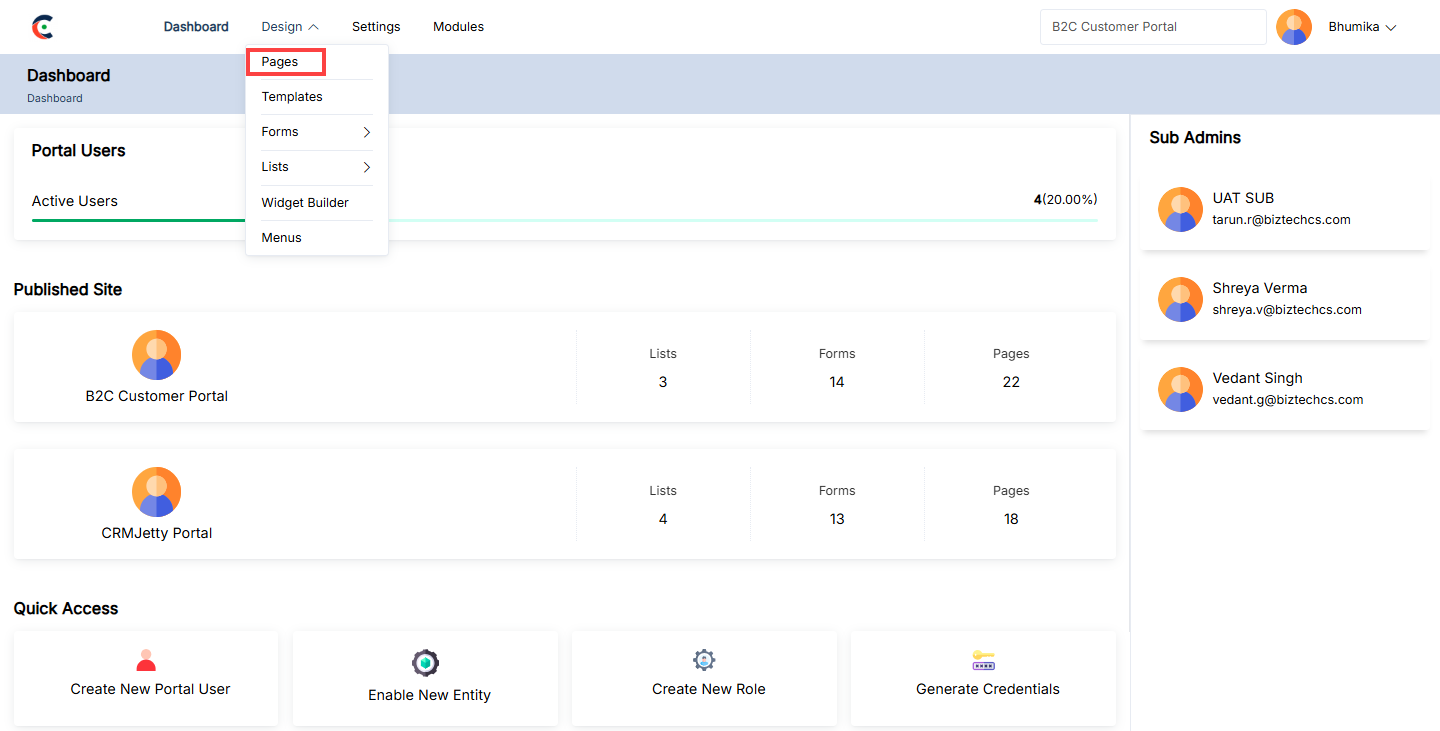
Create New Page
To initiate the creation of a new page, follow these steps:
Page Title: Enter a descriptive and relevant title for the page. [1]
Page URL Slug: Enter the URL slug determines the page’s address and should be unique and descriptive. Example: portal-dashboard [1]
Page Access: Admin can create a page in two ways:
– Authenticate: Select this option if the page should be accessible only to users who have logged in. [1]
– Public: Choose this option if the page should be visible to everyone without requiring a login. [1]
Page Layout: Admin can choose from different layouts which is mentioned below:
– Default Layout: Select this to use the standard layout configuration.
– 1 Column, Header, Footer: This layout includes a single column, with a header and footer. Ideal for simple page designs. [1]
– Left Sidebar, Header, Footer: This layout features a left sidebar along with a header and footer, useful for pages that require additional navigation or content sections. [1]
– Right Sidebar, Header, Footer: Similar to the left sidebar layout, but with the sidebar positioned on the right side. [1]
Select Template: Alternatively, the Admin can choose from pre-designed templates that offer predefined layouts and styling options. [1]
![Create New Page [1]](https://docs.crmjetty.com/wp-content/uploads/2026/02/Create-New-Page-1.png "Create New Page [1]")
Create Page Using Template
Admin can quickly create a page by utilizing pre-designed templates. This method ensures consistency and saves time. To create a page using template Admin needs to follow the below steps:
Step 1: Select a Template
– The First Admin needs to select the template from the drop-down. After choosing a template, click the “Next” button to proceed to the pre-designed page layout. [1]
Step 2: Customize the Page Layout
– If modifications are needed, the Admin can edit the page layout, adjusting sections, widgets, and other elements to meet specific requirements.
– Once finalized, the page Admin either “Save as Template” or directly publish the page by clicking on the “Publish” button. [1]
Step 3: Save and Manage Templates
– If the Admin saves the page as template then Admin can view the new template in the ‘Templates’ section, where it will be listed as a new record. [1]
Note: If Admin saves a designed page as a template with a name that already exists, the new template will be saved with the same name followed by a ‘copy’ suffix. (eg: page – copy).
![Template [1]](https://docs.crmjetty.com/wp-content/uploads/2026/02/Template-1.png "Template [1]")
Create a New Page Layout
After setting up the page, Admin can create a page layout for the customer portal by following these steps:
1. Add Section: On the left side of the page, click the “+” icon to add a new section.
– Edit Panel: Update the “Panel Title” as needed and click the Save button to apply the changes.[1]
2. Add Grid: After adding a section, click the “Add Grid” button.
– Grid Options: A selection of grid options will be displayed. Choose a grid layout to add to the selected section. [2]
3. Add widget: After adding the grid, the Admin can enhance the page by adding widgets. There are two categories of widgets available: [3]
Static Widgets
Banner
Breadcrumb
Button
Content Slider
Forgot Password
Forgot Username
IFrame
Image
Menu
Power BI
Slider
Testimonial
Text
Video
Global Filter
Dynamic Widgets
Case Deflection
Chart
Counter
Data Card
Form
List
Login
Profile
Recent Activity
Registration
Custom Widget
![Add Section [1]](https://docs.crmjetty.com/wp-content/uploads/2026/02/Add-Section-1.png "Add Section [1]")
![Grid Option [2]](https://docs.crmjetty.com/wp-content/uploads/2026/02/Grid-Option-2.png "Grid Option [2]")
![Add Widgets [3]](https://docs.crmjetty.com/wp-content/uploads/2026/02/Add-Widgets-3.png "Add Widgets [3]")
Using JS Code Editor
Admin can create or update the layout of the Page view using the JavaScript Code Editor for custom JS code.[1]
To access the editor, click on the Code Editor button. This will open a popup where the Admin can edit or paste JavaScript code. After making the desired changes, click the Save button, and then publish the Page. [2]
Additionally, the Admin can edit or paste JavaScript code to modify the UI and appearance to match preferences or align with the portal’s theme.
![JS Editor [1]](https://docs.crmjetty.com/wp-content/uploads/2026/02/JS-Editor-1-.png "JS Editor [1]")
![JS Code [2]](https://docs.crmjetty.com/wp-content/uploads/2026/02/JS-Code-2.png "JS Code [2]")
HTML Class & ID
Admin can further customize page sections and widgets by adding custom HTML IDs and Classes. [1]
To begin customization, locate the ‘Settings’ icon at the top right corner of the section, next to the delete icon. Clicking on this icon opens the “Section Configuration” panel on the right side of the screen. [1]
Within the panel, two controls are available:
– HTML Class: Add multiple classes separated by commas (,). These classes can be applied to multiple elements, allowing for repeated usage on a single page. [1]
– HTML ID: Add a unique ID for the section. The ID will automatically be prefixed with “custom-”. An ID is unique and can only be applied to one element on a page. [1]
– Card View: Enable the “Card View” option if you prefer the banner to be displayed as a card, providing a structured and compact appearance. [1]
Important Notes:
Ensure that classes and IDs are added without spaces. If special characters are needed, use only hyphens (-) or underscores (_).
After clicking the Save button, the custom HTML Class and ID will be saved.
Admin can apply these custom classes and IDs in JavaScript to further customize the page sections.
Translate Page records (Multi-language)
From the listing page of the ‘Page’ builder records, all available languages will appear in the Language column.
Translated languages will be shown in dark-coloured buttons, while untranslated languages will appear in light-coloured buttons. [1]
Admin can translate the Page record by clicking on the light-coloured button. Once clicked, the Page builder record will automatically translate to the selected language. [2]
Admin can also translate the page layout records from the edit page. At the top, the “Languages” option and enabled languages will be displayed. [3]
Once the page layout record is translated from the listing page or the page layout edit page, it will take a few seconds to translate all the Business Central content, such as text labels and messages.
Multiple Page Translation
1. Translating Pages in Bulk:
– Admin can translate multiple page layout records simultaneously by selecting multiple pages. [4]
– Admin can apply these custom classes and IDs in JavaScript to further customize the page sections.
2. Language Selection:
– If multiple languages are enabled, a dropdown menu will appear, allowing the Admin to select one language for translation. [5]
3. Translation Report:
– After translating the selected pages, a pop-up will appear on the screen, displaying the translation status of the records/pages.
Note: Ensure that all fields are translated in Settings > Portal Settings > Language Settings to guarantee proper translation of the fields.
![Languages [1]](https://docs.crmjetty.com/wp-content/uploads/2026/02/Languages-1.png "Languages [1]")
![Translate Language [2]](https://docs.crmjetty.com/wp-content/uploads/2026/02/Translate-Language-2-.png "Translate Language [2]")
![Translated Language [3]](https://docs.crmjetty.com/wp-content/uploads/2026/02/Translated-Language-3.png "Translated Language [3]")
![Bulk Translation [4]](https://docs.crmjetty.com/wp-content/uploads/2026/02/Bulk-Translation-4.png "Bulk Translation [4]")
![Bulk Translation [5]](https://docs.crmjetty.com/wp-content/uploads/2026/02/Bulk-Translation-6.png "Bulk Translation [5]")
Preview Page
To preview a portal page, navigate to the page list and click the three dots (…). Clicking on the dots will reveal the “Preview” icon. Selecting this button will open a preview window displaying the layout of the page.[1]
Note: The Admin cannot add or modify any content within the page during this preview; it is just a view of the page layout.
![Preview Page [1]](https://docs.crmjetty.com/wp-content/uploads/2026/02/Preview-Page-1.png "Preview Page [1]")
Duplicate Page
To duplicate a portal page, navigate to the page list and click the three dots (…). Clicking on the dots will reveal the “Duplicate” icon. Selecting this button will initiate the duplication process. [1]
Once the “Duplicate” button is clicked, the page will be copied, and a new duplicate page will appear in the portal. The duplicated page will be named “Page Name – Copy” (e.g.,Home-Copy). [2]
After duplication, the Admin will see a success message on the right side of the page.
Bulk Duplicate Pages:
– The Admin should start by selecting the pages to be duplicated. This can be done by clicking the checkboxes beside each page table.
– After selecting the pages, click on the bulk action checkbox. From the available options, select the “Duplicate” option. [3]
– The selected pages will be duplicated and added as “Page Name – Copy” (e.g., Home-Copy). After duplication, the Admin will see a success message on the right side of the page. [4]
![Duplicate Page [1]](https://docs.crmjetty.com/wp-content/uploads/2026/02/Duplicate-Page-1.png "Duplicate Page [1]")
![Copy Page [2]](https://docs.crmjetty.com/wp-content/uploads/2026/02/Copy-Page-2.png "Copy Page [2]")
![Bulk Duplicate [3]](https://docs.crmjetty.com/wp-content/uploads/2026/02/Bulk-Duplicate-3-.png "Bulk Duplicate [3]")
![Bulk Duplicate [4]](https://docs.crmjetty.com/wp-content/uploads/2026/02/Bulk-Duplicate-4-.png "Bulk Duplicate [4]")
Publish Page
To publish a portal page, navigate to the page list and click the three dots (…). Clicking on the dots will reveal the “Publish” icon. By clicking this icon, the page will be published, and the Admin will see a success message on the right side of the page. [1]
Bulk Publish Pages:
– The Admin should start by selecting the pages to be published. This can be done by clicking the checkboxes beside each page table.
– After selecting the pages, click on the bulk action checkbox. From the available options, select the “Publish” option. [2]
– By clicking on the publish option, the selected pages will be published, and the Admin will see a success message on the right side of the page. [3]
![Publish Page [1]](https://docs.crmjetty.com/wp-content/uploads/2026/02/Publish-Page-1.png "Publish Page [1]")
![Bulk Publish [2]](https://docs.crmjetty.com/wp-content/uploads/2026/02/Bulk-Publish-2-.png "Bulk Publish [2]")
![Bulk Publish [3]](https://docs.crmjetty.com/wp-content/uploads/2026/02/Bulk-Publish-3-.png "Bulk Publish [3]")
Draft Page
To draft a portal page, navigate to the page list and click the three dots (…). Clicking on the dots will reveal the “Draft” icon. By clicking this icon, the page will be saved as a draft, and the Admin will see a success message on the right side of the page. [1]
Note: Draft pages are disabled for the customer portal. To use these pages, the Admin must publish them.
Bulk Draft Pages:
– The Admin should start by selecting the pages to be drafted. This can be done by clicking the checkboxes beside each page table.
– After selecting the pages, click on the bulk action checkbox. From the available options, select the “Draft” option. [2]
– By clicking on the draft option, the selected pages will be saved as drafts, and the Admin will see a success message on the right side of the page. [3]
– Note: When drafting pages in bulk, Admin ensures that only the published pages are selected.
![Draft Page [1]](https://docs.crmjetty.com/wp-content/uploads/2026/02/Draft-Page-1.png "Draft Page [1]")
![Bulk Draft [2]](https://docs.crmjetty.com/wp-content/uploads/2026/02/Bulk-Draft-2.png "Bulk Draft [2]")
![Bulk Draft [3]](https://docs.crmjetty.com/wp-content/uploads/2026/02/Bulk-Draft-3.png "Bulk Draft [3]")
Delete Page
To delete a portal page, navigate to the page list and click the three dots (…). Clicking on the dots will reveal the Delete icon. Clicking this will display a warning pop-up message.
Click the OK button to permanently delete the page from the portal. [1]
Bulk Delete Pages
– The Admin should start by selecting the pages for deletion. This can be done by clicking the checkboxes beside each page.
– After selecting the pages, the Admin needs to click on the bulk action checkbox. From the available options, select the “Delete” option. [2]
– A confirmation pop-up will appear after selecting the “Delete” option. To finalize and permanently remove the selected pages, click the “OK” button. If deletion is not required, click the Cancel button to exit the process. [3]
![Delete Page [1]](https://docs.crmjetty.com/wp-content/uploads/2026/02/Delete-Page-1.png "Delete Page [1]")
![Bulk Delete [2]](https://docs.crmjetty.com/wp-content/uploads/2026/02/Bulk-Delete-2-.png "Bulk Delete [2]")
![Delete Confirmation [3]](https://docs.crmjetty.com/wp-content/uploads/2026/02/Delete-Confirmation-3.png "Delete Confirmation [3]")
Edit Page
To edit a page, navigate to the portal pages list and click the three dots (…). This will show the Edit icon. Clicking the icon will redirect the Admin to the edit page. [1]
The Admin can update all the details and configurations. After updating, click the “Update” button. [2]
![Edit Page [1]](https://docs.crmjetty.com/wp-content/uploads/2026/02/Edit-Page-1.png "Edit Page [1]")
![Edit Page [2]](https://docs.crmjetty.com/wp-content/uploads/2026/02/Edit-Page-2.png "Edit Page [2]")
PowerBI
The PowerBI Widget allows Admin to embed Power BI reports or dashboards into a webpage.
Add the PowerBI Widget:
–Admin click on the PowerBI widget and it will directly add to the grid. [1]
–Click on the ‘Settings’ icon of the PowerBI widget to open its configuration panel. [1]
Power BI Configuration:
– Embedded Code: Enter the code provided by Power BI to display the report or dashboard. [2]
– PowerBI Settings
– HTML Class: Add custom CSS classes to style the widget. [2]
– HTML ID: Assign a unique ID to the widget, prefixed with “custom-.” [2]
– Card View: Display the PowerBI widget in a card-style layout. [2]
-Slider: Similar to the content slider, this widget focuses on showcasing images in a rotating format.
–Admin should click “Save” to apply the settings, then publish the page to make the PowerBI widget live on the customer portal.
– Admin can also delete a widget by clicking on the ‘Delete Icon’, as highlighted in the screenshot. [3]
Font view power BI Widget:
The Front View Power BI Widget integrates interactive Power BI dashboards or reports directly into the page. It enables users to view and analyze data insights seamlessly without leaving the portal, enhancing data-driven decision-making. [4]
![Power BI Widget [1]](https://docs.crmjetty.com/wp-content/uploads/2026/02/Power-BI-Widget-1.png "Power BI Widget [1]")
![Power BI configurations [2]](https://docs.crmjetty.com/wp-content/uploads/2026/02/Power-BI-configurations-2.png "Power BI configurations [2]")
![Delete widget [3]](https://docs.crmjetty.com/wp-content/uploads/2026/02/Delete-widget-3.png "Delete widget [3]")
![Frontend View [4]](https://docs.crmjetty.com/wp-content/uploads/2026/02/Frontend-View-4-.png "Frontend View [4]")
Menu
The Menu Widget allows Admin to add and configure navigation menus on a webpage. It supports options for including a logo, profile navigation, language switcher, and selecting the menu layout (vertical or horizontal).
Add the menu Widget:
– Admin click on the Menu widget and it will directly add to the grid. [1]
– Click on the ‘Settings’ icon of the Menu widget to open its configuration panel. [1]
General Configuration :
Select Menu: Admin select which menu to display from available options.
Select Menu Location: Admin decide the layout for the menu:
– Vertical: Display the menu vertically on the page.
– Horizontal: Display the menu horizontally on the page.
Note: Logo, Profile and Language selection can only be added to one menu defined per page.
Enable Logo: Admin can display a portal logo in the menu.
Enable Language: Admin can include a language switcher in the menu.
Enable Site Switching: Admin can enable site switcher dropdown in the menu.
Profile Navigation: Admin can add profile navigation, with a selection required for the redirect page.
Redirect To: Admin choose the page where users will be redirected when they click on the profile menu.[2]
Menu Setting
– HTML Class: Add custom CSS classes to style the widget.
– HTML ID: Assign a unique ID to the widget, prefixed with “custom-.”
– Card View: Display the menu widget in a card-style layout.
– Admin should click “Save” to apply the settings, then publish the page to make the menu widget live on the customer portal.
– Admin can also delete a widget by clicking on the ‘Delete Icon’, as highlighted in the image. [3]
Front view menu widget:
The Front View Menu Widget creates a customizable navigation menu, allowing users to move between various site sections effortlessly. It enhances site organization and user experience by providing clear and accessible links to key pages. [4]
![Menu Widget [1]](https://docs.crmjetty.com/wp-content/uploads/2026/02/Menu-Widget-1.png "Menu Widget [1]")
![Menu Widget Configuration [2]](https://docs.crmjetty.com/wp-content/uploads/2026/02/Menu-Widget-Configuration-2.png "Menu Widget Configuration [2]")
![Menu Configuration [3]](https://docs.crmjetty.com/wp-content/uploads/2026/02/Menu-Configuration-3.png "Menu Configuration [3]")
![Frontend View Menu Widget [4]](https://docs.crmjetty.com/wp-content/uploads/2026/02/Frontend-View-Menu-Widget-4.png "Frontend View Menu Widget [4]")
Image Widget
The Image Widget is a feature that allows Admin to add and display images on a webpage. It includes options to set the image’s dimensions, select the image file, and provide alternative text. This widget is used to enhance visual content on the customer portal, such as logos, banners, or other graphical elements.
Add the Image Widget:
– Admin click on the Image widget and it will directly add to the grid. [1]
– Click on the ‘Settings’ icon of the Image widget to open its configuration panel. [1]
General Configuration :
– Choose File: Select an image from local drive.
– Alt Text: Enter alternative text for the image. [2]
Image Settings:
– HTML Class: Add custom CSS classes to style the widget.
– HTML ID: Assign a unique ID to the widget, prefixed with “custom-.”
– Card View: Display the Image widget in a card-style layout.
– Admin should click “Save” to apply the settings, then publish the page to make the Image widget live on the customer portal.
– Admin can also delete a widget by clicking on the ‘Delete Icon’, as highlighted in the image. [2]
Front view image widget:
The Front View Image Widget displays images on the page, allowing Admin to add visuals to enhance engagement and convey information. It can be customized for size, alignment, and style to fit seamlessly within the page layout. [3]
![Image Widget [1]](https://docs.crmjetty.com/wp-content/uploads/2026/02/Image-Widget-1.png "Image Widget [1]")
![Image Menu Configuration [2]](https://docs.crmjetty.com/wp-content/uploads/2026/02/Image-Menu-Configuration-2.png "Image Menu Configuration [2]")
![Front View image Widget [3]](https://docs.crmjetty.com/wp-content/uploads/2026/02/Front-View-iImage-Widget-3.png "Front View image Widget [3]")
IFrame
An IFrame (inline frame) is an HTML element that Admin uses to embed another HTML page within the current page. It allows Admin to display content from an external source, such as another website or web application, directly on the portal. This can include videos, maps, forms, or any other type of content.
Add the IFrame Widget:
– Admin click on the IFrame widget and it will directly add to the grid. [1]
– Click on the ‘Settings’ icon of the IFrame widget to open its configuration panel. [1]
General Configuration :
– Embedded Code: Enter or copy-paste the iframe’s embedded code in the configuration settings.
IFrame Settings [2]
– HTML Class: Add custom CSS classes to style the widget.
– HTML ID: Assign a unique ID to the widget, prefixed with “custom-.”
– Card View: Display the IFrame widget in a card-style layout.
– Admin should click “Save” to apply the settings, then publish the page to make the IFrame widget live on the customer portal.
– Admin can also delete a widget by clicking on the ‘Delete Icon’, as highlighted in the image below. [2]
Front view Iframe:
The Front View iFrame allows the embedding of external content within a page, such as videos, maps, or web pages. It seamlessly integrates third-party resources, enhancing user experience by displaying additional content without navigating away from the site. [3]
![IFrame Widget [1]](https://docs.crmjetty.com/wp-content/uploads/2026/02/IFrame-Widget-1.png "IFrame Widget [1]")
![IFrame Configuration [2]](https://docs.crmjetty.com/wp-content/uploads/2026/02/IFrame-Configuration-2.png "IFrame Configuration [2]")
![Front View IFrame [3]](https://docs.crmjetty.com/wp-content/uploads/2026/02/Front-View-IFrame-3.png "Front View IFrame [3]")
Forgot Username
The Forgot Username Widget helps users recover their forgotten usernames by sending it to their registered email. Admin can customize the title, button text, and enable reCAPTCHA for spam protection.
Add the Forgot Username Widget:
– Admin click on the Forgot username widget and it will directly add to the grid.
– Click on the ‘Settings’ icon of the forgot username widget to open its configuration panel. [1]
General Configuration :
– Title: Set the label for the Forgot Username feature.
– Forgot Username Button Text: Customize the label on the button (e.g., “Send Username”).
– Enable For Vendor: Checkmark to enable Forgot Username for vendor portal.
– Enable reCAPTCHA: Activate reCAPTCHA to prevent spam, based on the settings configured in “Portal General Settings.”
Forgot Username Settings
– HTML Class: Add custom CSS classes to style the widget.
– HTML ID: Assign a unique ID to the widget, prefixed with “custom-.”
– Card View: Display the Forgot Username widget in a card-style layout
– Admin should click “Save” to apply the settings, then publish the page to make the forgotten username widget live on the customer portal. [2]
– Admin can also delete a widget by clicking on the ‘Delete Icon’.
Front view Forgot Username:
The Front View Forgot Username feature assists users who have forgotten their username. By clicking this option, users can receive their username via their registered email, ensuring quick and secure access recovery. [3]
![Forgot Username [1]](https://docs.crmjetty.com/wp-content/uploads/2026/02/Forgot-Username-1.png "Forgot Username [1]")
![Forgot Username widget Configurations [2]](https://docs.crmjetty.com/wp-content/uploads/2026/02/Forgot-Username-widget-Configurations-2.png "Forgot Username widget Configurations [2]")
![Front View [3]](https://docs.crmjetty.com/wp-content/uploads/2026/02/Front-View-3.png "Front View [3]")
Forgot Password
The Forgot Password widget allows Admin to provide functionality for resetting passwords for registered users. The widget includes the following configuration options:
Add the Forgot Password Widget:
– Admin click on the Forgot Password widget and it will directly add to the grid.
– Click on the ‘Settings’ icon of the forgot password widget to open its configuration panel. [1]
General Configuration :
– Title: Set the label for the forgot password section (e.g., “Forgot Password”).
– Forgot Password Button Text: Enter the text for the button that sends the password reset link (e.g., “Send Reset Password Link”).
– Enable For Vendor: Checkmark to enable Forgot Password for vendor portal.
– Enable reCAPTCHA: Toggle to activate reCAPTCHA for spam protection. The type (V2 or V3) is determined by the configuration in Settings > Portal Settings > Site Management > reCAPTCHA.
Forgot Password Settings [2]
– HTML Class: Assign a custom HTML class for additional styling or scripting needs.
– HTML ID: Set a unique HTML ID, typically starting with “custom-,” for specific targeting with CSS or JavaScript.
– Card View: Optionally enable the Card View to display the Forgot Password section as a structured card layout.
– Admin should click “Save” to apply the settings, then publish the page to make the forgot password widget live on the customer portal.
– Admin can also delete a widget by clicking on the ‘Delete Icon’.
Front view forgot password:
The Front View Forgot Password feature provides users with an option to reset their password. When clicked, it initiates a secure process to help users regain access to their account by sending a password reset link to their registered email. [3]
![Forgot Password [1]](https://docs.crmjetty.com/wp-content/uploads/2026/02/Forgot-Password-1-.png "Forgot Password [1]")
![Widget Configurations [2]](https://docs.crmjetty.com/wp-content/uploads/2026/02/Widget-Configurations-2.png "Widget Configurations [2]")
![Front View [3]](https://docs.crmjetty.com/wp-content/uploads/2026/02/Front-View-3-.png "Front View [3]")
Content Slider
A Content Slider is a widget that allows Admin to display multiple pieces of content, like images or text, in a sliding format on a web page. Admin use it to showcase key information or products in an engaging and interactive way.
Add the Content Slider Widget:
– Admin click on the Content Slider widget and it will be directly added to the grid.
– Click on the ‘Settings’ icon of the Content Slider widget to open its configuration panel. [1]
General Configuration :
– Slider Title: The title that will appear at the top of the content slider.
– Select Slider Template: Choose a predefined template to determine the layout and design of the slider. [2]
Configure Slides
– Content Slides: Add and manage slides for the content slider. [3]
– [+ Add Slide]: Click to create a new slide. [3]
– Text: Enter the text for the slide.
– Color: Choose the text color (e.g., #000000).
– Background Color: Select the background color for the slide:
– Solid: Choose a single background color (e.g., #ffffff).
– Gradient: Select primary and secondary colors for a gradient background.
– After configuring the slider setting click on the “Save” button.
– Enable Auto Slider: Automatically rotate through the slides without user interaction, based on a set timer.
– Select Transition Effect : Select transition effect for slides to make smoother transitions between slides. [3]
Navigation
– Arrow: Display navigation arrows on the slider, allowing users to manually move between slides. [4]
– Pagination: Enable pagination indicators, typically dots or numbers, showing the user which slide they are on. [4]
Content Slider Settings
– HTML Class: Apply custom CSS classes to the slider for additional styling. [4]
– HTML ID: Assign a unique ID to the slider for specific targeting in custom code, prefixed with “custom-“. [4]
– Card View: Choose to display the content slider within a card-style layout, affecting its appearance. [4]
– Admin should click “Save” to apply the settings, then publish the page to make the content slider live on the customer portal.
– Admin can also delete a widget by clicking on the ‘Delete Icon’.
Front side view Content slider:
The Front View Content Slider displays rotating content, such as images or text, in a sliding format to highlight featured information. It enhances visual appeal and engagement by allowing users to scroll through various sections without leaving the page. [5]
![Content Slider [1]](https://docs.crmjetty.com/wp-content/uploads/2026/02/Content-Slider-1.png "Content Slider [1]")
![General Configuration [2]](https://docs.crmjetty.com/wp-content/uploads/2026/02/General-Configuration-2.png "General Configuration [2]")
![Slider Configuration [3]](https://docs.crmjetty.com/wp-content/uploads/2026/02/Slider-Configuration-3.png "Slider Configuration [3]")
![Navigation [4]](https://docs.crmjetty.com/wp-content/uploads/2026/02/Navigation-4.png "Navigation [4]")
![Front View [5]](https://docs.crmjetty.com/wp-content/uploads/2026/02/Front-View-5.png "Front View [5]")
Button
Admin can use the Button Widget to customize actions like redirecting users to other pages or external links, with options to adjust the label, alignment, URL type, and more.
Add the Button Widget:
– Click on the button widget, and it will directly add onto the grid. [1]
– Click on the ‘Settings’ icon of the button widget to open its configuration panel.
Button Configuration:
– Label: Enter the text that will appear on the button.
– Help Tip: Provide a brief description to help portal users understand the button’s action.
– Open in a New Tab: Check this box to have the button open the linked page in a new tab. If left unchecked, the page will open in the same tab.
– Select Alignment: Admin chooses the alignment of the button on the page left, center, or right. [2]
– Select Icon Alignment: Select the icon alignment option from the dropdown the available options are:
– Only Text in Button.
– Button with Text on Right and Icon on Left.
– Button with Text on Left and Text on Right.
– Pick an Icon: Choose the icon for the button widget by clicking the selection option. A pop-up will appear, allowing admin to select the desired icon for the button. [2]
– Select URL Type: Choose the URL for the button’s action. There are two types of URLs available: [3]
– Internal: Select a page that is created within the Page Builder of the portal.
– External: Manually enter or Copy/Paste an external URL to direct portal users to a different website.
Button Settings: [3]
– HTML Class: Add custom CSS classes for styling. Multiple classes can be added, separated by commas.
– HTML ID: Assign a unique ID to the button. This ID will be prefixed with “custom-”.
– Card View: Admin chooses whether to display the button in a card view layout.
– After configuring the button, click the “Save” button to apply settings. Publish the page to make buttons live on the customer portal.
– Admin can also delete a widget by clicking on the ‘Delete Icon’.
Front-view button Widget
The Front View Button serves as a clickable element on the page, guiding users to take specific actions like submitting a form, navigating to another page, or opening a link. It can be customized for style and purpose to enhance user engagement. [4]
![Button Widget [1]](https://docs.crmjetty.com/wp-content/uploads/2026/02/Button-Widget-1.png "Button Widget [1]")
![General Configurations [2]](https://docs.crmjetty.com/wp-content/uploads/2026/02/General-Configurations-2.png "General Configurations [2]")
![Button Setting [3]](https://docs.crmjetty.com/wp-content/uploads/2026/02/Button-Setting-3.png "Button Setting [3]")
![Front View [4]](https://docs.crmjetty.com/wp-content/uploads/2026/02/Front-View-4.png "Front View [4]")
BreadCrumb
Admin can use the Breadcrumb widget to show a clear navigation path for portal users. This widget helps users easily track their location within the portal, enhancing their navigation experience. (eg. Design > Page Builder > Edit).
To provide navigation, click on the ‘Breadcrumb’ widget. “Add widgets” section of page layout, then publish the page to make the breadcrumb live on the customer portal. [1]
Front view Breadcrumb
The Front View Breadcrumb provides a navigational trail at the top of the page, helping users understand their current location within the site hierarchy and easily return to previous pages.[2]
![Breadcrumb [1]](https://docs.crmjetty.com/wp-content/uploads/2026/02/Breadcrumb-1.png "Breadcrumb [1]")
![Breadcrumb Front View [2]](https://docs.crmjetty.com/wp-content/uploads/2026/02/Breadcrumb-Front-View-2.png "Breadcrumb Front View [2]")
Banner
Admin can create a page banner aligned with the organization’s theme by using the Banner widget within CRMJetty.
Add Banner Widget:
– To add a Banner, click on the ‘Banner’ widget, then select the desired “Add Widgets” section in the page layout where you want to place it. This action will insert the widget into the layout. [1]
– Configure the Banner: Click on the ‘Settings’ icon of the Banner widget to open its configuration panel. [2]
General Configuration
– Select Template: Admin Choose from three available templates to determine the layout of banner: [3]
– Only Content
– Content (left) & Image (right)
– Image (left) & Content (right)
Banner’s Header:
– Text: Input the text to be displayed as the header.
– Color: Use the custom color picker to choose the desired color for the header text.
Banner’s Subheader:
– Text: Input the text to be displayed as a subheader.
– Color: Choose the color for the subheader text using the custom color picker.
Enable Button: [4]
– Label: Set the text label that will appear on the button.
– Label Color: Choose the color for the button label using the custom color picker.
– Background Color: Set the background color for the button.
– Border Color: Choose a color for the button’s border.
– Border Radius: Specify the border radius in pixels to create rounded corners for the button.
– Page: Redirect users to a specific portal page when they click the banner button.
– URL: Input a URL to navigate users to an external site.
– Background of Banner: Select the background type for banner: (Color – Image – Video) [5]
– Color: Choose between Solid or Gradient options.
– Solid: Select a single color.
– Gradient: Choose a primary and secondary color, and set the gradient degree (0 to 360).
– Image: Upload an image to serve as the background.
Video:
– Upload: Upload a local video file (max 2MB, formats: MP4, M4V, MPG, WMV, MOV).
– External Link: Input a URL for an external video.
– Banner Height (px): Specify the height of the banner in pixels.
Banner Settings [5]
– HTML Class: Assign a custom HTML class to the banner for additional styling or scripting.
– HTML Class: Assign a custom HTML class to the banner for additional styling or scripting.
– Custom: Use the (custom-) field to add any specific attributes or classes that are unique to an organization’s needs.
– Card View: Enable the “Card View” option if Admin prefers the banner to be displayed as a card, providing a structured and compact appearance.
– After configuring the banner, click the “Save” button to apply settings. Publish the page to make banners live on the customer portal.
– Admin can also delete a widget by clicking on the ‘Delete Icon’.
Front View Banner
The Front View Banner displays a prominent image or message at the top of the page, creating a visually engaging entry point for users. It can include text, buttons, and other elements to highlight key information. [6]
![Banner Widget [1]](https://docs.crmjetty.com/wp-content/uploads/2026/02/Banner-Widget-1.png "Banner Widget [1]")
![Banner Configurations [2]](https://docs.crmjetty.com/wp-content/uploads/2026/02/Banner-Configurations-2.png "Banner Configurations [2]")
![General Configuration [3]](https://docs.crmjetty.com/wp-content/uploads/2026/02/General-Configuration-3.png "General Configuration [3]")
![Button Configuration [4]](https://docs.crmjetty.com/wp-content/uploads/2026/02/Button-Configuration-4.png "Button Configuration [4]")
![Banner Settings [5]](https://docs.crmjetty.com/wp-content/uploads/2026/02/Banner-Settings-5.png "Banner Settings [5]")
![Front View [6]](https://docs.crmjetty.com/wp-content/uploads/2026/02/Front-View-6.png "Front View [6]")
Testimonial
The Testimonial Widget is used to display customer testimonials in a slider format on a webpage.
Add the Testimonial Widget:
– Admin click on the Testimonial widget it will directly add to the grid. [1]
– Click on the ‘Settings’ icon of the Testimonial widget to open its configuration panel. [1]
Testimonial Configuration
General Configuration [2]
– Slider Title: Enter the title for the testimonial slider.
– Select Slider Template: Choose a template for the testimonial slider layout.
– Rating Color: Set the color for rating stars (e.g., #fde16d).
Configure Slides:
– Slides: Click on [+ Add Slide] to add individual testimonials. Configure following fields: [3]
– Author Name: Enter the name of the person giving the testimonial (e.g., customer name).
– Text: Add the main testimonial text.
– Color: Choose the text color for the testimonial (e.g., #000000).
– Designation: Enter the designation or position of the author.
– Color: Choose the text color for the designation (e.g., #000000).
– Description: Add additional description or details.
– Color: Choose the text color for the description (e.g., #000000).
– Photo: Upload a photo of the author or a relevant image.
– Alt Text: Add alternative text for the image if it fails to load.
– Rating: Specify the rating given by the author, if applicable.
– After entering the Author details click on the “Save” button.
– Enable Auto Slider: Allow testimonials to automatically slide with a set timer. [3]
Navigation: [3]
– Arrow: Display navigation arrows.
– Pagination: Display pagination indicators.
Testimonial Settings [4]
– HTML Class: Add custom CSS classes to style the widget.
– HTML ID: Assign a unique ID to the widget, prefixed with “custom-.”
– Card View: Display the testimonial in a card-style layout.
– Admin should click “Save” to apply the settings, then publish the page to make the testimonial widget live on the customer portal.
– Admin can also delete a widget by clicking on the ‘Delete Icon’, as highlighted in the screenshot.
Front view testimonial widget
The Front View Testimonial Widget showcases customer feedback or reviews on the page. It helps build trust and credibility by displaying positive experiences, enhancing user confidence in your product or service.[5]
![Testimonial Widget [1]](https://docs.crmjetty.com/wp-content/uploads/2026/02/Testimonial-Widget-1.png "Testimonial Widget [1]")
![General Configurations [2]](https://docs.crmjetty.com/wp-content/uploads/2026/02/General-Configurations-2-.png "General Configurations [2]")
![Configure Slides [3]](https://docs.crmjetty.com/wp-content/uploads/2026/02/Configure-Slides-3.png "Configure Slides [3]")
![Testimonial Setting [4]](https://docs.crmjetty.com/wp-content/uploads/2026/02/Testimonial-Setting-4.png "Testimonial Setting [4]")
![Front View [5]](https://docs.crmjetty.com/wp-content/uploads/2026/02/Front-View-5-.png "Front View [5]")
Slider
The Slider widget allows Admin to create and display a series of content slides with configurable settings for visual effects and navigation.
Add the Slider Widget:
– Admin click on the Slider widget and it will directly add to the grid. [1]
– Click on the ‘Settings’ icon of the Slider widget to open its configuration panel. [1]
Slider Configuration
– Slides: Click on + ADD SLIDER to create and configure individual slides. [2]
General Configuration [3]
– Select Template: Choose a template for the slider layout.
Header:
– Text: Enter the header text.
– Color: Choose the header text color (e.g., #ffffff).
Sub Header:
– Text: Enter the sub-header text.
– Color: Choose the sub-header text color (e.g., #ffffff).
– Enable Button: Option to include a button on the slider. [4]
– Select Background: Choose between Solid or Gradient.
– Solid: Choose a single color (e.g., #0360e2).
– Gradient: Select primary and secondary colors for a gradient effect.
– After configuring the slide click on the “Save” button.
– Auto Slide: Enable automatic sliding with a specified timer [5]
Transition: [5]
– Select Transition Effect: Choose the effect for transitioning between slides.
Navigation: [5]
– Arrow: Option to display navigation arrows.
– Pagination: Option to display pagination indicators.
Slider Settings [5]
– HTML Class: Add custom CSS classes to style the widget.
– HTML ID: Assign a unique ID to the widget, prefixed with “custom-.”
– Card View: Display the Slider in a card-style layout.
– Admin should click “Save” to apply the settings, then publish the page to make the slider widget live on the customer portal.
– Admin can also delete a widget by clicking on the ‘Delete Icon’.
Front view slider widget
The Front View Slider Widget displays a rotating carousel of images, text, or content blocks on the page. It’s ideal for highlighting multiple features, announcements, or promotions in a compact space, enhancing user engagement through visually dynamic content. [6]
![Slider [1]](https://docs.crmjetty.com/wp-content/uploads/2026/02/Slider-1.png "Slider [1]")
![Add Slide [2]](https://docs.crmjetty.com/wp-content/uploads/2026/02/Add-Slide-2.png "Add Slide [2]")
![General Configuration [3]](https://docs.crmjetty.com/wp-content/uploads/2026/02/General-Configuration-3-.png "General Configuration [3]")
![General Configuration [4]](https://docs.crmjetty.com/wp-content/uploads/2026/02/General-Configuration-4.png "General Configuration [4]")
![Slider Configuration [5]](https://docs.crmjetty.com/wp-content/uploads/2026/02/Slider-Configuration-5.png "Slider Configuration [5]")
![Front View [6]](https://docs.crmjetty.com/wp-content/uploads/2026/02/Front-View-6-.png "Front View [6]")
Video
The Video Widget enables Admin to embed and display videos on a webpage.
Add the Video Widget:
– Admin click on the video widget and it will directly add to the grid. [1]
– Click on the ‘Settings’ icon of the video widget to open its configuration panel. [1]
General Configuration
– Video Title: Enter a title for the video.
– Autoplay: Option to automatically start the video when the page loads.
Video Type
– YouTube URL: Enter the URL of the YouTube video.
– Embedded Code: Paste the embed code for videos from other sources.[2]
Video Settings
– HTML Class: Add custom CSS classes to style the widget.
– HTML ID: Assign a unique ID to the widget, prefixed with “custom-.”
– Card View: Display the Video in a card-style layout.
– Admin should click “Save” to apply the settings, then publish the page to make the video widget live on the customer portal.
– Admin can also delete a widget by clicking on the ‘Delete Icon’.[3]
Front view video widget
The Front View Video Widget enables embedding and displaying videos directly on the page. It supports various formats and platforms, providing an engaging way to share information, tutorials, or promotional content with users. [4]
![Video Widget [1]](https://docs.crmjetty.com/wp-content/uploads/2026/02/Video-Widget-1.png "Video Widget [1]")
![General Configuration [2]](https://docs.crmjetty.com/wp-content/uploads/2026/02/General-Configuration-2-.png "General Configuration [2]")
![Video Settings [3]](https://docs.crmjetty.com/wp-content/uploads/2026/02/Video-Settings-3.png "Video Settings [3]")
![Front View [4]](https://docs.crmjetty.com/wp-content/uploads/2026/02/Front-View-4-.png "Front View [4]")
Text
The Text Widget allows Admin to add and display textual content on a webpage.
Add the Text Widget:
– Admin click on the Text widget onto directly add on the grid. [1]
– Click on the ‘Settings’ icon of the Text widget to open its configuration panel. [1]
Text Configuration
General Configuration [2]
Text Configuration: Use the rich text editor to enter and format text. Admin can add various types of content, including text, links, images, and other rich media. The admin can also add the parameters as pre requirements.
Text Settings [3]
– HTML Class: Add custom CSS classes to style the widget.
– HTML ID: Assign a unique ID to the widget, prefixed with “custom-.”
– Card View: Display the text in a card-style layout.
– Admin should click “Save” to apply the settings, then publish the page to make the text widget live on the customer portal.
– Admin can also delete a widget by clicking on the ‘Delete Icon’.
Front view text widget:
The Front View Text Widget allows you to add and display custom text on the page. It can be styled and formatted to convey messages, headings, or descriptions, enhancing content presentation and communication. [4]
![Text Widget [1]](https://docs.crmjetty.com/wp-content/uploads/2026/02/Text-Widget-1.png "Text Widget [1]")
![General Configurations [2]](https://docs.crmjetty.com/wp-content/uploads/2026/02/General-Configurations-2-1-1.png "General Configurations [2]")
![Text Settings [3]](https://docs.crmjetty.com/wp-content/uploads/2026/02/Text-Settings-3.png "Text Settings [3]")
![Front View [4]](https://docs.crmjetty.com/wp-content/uploads/2026/02/Front-View-4-1-1.png "Front View [4]")
Global Filter
Add a Global Filter to dashboards that syncs across all connected components lists, charts, KPIs, and counters. It delivers a unified view of filtered data, enhancing decision-making and improving the UX of data-heavy pages.
Add Global Filter:
– To add the Global Filter, select the desired “Add Widgets” section in the page layout where you want to place it and click on the Global Filter widget.
– Note: Only one Global filter can be used in a single page. There is no need to configure the global filter.[1]
Front view global filter:
A Global Filter bar is displayed at the top of the dashboard, providing dropdowns, multi-selects, and date pickers to control data across the page.When a filter is applied, all connected components like charts, lists, KPIs, and counters update simultaneously.This ensures a consistent, unified view of data without users needing to filter each widget individually.It improves usability, speeds up analysis, and enhances decision-making on data-heavy dashboards. [2]
![Global Filter [1]](https://docs.crmjetty.com/wp-content/uploads/2026/02/Global-Filter-1.png "Global Filter [1]")
![Front View [2]](https://docs.crmjetty.com/wp-content/uploads/2026/02/Front-View-2.png "Front View [2]")
Counter Widget
The Counter widget displays real-time metrics or counts, such as the number of completed tasks or cases, providing users with instant numerical insights.
Add Counter Widget
– Admin click on the Counter widget and it will directly add to the grid.
– Click on the ‘Settings’ icon of the Counter widget to open its configuration panel. [1]
General Configuration [2]
– Title: Enter a title for the counter to describe what it represents.
– Select Table: Choose the BC Table (e.g., Item, Sale Order) that the counter will monitor.
– Select Field: Select the specific field within the chosen table that will be used to generate the count.
– Select Field Value: Specify the values or criteria that the counter will use to display data (e.g., completed, pending).
– Select Option Color : Select the option color to display on the counter.
– Pick An Icon: Pick icon to display for counter widget.[2]
– Redirected Settings : To configure redirection for the counter widget, enable the Redirection Setting option. Once enabled, select the preferred redirection indicator: [3]
– Clickable Icon: Makes the entire counter widget clickable.
– Hyperlink: Displays a hyperlink beneath the counter widget.
– Select Page: Select the Redirection page from the menu. The User will be redirected to the respective selected page.[3]
Workflow Setting [3]
– Data Loading Workflow: Assign a workflow to the counter to determine how data is loaded and processed. Select the appropriate workflow from the available options.
Counter Setting [4]
– HTML Class: Assign a CSS class to style the counter according to your design preferences.
– HTML ID: Provide a unique identifier for the counter to facilitate specific customizations or interactions.
– Custom-: Any additional custom settings or options specific to your implementation.
– Card View: Choose to display the counter in a card-style layout for a more organized and visually appealing presentation.
– Admin should click “Save” to apply the settings, then publish the page to make the counter widget live on the customer portal.
– Admin can also delete a widget by clicking on the ‘Delete Icon’.
Frontend View:
The counter widget displays real-time numerical values to track progress or key metrics at a glance. It highlights changes instantly, making it easy to monitor performance or activity levels.This simple visualization keeps users informed with clear, up-to-date counts in an accessible format. [5]
![Counter Widget [1]](https://docs.crmjetty.com/wp-content/uploads/2026/02/Counter-Widget-1-2.png "Counter Widget [1]")
![General Configuration [2]](https://docs.crmjetty.com/wp-content/uploads/2026/02/General-Configuration-28.png "General Configuration [2]")
![Counter Widget Configuration [3]](https://docs.crmjetty.com/wp-content/uploads/2026/02/Counter-Widget-Configuration-3.png "Counter Widget Configuration [3]")
![Counter Widget Settings [4]](https://docs.crmjetty.com/wp-content/uploads/2026/02/Counter-Widget-Settings-4.png "Counter Widget Settings [4]")
![Counter Widget [5]](https://docs.crmjetty.com/wp-content/uploads/2026/02/Counter-Widget-53.png "Counter Widget [5]")
Custom Widget
Empower admins to design custom widgets using HTML, CSS, and JavaScript with real-time BC data integration. Supports multilingual content and role-specific views, enabling tailored experiences and flexible UI enhancements without full development cycles.
Add The Custom Widget
– Admin click on the Custom widget and it will directly add to the grid.
– Click on the ‘Settings’ icon of the Custom widget to open its configuration panel.[1]
General Configuration [2]
– Select Widget View: Select a widget view which the admin wants to display on the portal.
Custom Widget Setting [2]
– Additional settings for customizing the appearance and functionality of the chart.
– HTML Class: Assign a CSS class to style the chart according to preferences.
– HTML ID: Provide a unique identifier for the chart to facilitate specific customizations or interactions.
– Custom-: Any additional custom settings or options specific to the implementation.
– Card View: Choose to display the custom widget in a card-style layout for a more organized and visually appealing presentation.
– Admin should click “Save” to apply the settings, then publish the page to make the custom widget live on the customer portal.
– Admin can also delete a widget by clicking on the ‘Delete Icon’.
Frontend View:
Custom Widgets allow administrators to build tailored UI components using HTML, CSS, and JavaScript without full development cycles. They integrate real-time CRM data to display dynamic, context-aware information. Role-based views and multilingual support enable personalized and localized user experiences. This provides flexible, fast UI enhancements that adapt to evolving business needs. [3]
![Custom Widget [1]](https://docs.crmjetty.com/wp-content/uploads/2026/02/Custom-Widget-1.png "Custom Widget [1]")
![Custom Widget Configuration [2]](https://docs.crmjetty.com/wp-content/uploads/2026/02/Custom-Widget-Configuration-2.png "Custom Widget Configuration [2]")
![Front View [3]](https://docs.crmjetty.com/wp-content/uploads/2026/02/Front-View-325.png "Front View [3]")
Dynamic Widgets
Dynamic widgets in CRMJetty are easy-to-use tools that allow Admin to add interactive features and live data to a portal. These widgets help create a more customized and responsive experience for portal users, all without needing to code. [1]
– Chart: Displays BC data through customizable graphs and charts.
– Counter: Shows real-time metrics, like the number of completed tasks or cases.
– Data Card: Provides BC data in a compact, card-style format for easy viewing.
– Form: Captures and submits portal user information directly to the BC.
– List: Organizes data in a structured, filterable list format.
– Login: Manages secure access to the portal with authentication features.
– Profile: Allows portal users to view and update their personal and account details.
– Recent Activity: Displays a log of the most recent interactions or updates.
– Registration: Handles new user sign-ups and account creation.
– Custom Widget: Allow to add customized widget pages.
![Dynamic Widgets [1]](https://docs.crmjetty.com/wp-content/uploads/2026/02/Dynamic-Widgets-1.png "Dynamic Widgets [1]")
HTML Class & ID for widgets
To customize the appearance and functionality of widgets, you can add a custom HTML ID and Class. These attributes are applied to the surrounding <div> element of the widget.
HTML Class: [1]
– Definition: Add one or more CSS classes separated by commas. Multiple classes can be applied to the same element, allowing for flexible styling.
– Format: Use classes without spaces, and include valid special characters like hyphens (-) or underscores (_).
– Example: class1,class2,special-class
HTML ID: [1]
– Definition: Add a unique ID for the widget’s <div> element. This ID should be prefixed with “custom-” to ensure uniqueness across the page.
– Format: Use a single unique ID for each widget, and avoid spaces. Special characters such as hyphens (-) or underscores (_) are allowed.
– Example: custom-widget123
Note:
– The classes and ID are not directly applied to the widget itself but to the <div> that contains the widget.
– Admin users can leverage the custom class and ID within JavaScript code to further tailor the widget’s behavior and styling.
![HTML CLass & ID for Widgets [1]](https://docs.crmjetty.com/wp-content/uploads/2026/02/HTML-CLass-ID-for-Widgets-1.png "HTML CLass & ID for Widgets [1]")
Registration
The Registration Widget enables Admin to configure the user registration interface, including form selection, roles, and layout options.
Add the Registration Widget:
– Admin click on the Registration widget and it will directly add to the grid. [1]
– Click on the ‘Settings’ icon of the Registration widget to open its configuration panel. [1]
General Configurations: [2]
– Select Registration Form: Choose the registration form to be used for new user sign-ups.
– Select Role: Assign a default role to new users upon registration.
– Title: Set the title for the registration section (e.g., “Register”).
– Register Button Text: Specify the text for the registration button (e.g., “Register”).
– Redirect To: Choose the page to which users will be redirected after successful registration.
– Enable Floating Label: Enable or disable floating labels within the registration form fields.
– Enable reCAPTCH: Enable reCAPTCHA to secure the registration page from spammers.
Registration Setting:
– HTML Class: Define custom CSS classes for styling the registration interface.
– HTML ID: Assign a unique ID for the registration interface for customization and integration purposes.
– Card View: Toggle card view mode to present the registration form in a card-based layout.
– Admin should click “Save” to apply the settings, then publish the page to make the Registration widget live on the customer portal.
– Admin can also delete a widget by clicking on the ‘Delete Icon’.
Front view registration widget
The Registration widget on the front view allows users to easily sign up for the portal by providing their required details. It simplifies the onboarding process and ensures a seamless user experience for new registrations. [3]
![Registration Widget [1]](https://docs.crmjetty.com/wp-content/uploads/2026/02/Registration-Widget-1.png "Registration Widget [1]")
![General Configuration [2]](https://docs.crmjetty.com/wp-content/uploads/2026/02/General-Configuration-2-1-1.png "General Configuration [2]")
![Front View [3]](https://docs.crmjetty.com/wp-content/uploads/2026/02/Front-View-3-1-1.png "Front View [3]")
Recent Activity
The Recent Activity Widget allows Admin to display and manage a log of recent user activities or interactions.
Add the Recent Activity Widget:
– Admin click on the Recent Activity widget and it will directly add to the grid. [1]
– Click on the ‘Settings’ icon of the Recent Activity widget to open its configuration panel. [1]
Recent Activity Configuration:
– Title: Set the title for the recent activity section (e.g., “Recent Activity”). [2]
– Select Table: Choose the type of table or activities to display (e.g., user logins, transactions). [2]
– Set Sequence : Set the sequence of fields visible to users.
– Select Redirection Page: Choose the page to which users will be redirected when interacting with recent activity items. [2]
– Select Detail Page: Choose the page that provides detailed information about a specific activity. [2]
Enable Workflow : [3]
– Data Loading Workflow: Select workflow to load data in widgets.
– Update Assign rights Workflow : Select workflow to update assign rights based on activity.
Select Global Filter Field: Select field to filter the data for widget. [3]
Recent Activity Setting: [4]
– HTML Class: Define custom CSS classes for styling the recent activity interface.
– HTML ID: Assign a unique ID for the recent activity interface for customization and integration purposes.
– Card View: Toggle card view mode to present recent activities in a card-based layout.
– Admin should click “Save” to apply the settings, then publish the page to make the Recent Activity widget live on the customer portal
– Admin can also delete a widget by clicking on the ‘Delete’ Icon.
Front view Recent Activity
The Recent Activity widget on the front view displays a summary of the latest actions or updates, such as form submissions, case updates, or messages. It helps users stay informed about ongoing interactions and keep track of recent portal activities at a glance. [5]
Profile
The Profile Widget allows Admin to configure the user profile management interface, including contact forms and password settings.
Add the Profile Widget:
– Admin click on the Profile widget and it will directly add to the grid. [1]
– Click on the ‘Settings’ icon of the Profile widget to open its configuration panel. [1]
General Configuration: [2]
– Select Contact Form: Choose the contact form to be used within the profile management.
– Title: Set the title for the profile section (e.g., “Profile”).
– Profile Button Text: Specify the text for the button used to update the profile (e.g., “Update Profile”).
– Change Password Label: Set the label for the change password option (e.g., “Change Password”).
– Change Password Button Text: Specify the text for the button used to update the password (e.g., “Update Password”).
– Enable Floating Label Form: Enable or disable floating labels within the form fields.
– Enable reCAPTCHA: Enable or disable reCAPTCHA for additional security in the profile management process.
Profile Setting: [3]
– HTML Class: Define custom CSS classes for styling the profile interface.
– HTML ID: Assign a unique ID for the profile interface for customization and integration purposes.
– Card View: Check the card view mode for the profile interface presentation.
– Admin should click “Save” to apply the settings, then publish the page to make the Profile widget live on the customer portal.
– Admin can also delete a widget by clicking on the ‘Delete Icon’. [3]
Front view profile widget
The Front View Profile Widget displays user-specific information, such as their name, profile picture, and account details. It allows users to view and manage their profile settings directly from the page. [4]
![Profile Widget [1]](https://docs.crmjetty.com/wp-content/uploads/2026/02/Profile-Widget-1.png "Profile Widget [1]")
![General Configuration [2]](https://docs.crmjetty.com/wp-content/uploads/2026/02/General-Configuration-20.png "General Configuration [2]")
![Profile Setting [3]](https://docs.crmjetty.com/wp-content/uploads/2026/02/Profile-Setting-3.png "Profile Setting [3]")
![Front view profile widget [4]](https://docs.crmjetty.com/wp-content/uploads/2026/02/Front-view-profile-widget-4.png "Front view profile widget [4]")
List
The List Widget allows Admin to display and manage table data in a list format. It offers a range of configuration options to customize the list’s appearance and functionality.
Add the List Widget:
– Admin click on the List widget and it will directly add to the grid.
– Click on the ‘Settings’ icon of the List widget to open its configuration panel. [1]
General Configuration: [2]
– List Title: Set a title for the list.
– View Type: Select the list view type from the dropdown available options are:
– List: List will be visible in list view.
– Data Card: The list will be visible as the Data Card
– Both: The list will be visible as both.
– Select List View: Choose the table to be displayed in the list.
– Record Per Page: Select the record visible per page.
– Select Ordering Field : Select the list ordering field.
Image Configuration: [3]
– Image Layout: If the Data Card View is selected then Select the image layout from the dropdown the available options are:
– Top Center
– Left
– Right
Rating Field Configurations [3]
– Settings for configuring rating fields on the data card.
– Rating Field: Select the field used for displaying ratings.
Header Configurations [3]
– Settings for the header section of the data card.
– Enable Field Label: Check this option to show labels for fields in the header.
– Text: Enter the text for the header section.
Sub Header Configurations [4]
– Settings for the sub-header section of the data card.
– Enable Field Label: Check this option to show labels for fields in the sub-header.
– Text: Enter the text for the sub-header section.
Supporting Configurations [4]
– Settings for additional information on the data card.
– Enable Field Label: Check this option to show labels for supporting fields.
– Text: Enter the text for the supporting information section.
Tags Configurations [4]
– Settings for displaying tags on the data card.
– Tags: Specify tags to be shown on the data card.
– Select: Choose tag options or categories.
Tabs Configurations [5]
– Settings for displaying tabs on the data card.
– Enable Field Label: Check this option to show labels for fields in the tabs section.
– Select Tab Fields: Check this option which fields will be included in the tabs.
Create Action Settings: [5]
– Create Button Text: Define the text for the create button.
– Redirect To Page: Select the page URL to redirect to after creating a new record.
Edit Action Settings: [5]
– Redirect To Page: Select the page URL to redirect to after editing a record.
Detail Action Settings: [6]
– Redirect To Page: Select the page URL to redirect to when viewing record details.
– Allow Delete Records: Allow Portal users to delete records in list.
Enable Global Access [6]
– Enable Global Access: Enable the global access for list.
Workflow Setting [6]
– Settings for applying workflows to the list.
– Data Loading Workflow: Assign a workflow for how data is loaded into the list.
– Update Assign Rights Workflow: Assign a workflow for managing rights or permissions for updates. Choose one workflow from the available options.
Enable Download [7]
– Enable Download: Enable the download option for the data card. This allows users to download the data card attachment. If the image view is selected for the list.
– File: Select the file that users are allowed to download from the Data Card.
Enable Global Filter [7]
– Enable Global Filter: Enable the global filter for the List.
– Select Global Filter Field: Choose the field from the dropdown on which the filter should be applied.
Enable Export [7]
– Enable Export : enable the Export feature for list.
– Select Export Formats : Select the formats for export files. Admin can select multiple formats.
List Settings: [8]
– HTML Class: Assign a custom HTML class for styling.
– HTML ID: Assign a unique HTML ID for identification.
– Card View: Check the card view mode for the list presentation.
– Admin should click “Save” to apply the settings, then publish the page to make the List widget live on the customer portal.
– Admin can also delete a widget by clicking on the ‘Delete Icon’.
Front view list widget
The Front View List Widget displays dynamic lists of data, such as records, items, or entries, from the system. It offers customization options for filtering, sorting, and formatting, ensuring users can easily view and manage relevant information. [8]
![List Widget [1]](https://docs.crmjetty.com/wp-content/uploads/2026/02/List-Widget-1.png "List Widget [1]")
![General Configuration [2]](https://docs.crmjetty.com/wp-content/uploads/2026/02/General-Configuration-2-1.png "General Configuration [2]")
![List Configuration [3]](https://docs.crmjetty.com/wp-content/uploads/2026/02/List-Configuration-3.png "List Configuration [3]")
![List Configuration [4]](https://docs.crmjetty.com/wp-content/uploads/2026/02/List-Configuration-4.png "List Configuration [4]")
![List Configuration [5]](https://docs.crmjetty.com/wp-content/uploads/2026/02/List-Configuration-5.png "List Configuration [5]")
![List Configuration [6]](https://docs.crmjetty.com/wp-content/uploads/2026/02/List-Configuration-6.png "List Configuration [6]")
![List Configuration [7]](https://docs.crmjetty.com/wp-content/uploads/2026/02/List-Configuration-7.png "List Configuration [7]")
![List Settings [8]](https://docs.crmjetty.com/wp-content/uploads/2026/02/List-Settings-8.png "List Settings [8]")
Login
The Login Widget provides Admin with the tools to configure the login interface for portal users. It includes options for customizing the login form and its associated settings.
Add the Login Widget:
– Admin click on the Login widget and it will directly add to the grid. [1]
– Click on the ‘Settings’ icon of the Login widget to open its configuration panel. [1]
General Configuration: [2]
– Title: Set the title for the login form (e.g., “Login”).
– Email Or Username: Choose between using email or username for login.
– Login Button Label: Specify the label for the login button (e.g., “Submit”).
– Select Login Redirection Page: Choose the page to which users will be redirected after a successful login.
– Remember Me: Enable or disable the “Remember Me” option for user sessions.
– Enable For Vendor: Enable login widget for vendor.
– Select Login Redirection Page: Select page user will be redirected after login.
– Role-wise Redirection: Automatically redirect users to their role-specific landing page (Customer, Vendor, or Admin) after login to ensure quick access to relevant features and enhance overall efficiency and satisfaction. [3]
– Select the Role: Choose the role from the dropdown who will be redirected after login.[3]
– Select the Redirection Page: Choose the page where the user will be redirected post-login.[3]
– Add Another User: To add another user, click the Add button.[3]
– Forgot Password: Include a link for users to recover their password.[3]
– Select Forgot Password Redirection Page: Choose the page to which users will be redirected for password recovery.[3]
– Forgot Username: Include a link for users to recover their username.[3]
– Select Forgot Username Redirection Page: Choose the page to which users will be redirected for username recovery.[3]
– Allow Registration: Enable or disable the option for new user registration.[4]
– Select Registration Redirection Page: Choose the page to which new users will be redirected after registration. [4]
– Enable reCAPTCHA: Enable or disable reCAPTCHA for added security during login. [4]
Login Setting: [4]
– HTML Class: Define custom CSS classes for styling the login form.
– HTML ID: Assign a unique ID for the login form for customization and integration purposes.
– Card View: Check the card view mode for the login form presentation.
– Admin should click “Save” to apply the settings, then publish the page to make the Login widget live on the customer portal.
– Admin can also delete a widget by clicking on the ‘Delete Icon’.
Front view login widget
The Front View Login Widget enables users to securely access their accounts by entering their credentials. It serves as the primary gateway for authenticated access to the portal’s features and personalized content. [5]
![Login widget [1]](https://docs.crmjetty.com/wp-content/uploads/2026/02/Login-widget-1.png "Login widget [1]")
![General Configuration [2]](https://docs.crmjetty.com/wp-content/uploads/2026/02/General-Configuration-2-2.png "General Configuration [2]")
![Login Configuration [3]](https://docs.crmjetty.com/wp-content/uploads/2026/02/Login-Configuration-3.png "Login Configuration [3]")
![Login Settings [4]](https://docs.crmjetty.com/wp-content/uploads/2026/02/Login-Settings-4.png "Login Settings [4]")
![Front View [5]](https://docs.crmjetty.com/wp-content/uploads/2026/02/Front-View-5-1.png "Front View [5]")
Form
The ‘Page’ widget allows Admin to choose created pages within the Page Builder to display the add/edit or detail view for specific entities.
Add the Form Widget:
– Admin click on the Form widget and it will directly add to the grid. [1]
– Click on the ‘Settings’ icon of the Form widget to open its configuration panel. [1]
General Configuration [2]
– Form Title: Provide the title for the form.
– Select Form View: Choose “Add” from the drop-down list to display the form creation page.
Success Settings [2]
– On Success: Select the page where the portal user will be redirected after successfully submitting the form.
– Submit Button Text: Enter the text caption for the Submit button (e.g., “Submit”)
Exit Settings [3]
– Cancel Button Text: Enter the text caption for the Cancel button (e.g., “Cancel”).
– Redirect To: Select the page where portal users will be redirected upon clicking Cancel.
Enable Workflow [3]
– Select Update Assign Rights Workflows: Assign a workflow for managing rights or permissions for updates. Choose one workflow from the available options.
Enable reCAPTCHA [3]
– Option: Enable this to protect the form submission from spam using reCAPTCHA.
Form Setting [4]
– HTML Class: Define the HTML class for the form.
– HTML ID: Define the HTML ID with the prefix “custom-“.
– Card View: Choose the card view layout for the form display.
Additional Notes:
– If the form page is of the “Detail” type then only Edit and Delete settings will appear in the form widget configuration.
– Admin should click “Save” to apply the settings, then publish the page to make the Form widget live on the customer portal.
– Admin can also delete a widget by clicking on the ‘Delete Icon’.
Front view form widget
The Front View Form Widget allows users to interact with customizable forms for tasks like data submission, inquiries, or registrations. It enhances user engagement by providing a seamless way to collect and process information directly on the page.[5]
![From Widget [1]](https://docs.crmjetty.com/wp-content/uploads/2026/02/From-Widget-1.png "From Widget [1]")
![General Configuration [2]](https://docs.crmjetty.com/wp-content/uploads/2026/02/General-Configuration-1.png "General Configuration [2]")
![Form Widget Configuration [3]](https://docs.crmjetty.com/wp-content/uploads/2026/02/Form-Widget-Configuration-3.png "Form Widget Configuration [3]")
![Form Settings [4]](https://docs.crmjetty.com/wp-content/uploads/2026/02/Form-Settings-4.png "Form Settings [4]")
![Front View [5]](https://docs.crmjetty.com/wp-content/uploads/2026/02/Front-View-59.png "Front View [5]")
Data Card
A Data Card widget presents BC data in a compact, card-style format, making it easy to view and interact with individual records.
Add the Data Card Widget:
– Admin click on the Data Card widget and it will directly add to the grid.
– Click on the ‘Settings’ icon of the Data Card widget to open its configuration panel.[1]
General Configuration [2]
– Data Card Title: Enter a title for the data card to describe its purpose.
– List : Select list to show in Data card.
– Select Record Per Page: Select the number of records to show on per page.
– Select Ordering Field: Select the Ordering field to display on the portal.
Image Configurations [2]
– Settings for displaying images on the data card.
– Image: Select the image to be shown on the data card.
– Image Layout: Select the image layout from the dropdown the available options are:
– Top Center
– Left
– Right
Rating Field Configurations [3]
– Settings for configuring rating fields on the data card.
– Rating Field: Select the field used for displaying ratings.
Header Configurations [3]
– Enable Field Label: Check this option to show labels for fields in the header.
– Text: Enter the text for the header section.
Sub Header Configurations [3]
– Enable Field Label: Check this option to show labels for fields in the sub-header.
– Text: Enter the text for the sub-header section.
Supporting Configurations [3]
– Enable Field Label: Check this option to show labels for supporting fields.
– Text: Enter the text for the supporting information section.
Tags Configurations [4]
– Tags: Specify tags to be shown on the data card.
– Select: Choose tag options or categories
Tabs Configurations [4]
– Enable Field Label: Check this option to show labels for fields in the tabs section.
– Select Tab Fields: Check this option which fields will be included in the tabs.
Create Action Settings [4]
– Create Button Text: Enter the text for the button that allows users to create new records (e.g., “Create”).
– Redirect To Page: Choose the page users will be redirected to after creating a record.
Edit Action Settings [4]
– Redirect To Page: Choose the page users will be redirected to after editing a record.
Detail Action Settings [4]
– Redirect To Page: Choose the page users will be redirected to when viewing record details.
– Allow Delete Records: Allow Portal users to delete records in data card. [5]
Enable Global Access [5]
– Enable Global Access: Enable the global access for the data card.
Workflow Setting [5]
– Data Loading Workflow: Assign a workflow for how data is loaded into the data card.
– Update Assign Rights Workflow: Assign a workflow for managing rights or permissions for updates. Choose one workflow from the available options.
Enable Download [5]
– Enable Download: Enable the download option for the data card. This allows users to download the data card attachment. If the image view is selected for the data card.
– File: Select the file that users are allowed to download from the Data Card.
Enable Global Filter [5]
– Enable Global Filter: Enable the global filter for the data card.
– Select Global Filter Field: Choose the field from the dropdown on which the filter should be applied.
Enable Export [6]
– Enable Export : enable the Export feature for the data card.
– Select Export Formats : Select the formats for export files. Admin can select multiple formats.
List Settings: [6]
– HTML Class: Assign a custom HTML class for styling.
– HTML ID: Assign a unique HTML ID for identification.
– Card View: Check the card view mode for the list presentation.
– Admin should click “Save” to apply the settings, then publish the page to make the data card widget live on the customer portal.
– Admin can also delete a widget by clicking on the ‘Delete Icon’.
Front view Data card widget
The Front View Data Card Widget presents concise and visually appealing information cards, highlighting key data points or summaries. It helps users quickly grasp essential details in a compact, organized format. [7]
![Data Card [1]](https://docs.crmjetty.com/wp-content/uploads/2026/02/Data-Card-1.png "Data Card [1]")
![General Configuration [2]](https://docs.crmjetty.com/wp-content/uploads/2026/02/General-Configuration-22.png "General Configuration [2]")
![Data Card Configuration [3]](https://docs.crmjetty.com/wp-content/uploads/2026/02/Data-Card-Configuration-3.png "Data Card Configuration [3]")
![Data Card Configuration [4]](https://docs.crmjetty.com/wp-content/uploads/2026/02/Data-Card-Configuration-4.png "Data Card Configuration [4]")
![Data Card Widget Configuration [5]](https://docs.crmjetty.com/wp-content/uploads/2026/02/Data-Card-Widget-Configuration-5.png "Data Card Widget Configuration [5]")
![Data Card Settings [6]](https://docs.crmjetty.com/wp-content/uploads/2026/02/Data-Card-Settings-6.png "Data Card Settings [6]")
![Front View [7]](https://docs.crmjetty.com/wp-content/uploads/2026/02/Front-View-7.png "Front View [7]")
Chart Widget
Chart widget visualizes BC data through customizable graphs and charts, helping users to analyze and understand data more easily. [1]
Chart Widget Configuration: [2]
– Title: Admin Insert title for the section (“Chart”).
– Select Chart Type: Select the chart type from the available options. (Doughnut, Vertical Bar, Horizontal Bar and Line).
– Select Table: Choose the table for which the chart section will be created.
– Select Field: Select the field admin wants to show in the Chart.
– Select Field Value: Select the field values to show in the chart.
– Select Option color : Select the preferred color for the field values shown in the chart.
WorkFlow Settings:
– Select Data Loading Workflow: Select the Data loading workflow to load data want to attach for data loading.[3]
Enable Global Filter:
– Select Global Filter Field: Select the filtration field to apply on filter.[3]
Chart Setting [3]
– Additional settings for customizing the appearance and functionality of the chart.
– HTML Class: Assign a CSS class to style the chart according to preferences.
– HTML ID: Provide a unique identifier for the chart to facilitate specific customizations or interactions.
– Custom-: Any additional custom settings or options specific to the implementation.
– Card View: Choose to display the chart in a card-style layout for a more organized and visually appealing presentation.
– Admin should click “Save” to apply the settings, then publish the page to make the chart widget live on the customer portal.
– Admin can also delete a widget by clicking on the ‘Delete Icon’.
Frontend View:
The chart provides a clear visual comparison of key data points to quickly highlight trends and patterns.It simplifies complex information, making relationships and changes over time easy to understand at a glance.This visualization supports informed decision-making by presenting insights in a concise, accessible format. [4]
![Chart Widget [1]](https://docs.crmjetty.com/wp-content/uploads/2026/02/Chart-Widget-1-1.png "Chart Widget [1]")
![Chart Widget Configuration [2]](https://docs.crmjetty.com/wp-content/uploads/2026/02/Chart-Widget-Configuration-24.png "Chart Widget Configuration [2]")
![Chart Settings [3]](https://docs.crmjetty.com/wp-content/uploads/2026/02/Chart-Settings-3.png "Chart Settings [3]")
![Chart Widget [4]](https://docs.crmjetty.com/wp-content/uploads/2026/02/Chart-Widget-4.png "Chart Widget [4]")
Widget Builder
Empower admins to design custom widgets using HTML, CSS, and JavaScript with real-time CRM data integration. Supports multilingual content and role-specific views, enabling tailored experiences and flexible UI enhancements without full development cycles.
To configure the custom widget navigate to Design > Widget Builder[1].
In the Widget Builder module, all custom widgets are listed. The list view contains the following columns:
– Title: The title of the custom widget.
– Status: The current status of the widget (e.g., Published, Draft).
– Language: The language of the widget content.
– Owner: The owner of the widget.
– Created On: The date the widget was created.[2]
The admin can refine the list of widgets by using the filter options, which include Title, Status, and Owner. After selecting the desired criteria, click the Apply button to execute the filter.[3]
The admin can filter widget values using the Advanced Filter options. Clicking the Advanced Filter button opens a slider containing Title, Status, Owner, and Date fields. After selecting the desired criteria, click the Apply button to execute the filter.
![Navigation to Widget Builder [1]](https://docs.crmjetty.com/wp-content/uploads/2026/02/Navigation-to-Widget-Builder-1.png "Navigation to Widget Builder [1]")
![Widget Builder [2]](https://docs.crmjetty.com/wp-content/uploads/2026/02/Widget-Builder-2.png "Widget Builder [2]")
![Widget Builder Filter [3]](https://docs.crmjetty.com/wp-content/uploads/2026/02/Widget-Builder-Filter-3.png "Widget Builder Filter [3]")
Create Widget
To add a new custom widget, click the Create button. A pop-up will appear in which enter the Title of the custom widget. Click Save to create the widget or Cancel to abort the operation. [1]
Widget Configuration
– Select Table: Select the table to include in the widget from the Table dropdown.[2]
– Select Table Field: Select the table fields to include in the widget builder. Multiple fields can be selected, and all chosen fields will be displayed below the dropdown along with their variable names.[2]
To remove a field, click the Delete icon next to the variable name of the respective field.[8]
– Data Loader Function Name: Enter the Data Loader Function Name. This name will be used as the function identifier in the JS editor.
– External Stylesheet: Enter the URL of the stylesheet. Any URLs added here will be included as <link> elements in the specified order and will load before the CSS in the editor.
Click Add External Stylesheet to add a new URL field, use the Delete icon to remove a field, and drag the fields to set their display order.[2]
– External Script section: Enter the URL of the script. Any URLs added here will be included as <script> elements in the specified order and will execute before the JavaScript in the editor. Click Add External Script to add a new URL field, use the Delete icon to remove a field, and drag the fields to set their order.[3]
JSON Visualizer
– The admin can add the JSON Visualizer script to enhance the visual presentation within the portal.[4]
– Add Your </> HTML, CSS and Javascript code in the respective section to build the Custom Widget. [4]
– After completing all configurations, click the Publish button to publish the custom widget. To save it as a draft, click the Draft button.[4]
![Create Page [1]](https://docs.crmjetty.com/wp-content/uploads/2026/02/Create-Page-1.png "Create Page [1]")
![Widget Configuration [2]](https://docs.crmjetty.com/wp-content/uploads/2026/02/Widget-Configuration-3.png "Widget Configuration [2]")
![Widget Configuration [3]](https://docs.crmjetty.com/wp-content/uploads/2026/02/Widget-Configuration-33.png "Widget Configuration [3]")
![Widget Configuration [4]](https://docs.crmjetty.com/wp-content/uploads/2026/02/Widget-Configuration-4-1.png "Widget Configuration [4]")
Edit Widget
To edit a list, navigate to the portal widgets and click the three dots (…). This will show the Edit icon. Clicking the icon will redirect to the edit widget page. [5]
Delete Widget
To Delete a widget, navigate to the widget and click the three dots (…). [1]
By clicking on the dots the Admin can see the Delete icon and by clicking on that they can see one warning (pop-up) message. Click on the “Ok” button and the widget will be permanently deleted from the portal. [2]
Bulk Delete Widgets:
– To delete a multiple Widget at once follow the below steps:
1. Widget Selection:
– The Admin should start by selecting the Widgets for deletion. This can be done by clicking on the checkboxes beside each Widget.
2. Choosing Bulk Action:
– After selecting the Widgets, the Admin needs to proceed to click on the bulk action checkbox. From the available options, select the “Delete” option. [3]
Confirmation Process:
A confirmation pop-up will appear after selecting the “Delete” option. To finalize and permanently remove the selected Widgets, the Admin must click the “OK” button. If the deletion is not required then the Admin can simply click the “Cancel” button to exit the process. [4]
![Delete Widget [1]](https://docs.crmjetty.com/wp-content/uploads/2026/02/Delete-Widget-1.png "Delete Widget [1]")
![Confirmation Pop-up [2]](https://docs.crmjetty.com/wp-content/uploads/2026/02/Confirmation-Pop-up-2.png "Confirmation Pop-up [2]")
![Bulk Delete [3]](https://docs.crmjetty.com/wp-content/uploads/2026/02/Bulk-Delete-3-1.png "Bulk Delete [3]")
![Confirmation Pop-up [4]](https://docs.crmjetty.com/wp-content/uploads/2026/02/Confirmation-Pop-up-4.png "Confirmation Pop-up [4]")
Publish Widgets
1. Publishing a Widget:
– To publish a portal Widget, navigate to the Widget Widget and click the three dots (…). Clicking on the dots will reveal the “Publish” icon. By clicking on this icon, the Widget will be published, and the Admin can view the success message on the right side of the page. [1]
2. Bulk Publish Widgets:
– The Admin should start by selecting the Widgets to be published. This can be done by clicking on the checkboxes beside each Widget table.
– After selecting the Widgets, the Admin needs to click on the bulk action checkbox. From the available options, select the “Publish” option.[2]
– By clicking on the publish option, the selected Widgets will be published, and the Admin can view the success message on the right side of the page.
![Publish List [1]](https://docs.crmjetty.com/wp-content/uploads/2026/02/Publish-List-1.png "Publish List [1]")
![Bulk Publish [2]](https://docs.crmjetty.com/wp-content/uploads/2026/02/Bulk-Publish-28.png "Bulk Publish [2]")
Draft Widgets
1. Drafting a Widget:
– To draft a portal Widget, navigate to the Widget Widget and click the three dots (…). Clicking on the dots will reveal the “Draft” icon. By clicking on this icon, the Widget will be saved as a draft, and the Admin can view the success message on the right side of the page. [1]
Note: Draft Widgets are disabled for the portal. To use these Widgets, the Admin must publish them.
2. Bulk Draft Widgets:
– The Admin should start by selecting the Widgets to be drafted. This can be done by clicking on the checkboxes beside each Widget table.
– After selecting the Widgets, the Admin needs to click on the bulk action checkbox. From the available options, select the “Draft” option. [2]
– By clicking on the draft option, the selected Widgets will be saved as drafts, and the Admin can view the success message on the right side of the page.
![Draft Widget [1]](https://docs.crmjetty.com/wp-content/uploads/2026/02/Draft-WIdget-1.png "Draft Widget [1]")
![Bulk Draft [2]](https://docs.crmjetty.com/wp-content/uploads/2026/02/Bulk-Draft-22.png "Bulk Draft [2]")
Preview
To preview the custom widget click on the preview icon will redirect the admin to the new preview tab.[1]
![Preview Widget Builder [1]](https://docs.crmjetty.com/wp-content/uploads/2026/02/Preview-Widget-Builder-1.png "Preview Widget Builder [1]")
Menu Builder
RMJetty provides Admin access to the creation of new menus from scratch, selecting specific pages or adding custom links. To create a menu navigate to the Design > Menu Builder.[1]
On the Menu Builder page, the Admin can view and manage existing menus with the following details: [2]
– Title: Displays the name of the menu.
– Owner: Shows who created or owns the menu.
– Date: Indicates when the menu was created or last modified.
Search and Filter Options
– Search by Title: Admin can search for specific menus by entering the title in the search bar.
– Filter: Menus can be filtered by selecting either All Menus (to view all available menus) or My Menu (to view only the menus created by the Admin ).
![Navigation to MenuBuilder [1]](https://docs.crmjetty.com/wp-content/uploads/2026/02/Navigation-to-MenuBuilder-1.png "Navigation to MenuBuilder [1]")
![Menu Builder [2]](https://docs.crmjetty.com/wp-content/uploads/2026/02/Menu-Builder-2.png "Menu Builder [2]")
Create Menu
1. To create a new menu click on the “+Create” button. [1]
2. Enter the desired Title for the menu.
3. Click on the “Save” button.
Adding Menu Items
– On the right side of the page Admin can view the pages and custom link. [2]
2. Pages:
– Select the desired pages by clicking the checkbox next to each page.
– Click the Add Menu button to include the selected pages as menu items. [3]
3. Custom Links:
– Admin can directly add custom links to the menu by filling out the following fields:
– Menu Title: Enter the title you want to display for the menu item. [4]
– URL: Enter the destination URL where users will be directed. [4]
Design Menu
– Click-on Functionality: The click-on functionality allows for easy organization of menu items, including the creation of sub-menus under the main menu items.
– Note: The Menu Builder allows you to create nested menus with up to three levels.
Level 1 – Main Menu:
– Example: “Login” and “Invoices”.
– Description: These are the top-level items visible in the main navigation.
– To add these menus, simply select the pages and click on the “Add to menu” button. [5]
Level 2 – Sub-Menu:
– Example: Under “Home,” there are options like “Sales Invoice”.
– Description: These items are nested under a Level 1 item and provide more specific actions or categories related to the parent menu item.
– To create a Level 2 sub-menu, select the menu item and simply drag and drop it under the Level 1 item. [6]
Level 3 – Sub-Sub-Menu:
– Example: “Invoice Details” under “Sales Invoice item details”.
– Description: This is the most specific level, nested under a Level 2 item. It represents detailed actions or pages that are directly related to the Level 2 category.
– To create a Level 3 sub-menu, select the menu item and drag and drop it under the appropriate Level 2 item. [7]
![Create Menu [1]](https://docs.crmjetty.com/wp-content/uploads/2026/02/Create-Menu-1.png "Create Menu [1]")
![Page And Custom Link [2]](https://docs.crmjetty.com/wp-content/uploads/2026/02/Page-And-Custom-Link-2.png "Page And Custom Link [2]")
![Add to Menu [3]](https://docs.crmjetty.com/wp-content/uploads/2026/02/Add-to-Menu-3.png "Add to Menu [3]")
![Custom Link [4]](https://docs.crmjetty.com/wp-content/uploads/2026/02/Custom-Link-4.png "Custom Link [4]")
![Level 1 Menu [5]](https://docs.crmjetty.com/wp-content/uploads/2026/02/Level-1-Menu-5.png "Level 1 Menu [5]")
![Level 2 Menu [6]](https://docs.crmjetty.com/wp-content/uploads/2026/02/Level-2-Menu-6.png "Level 2 Menu [6]")
![Level 3 Menu [7]](https://docs.crmjetty.com/wp-content/uploads/2026/02/Level-3-Menu-7.png "Level 3 Menu [7]")
Edit Menu
To edit a menu, navigate to the portal menus list and click the three dots (…). This will show the Edit icon. Clicking the icon will redirect the Admin to the edit menu. [1]
The Admin can update all the details and configurations. After updating, click the “Save” button. [2]
![Edit Menu [1]](https://docs.crmjetty.com/wp-content/uploads/2026/02/Edit-Menu-1.png "Edit Menu [1]")
![Edit Menu [2]](https://docs.crmjetty.com/wp-content/uploads/2026/02/Edit-Menu-2.png "Edit Menu [2]")
Delete Menu
To delete a portal menu, navigate to the menu list and click the three dots (…). Clicking on the dots will reveal the Delete icon. Clicking this will display a warning pop-up message. [1]
Click the OK button to permanently delete the menu from the portal. [1]
Bulk Delete Menus
The Admin should start by selecting the menus for deletion. This can be done by clicking the checkboxes beside each menu. [2]
After selecting the menus, the Admin needs to click on the bulk action checkbox. From the available options, select the “Delete” option. [2]
A confirmation pop-up will appear after selecting the “Delete” option. To finalize and permanently remove the selected menus, click the “OK” button. If deletion is not required, click the Cancel button to exit the process. [3]
![Delete Menu [1]](https://docs.crmjetty.com/wp-content/uploads/2026/02/Delete-Menu-1.png "Delete Menu [1]")
![Bulk Delete Menu [2]](https://docs.crmjetty.com/wp-content/uploads/2026/02/Bulk-Delete-Menu-2.png "Bulk Delete Menu [2]")
![Delete Confirmation [3]](https://docs.crmjetty.com/wp-content/uploads/2026/02/Delete-Confirmation-3-1.png "Delete Confirmation [3]")
Duplicate Menu
To duplicate a portal menu, navigate to the menu list and click the three dots (…). Clicking on the dots will reveal the “Duplicate” icon. Selecting this button will initiate the duplication process. [1]
Once the “Duplicate” button is clicked, the menu will be copied, and a new duplicate menu will appear in the portal. The duplicated menu will be named “Menu Name – Copy” (e.g., Primary Menu – Copy). [2]
After duplication, the Admin will see a success message on the right side of the menu.
Bulk Duplicate Menus
– The Admin should start by selecting the menus to be duplicated. This can be done by clicking the checkboxes beside each menu table. [3]
– After selecting the menus, click on the bulk action checkbox. From the available options, select the “Duplicate” option. [3]
– The selected menus will be duplicated and added as “Menu Name – Copy” (e.g., Primary Menu – Copy). After duplication, the Admin will see a success message on the right side of the menu. [4]
![Duplicate Menu [1]](https://docs.crmjetty.com/wp-content/uploads/2026/02/Duplicate-Menu-1.png "Duplicate Menu [1]")
![Duplicate Menu [2]](https://docs.crmjetty.com/wp-content/uploads/2026/02/Duplicate-Menu-2.png "Duplicate Menu [2]")
![Bulk Duplicate Menu [3]](https://docs.crmjetty.com/wp-content/uploads/2026/02/Bulk-Duplicate-Menu-3.png "Bulk Duplicate Menu [3]")
![Bulk Duplicate Menu [4]](https://docs.crmjetty.com/wp-content/uploads/2026/02/Bulk-Duplicate-Menu-4.png "Bulk Duplicate Menu [4]")
Replace Menu
To Replace a menu, navigate to the portal menus and click the three dots (…). This will show the replace icon. Clicking the icon will redirect the Admin to the edit menu. [1]
By clicking the icon, the Admin can view a pop-up. In this pop-up, the Admin needs to select the desired menu from the “Replace With” dropdown. [2]
After selecting the menu, the Admin can also add additional pages by checking the checkbox next to “Pages.” [3]
Note: The Admin must select at least one page.
– First Replacement: When the Admin replaces a menu for the first time, all pages are visible for selection in the pop-up window.
– Subsequent Replacements: After the initial replacement, only the pages that were recently added to the menu will be visible during future replacements.
Once the configuration is complete, click the “Replace” icon.
Note: The Admin can only replace the menu linked to the Page Builder.
After completing the configurations, the Admin can view the updated menu. Only the selected pages will be changed.
![Replace Menu [1]](https://docs.crmjetty.com/wp-content/uploads/2026/02/Replace-Menu-1.png "Replace Menu [1]")
![Replace Menu [2]](https://docs.crmjetty.com/wp-content/uploads/2026/02/Replace-Menu-2.png "Replace Menu [2]")
![Select Page [3]](https://docs.crmjetty.com/wp-content/uploads/2026/02/Select-Page-3.png "Select Page [3]")
Templates Builder
CRMJetty allows the Admin to create a fully customized template that can be reused across different pages, ensuring consistency and efficiency in design. To create a new template navigate to the Design > Template Builder. [1]
On the Template Builder screen, the Admin can view the following details:[2]
– Title: The name of the template.
– Owner: The person who created or owns the template.
– Owner: The person who created or owns the template.
– Used in Pages: Inform action on which pages the template is used.
![Navigation to Template Builder [1]](https://docs.crmjetty.com/wp-content/uploads/2026/02/Navigation-to-Template-Builder-1.png "Navigation to Template Builder [1]")
![Template Builder [2]](https://docs.crmjetty.com/wp-content/uploads/2026/02/Template-Builder-2.png "Template Builder [2]")
Create New Template
Start a New Template:
– Click on the “+ Create” button to begin designing a new template. [1]
– Enter the desired Title for the template. [1]
Design the Template:
– Click on the necessary widgets to design the template layout. [2]
Note: While configuring the template, the Admin cannot configure the widgets at this stage.
Save the Template:
– Once the design is complete, click the Save button to finalize and save the template. [3]
![Create Template [1]](https://docs.crmjetty.com/wp-content/uploads/2026/02/Create-Template-1.png "Create Template [1]")
![Template Builder [2]](https://docs.crmjetty.com/wp-content/uploads/2026/02/Template-Builder-2-.png "Template Builder [2]")
![Save Template [3]](https://docs.crmjetty.com/wp-content/uploads/2026/02/Save-Template-3.png "Save Template [3]")
Directly Save the Page as a Template
The Admin can also create a template directly from the Page Builder. While creating a page, the Admin will see a “Save as Template” option. [1]
By clicking this button, the current page layout will be saved as a template and will immediately appear in the template list.
This functionality allows for flexibility in creating and saving templates, whether starting from scratch or using an existing page design.
![Save as Template [1]](https://docs.crmjetty.com/wp-content/uploads/2026/02/Save-as-Template-1.png "Save as Template [1]")
Edit Template
To Edit a template, navigate to the template list and click the three dots (…).This will reveal the Edit icon. [1]
Click the Edit icon to be redirected to the template editing interface.
The Admin can update all the details and configurations as needed. After making changes, click the Save button to apply the updates. [2]
![Edit Template [1]](https://docs.crmjetty.com/wp-content/uploads/2026/02/Edit-Template-1.png "Edit Template [1]")
![Edit Template [2]](https://docs.crmjetty.com/wp-content/uploads/2026/02/Edit-Template-2.png "Edit Template [2]")
Duplicate Template
To Duplicate a template, navigate to the template list and click the three dots (…). This will reveal the Duplicate icon. [1]
Click the Duplicate icon to initiate the duplication process.
Once the Duplicate button is clicked, the template will be copied, and a new duplicate template will appear in the list.
The duplicated template will be named “Template Name – Copy” (e.g., Primary Template – Copy). [2]
After duplication, the Admin will see a success message confirming the action.
Bulk Duplicate Templates:
– Start by selecting the templates to be duplicated by clicking the checkboxes beside each template. [3]
– After selecting the templates, click on the bulk action checkbox. From the available options, select the Duplicate option. [3]
– The selected templates will be duplicated and added as “Template Name – Copy” (e.g., Primary Template – Copy). After duplication, a success message will appear. [4]
![Duplicate Template [1]](https://docs.crmjetty.com/wp-content/uploads/2026/02/Duplicate-Template-1.png "Duplicate Template [1]")
![Duplicate Template [2]](https://docs.crmjetty.com/wp-content/uploads/2026/02/Duplicate-Template-2.png "Duplicate Template [2]")
![Bulk Duplicate [3]](https://docs.crmjetty.com/wp-content/uploads/2026/02/Bulk-Duplicate-35.png "Bulk Duplicate [3]")
![Duplicate Template [4]](https://docs.crmjetty.com/wp-content/uploads/2026/02/Duplicate-Template-4.png "Duplicate Template [4]")
Delete Template
To Delete a template, navigate to the template list and click the three dots (…).This will reveal the Delete icon.[1]
Click the Delete icon to display a warning pop-up message.
Click the OK button to permanently delete the template from the platform.
Bulk Delete Templates:
– Start by selecting the templates for deletion by clicking the checkboxes beside each template. [2]
– After selecting the templates, click on the bulk action checkbox. From the available options, select the Delete option.
– A confirmation pop-up will appear after selecting the Delete option. To finalize and permanently remove the selected templates, click the OK button. If deletion is not required, click the Cancel button to exit the process. [3]
![Delete Template [1]](https://docs.crmjetty.com/wp-content/uploads/2026/02/Delete-Template-1.png "Delete Template [1]")
![Bulk Delete [2]](https://docs.crmjetty.com/wp-content/uploads/2026/02/Bulk-Delete-28.png "Bulk Delete [2]")
![Delete Conformation [3]](https://docs.crmjetty.com/wp-content/uploads/2026/02/Delete-Conformation-3.png "Delete Conformation [3]")
Integrates CRMJetty with Facebook to enhance social media management. Admin can track interactions, manage customer inquiries, and run targeted marketing campaigns through CRMJetty.
To integrate a Google account to a portal, the Admin should navigate to Settings > Integration > Facebook. [1]
Click the “Create” button to initiate the process of adding a new Facebook account. [2]
Fill the below details to connect google account to portal :
– Account Name: Enter the name of the account associated with the Facebook integration. [3]
– Facebook Client Id: Enter the unique identifier provided by Facebook for API access. [3]
– Facebook Client Secret: Enter the secret key provided by Facebook, used in conjunction with the Client Id for secure API communication. [3]
After creating a Facebook account for SSO integration, the Admin can view it on the SSO Integration Facebook page. The account name, Facebook logo, and timestamp are displayed, with an options menu available for further actions like editing or deleting the account.
Editing Account Details
When the Admin clicks the Edit icon, a side panel will slide open. This panel allows the Admin to modify the account details as needed. After making the necessary updates, the Admin can save the changes by clicking the “Save” button.
Deleting an Account
To delete an account, the Admin can click on the delete icon. This action will trigger a warning pop-up, prompting the Admin to confirm the deletion. By selecting “Ok,” the account will be permanently removed. If the Admin decides not to proceed, clicking the “Cancel” button will close the pop-up and retain the account.
![Facebook [1]](https://docs.crmjetty.com/wp-content/uploads/2026/02/Facebook-1.png "Facebook [1]")
![Create Account [2]](https://docs.crmjetty.com/wp-content/uploads/2026/02/Create-Account-25.png "Create Account [2]")
![Account Configuration [3]](https://docs.crmjetty.com/wp-content/uploads/2026/02/Account-Configuration-3.png "Account Configuration [3]")
Integrations
In CRMJetty, “Integrations” refer to the connection and synchronization of CRMJetty with various third-party platforms and services. These integrations allow the Admin to enhance the functionality of CRMJetty by linking it with tools and services they already use, streamlining processes, and ensuring data consistency across platforms. [1]
![Integrations [1]](https://docs.crmjetty.com/wp-content/uploads/2026/02/Integrations-1.png "Integrations [1]")
Stripe
Integrates CRMJetty with Stripe for seamless payment processing. Admin can handle billing, manage subscription services, and integrate payment data with CRMJetty.
To integrate Stripe into the portal, the Admin should navigate to Settings > Integration > Stripe. [1]
OTP Verification: On the Stripe page, the Admin will see an OTP verification screen. The Admin needs to enter the OTP received on the registered email ID.[2]
Note: Only the super Admin receives the OTP on their registered email ID.
Once the verification process is complete, the Admin needs to configure Stripe by entering the following details:
Exchange Rate API Key: Enter the API key used to access exchange rate data for payment transactions. [3]
Refresh Rate Timer: Set the interval at which the exchange rate data is refreshed. For example, a value of “3600” will set the refresh interval to one hour. [3]
Create New Account
By clicking on “Create” button, the Admin can configure Stripe payment integration by providing the following details:
– Account Name: Enter the name of the account to identify the integration. [4]
– Secret Key: Provide the secret key associated with your Stripe account. [4]
– Publishable Key: Enter the publishable key provided by Stripe. [4]
– Select Environment: Choose the environment, such as Test or Live, for the integration. [4]
– Enable ACH Payment : Allow users to pay directly from a bank account through stripe. [4]
– Add Webhook Secret Key : Enter Secret key to verify the payment [4]
Editing Account Details
When the Admin clicks the Edit icon, a side panel will slide open. This panel allows the Admin to modify the Stripe account details as required. After making the updates, the Admin can save the changes by clicking the “Save” button. [5]
Deleting an Account
To delete a Stripe account, the Admin can click the Delete icon. This action will trigger a warning pop-up, prompting the Admin to confirm the deletion. By selecting “Ok”, the account will be permanently removed. If the Admin chooses not to proceed, clicking the “Cancel” button will close the pop-up and retain the account. [6]
![Stripe Integration [1]](https://docs.crmjetty.com/wp-content/uploads/2026/02/Stripe-Integration-1.png "Stripe Integration [1]")
![OTP Confirmation [2]](https://docs.crmjetty.com/wp-content/uploads/2026/02/OTP-Confirmation-2.png "OTP Confirmation [2]")
![Payment Configuration [3]](https://docs.crmjetty.com/wp-content/uploads/2026/02/Payment-Configuration-3.png "Payment Configuration [3]")
![New Account [4]](https://docs.crmjetty.com/wp-content/uploads/2026/02/New-Account-4.png "New Account [4]")
![Edit Account [5]](https://docs.crmjetty.com/wp-content/uploads/2026/02/Edit-Account-5.png "Edit Account [5]")
![Delete Account [6]](https://docs.crmjetty.com/wp-content/uploads/2026/02/Delete-Account-6.png "Delete Account [6]")
Paypal
This integration allows CRMJetty to process payments through PayPal. Admin can manage transactions, track payment history, and integrate financial data into CRMJetty.
To integrate paypal to portal, the Admin should navigate to Settings > Integration > Paypal. [1]
OTP Verification: On the Paypal page Admin will see an OTP verification screen. The Admin needs to enter the OTP received on the registered email ID. [2]
Note: Only super Admin receives the OTP, on their registered mail Id.
Once the verification process is complete then the Admin needs to configure the paypal by entering the following details:
Exchange Rate API Key: Enter the API key used to access exchange rate data for payment transactions. [3]
Refresh Rate Timer: Set the interval at which the exchange rate data is refreshed.
For example, a value of “3600” will set the refresh interval to one hour. [3]
Create New Account
By Clicking on the “create” button, the Admin can configure payment integration by providing the following details: [4]
– Account Name: Enter the name of the account to identify the integration.
– Client ID: Provide the client ID for the payment gateway.
– Secret ID: Enter the secret key associated with the client ID.
– Payee Email ID: Add the email address where payments will be directed.
– Select Environment: Choose the environment, such as Sandbox or Live, for the integration.
– Merchant ID: Input the merchant ID provided by the payment gateway.
Editing Account Details
When the Admin clicks the Edit icon, a side panel will slide open. This panel allows the Admin to modify the account details as required. After making the updates, the Admin can save the changes by clicking the “Save” button. [5]
Deleting an Account
To delete an account, the Admin can click the Delete icon. This action will trigger a warning pop-up, prompting the Admin to confirm the deletion. By selecting “Ok”, the account will be permanently removed. If the Admin chooses not to proceed, clicking the “Cancel” button will close the pop-up and retain the account. [6]
![Paypal [1]](https://docs.crmjetty.com/wp-content/uploads/2026/02/Paypal-1.png "Paypal [1]")
![OTP Verification [2]](https://docs.crmjetty.com/wp-content/uploads/2026/02/OTP-Verification-2.png "OTP Verification [2]")
![Paypal Configuration [3]](https://docs.crmjetty.com/wp-content/uploads/2026/02/Paypal-Configuration-3.png "Paypal Configuration [3]")
![Create Account [4]](https://docs.crmjetty.com/wp-content/uploads/2026/02/Create-Account-4.png "Create Account [4]")
![Edit Account [5]](https://docs.crmjetty.com/wp-content/uploads/2026/02/Edit-Account-5-1.png "Edit Account [5]")
![Delete Account [6]](https://docs.crmjetty.com/wp-content/uploads/2026/02/Delete-Account-63.png "Delete Account [6]")
Microsoft Identity Provider
Integrates CRMJetty with Microsoft’s identity management services, allowing for secure, single sign-on (SSO) access. Admin can manage user authentication and ensure secure access to CRMJetty.
To integrate a Microsoft Identity Provider account into the portal, the Admin should navigate to Settings > Integration > Microsoft Identity Provider.[1]
OTP Verification: On the Paypal page Admin will see an OTP verification screen. The Admin needs to enter the OTP received on the registered email ID. [2]
Click the “Create” button to initiate the process of adding a new Microsoft Identity Provider account. [2]
Fill in the following details to connect the Microsoft Identity Provider account to the portal:
– Account Name: Enter the name of the account associated with the Microsoft Identity Provider integration. [3]
– Microsoft Identity Provider Client Id: Enter the unique identifier provided by Microsoft for API access. [3]
– Microsoft Identity Provider Client Secret: Enter the secret key provided by Microsoft, used in conjunction with the Client Id for secure API communication. [3]
After creating a Microsoft Identity Provider account for SSO integration, the Admin can view it on the SSO Integration Microsoft Identity Provider page. The account name, Microsoft Identity Provider logo, and timestamp are displayed, with an options menu available for further actions like editing or deleting the account.
Editing Account Details
When the Admin clicks the Edit icon, a side panel will slide open. This panel allows the Admin to modify the account details as needed. After making the necessary updates, the Admin can save the changes by clicking the “Save” button. [4]
Deleting an Account
To delete an account, the Admin can click on the delete icon. This action will trigger a warning pop-up, prompting the Admin to confirm the deletion. By selecting “Ok,” the account will be permanently removed. If the Admin decides not to proceed, clicking the “Cancel” button will close the pop-up and retain the account. [5]
![Microsoft Identify Provider [1]](https://docs.crmjetty.com/wp-content/uploads/2026/02/Microsoft-Identify-Provider-1.png "Microsoft Identify Provider [1]")
![Create Account [2]](https://docs.crmjetty.com/wp-content/uploads/2026/02/Create-Account-2.png "Create Account [2]")
![Create Account [3]](https://docs.crmjetty.com/wp-content/uploads/2026/02/Create-Account-3.png "Create Account [3]")
![Edit Account [4]](https://docs.crmjetty.com/wp-content/uploads/2026/02/Edit-Account-4.png "Edit Account [4]")
![Delete Account [5]](https://docs.crmjetty.com/wp-content/uploads/2026/02/Delete-Account-5.png "Delete Account [5]")
This integration enables CRMJetty to connect with LinkedIn, allowing Admin to manage professional networking activities. Admin can import contacts, manage connections, and engage with leads directly within CRMJetty.
To integrate a LinkedIn account into the portal, the Admin should navigate to Settings > Integration > LinkedIn. [1]
Click the “Create” button to initiate the process of adding a new LinkedIn account. [2]
Fill in the following details to connect the LinkedIn account to the portal:
– Account Name: Enter the name of the account associated with the LinkedIn integration. [3]
– LinkedIn Client Id: Enter the unique identifier provided by LinkedIn for API access. [3]
– LinkedIn Client Secret: Enter the secret key provided by LinkedIn, used in conjunction with the Client Id for secure API communication. [3]
After creating a LinkedIn account for SSO integration, the Admin can view it on the SSO Integration LinkedIn page. The account name, LinkedIn logo, and timestamp are displayed, with an options menu available for further actions like editing or deleting the account.
Editing Account Details
When the Admin clicks the Edit icon, a side panel will slide open. This panel allows the Admin to modify the account details as needed. After making the necessary updates, the Admin can save the changes by clicking the “Save” button.
Deleting an Account
To delete an account, the Admin can click on the delete icon. This action will trigger a warning pop-up, prompting the Admin to confirm the deletion. By selecting “Ok,” the account will be permanently removed. If the Admin decides not to proceed, clicking the “Cancel” button will close the pop-up and retain the account.
![Linkedin [1]](https://docs.crmjetty.com/wp-content/uploads/2026/02/Linkedin-1.png "Linkedin [1]")
![Create Account [2]](https://docs.crmjetty.com/wp-content/uploads/2026/02/Create-Account-21.png "Create Account [2]")
![Linkedin Configuration [3]](https://docs.crmjetty.com/wp-content/uploads/2026/02/Linkedin-Configuration-3.png "Linkedin Configuration [3]")
Google Account
This integration allows CRMJetty to connect with Google services such as Gmail, Google Calendar, and Google Drive. Admin can sync contacts, manage schedules, and store files with ease, directly from CRMJetty.
To integrate a goggle account to a portal, the Admin should navigate to Settings > Integration > Google Account. [1]
Click the “Create” button to initiate the process of adding a new Google account. [2]
Fill the below details to connect google account to portal :
– Account Name: Enter a name to identify the Google account within CRMJetty. [3]
– Google Client ID: Input the unique Client ID associated with your Google API project. [3]
– Google Client Secret: Enter the Client Secret generated in your Google API project, used for secure authentication. [3]
After creating a Google account for SSO integration, the Admin can view it on the SSO Integration Google page. The account name, Google logo, and timestamp are displayed, with an options menu available for further actions like editing or deleting the account.
Editing Account Details
When the Admin clicks the Edit icon, a side panel will slide open. This panel allows the Admin to modify the account details as needed. After making the necessary updates, the Admin can save the changes by clicking the “Save” button.
Deleting an Account
To delete an account, the Admin can click on the delete icon. This action will trigger a warning pop-up, prompting the Admin to confirm the deletion. By selecting “Ok,” the account will be permanently removed. If the Admin decides not to proceed, clicking the “Cancel” button will close the pop-up and retain the account.
![Google [1]](https://docs.crmjetty.com/wp-content/uploads/2026/02/Google-1.png "Google [1]")
![Create Account [2]](https://docs.crmjetty.com/wp-content/uploads/2026/02/Create-Account-20.png "Create Account [2]")
![Account Configuration [3]](https://docs.crmjetty.com/wp-content/uploads/2026/02/Account-Configuration-33.png "Account Configuration [3]")
Admin Dashboard
The dashboard serves as the central hub for managing portal activities. The dashboard shows the portal’s current status and provides quick access to key functions.
Portal Users:
The “Portal Users” section displays the number of active users on the platform, along with a visual progress indicator showing the percentage of active users. [1]
Publish Sites:
This section presents an overview of the CRMJetty Portal, including statistics on the number of Lists, Forms, and Menus available. [1]
Quick Access Panel: [2]
Located at the bottom of the dashboard, the Quick Access panel provides shortcuts to frequently used actions. These include:
– Create New Customer: Add a new customer to the portal.
– Create New Vendor: Add a new vendor to the portal.
– Enable New Table: Activate a new table within the portal.
– Create New Role: Set up a new role for portal users.
– Generate Credentials: Create and distribute credentials for portal access.
– Build A Form: Design and create new forms.
– Create New Menu: Add a new menu to the portal.
– Create New Page: Set up a new page within the portal.
– Create New List: Create a new list for organizing data.
Sub Admin
The “Sub Admin ” section on the right-hand side indicates the presence of sub-Admin . If no sub-Admin is assigned, this section will display “No Records Found.” [3]
![Admin Dashboard [1]](https://docs.crmjetty.com/wp-content/uploads/2026/02/Admin-Dashboard-1.png "Admin Dashboard [1]")
![Quick Access [2]](https://docs.crmjetty.com/wp-content/uploads/2026/02/Quick-Access-2.png "Quick Access [2]")
![Sub-Admin [3]](https://docs.crmjetty.com/wp-content/uploads/2026/02/Sub-Admin-3.png "Sub-Admin [3]")
Profile
On the right side of the page Admin can view the Profile Icon By clicking on Admin will navigate to the profile page.
In the profile page Admin can view the three options:
– Personal Information: To update Admin profile information, navigate to the personal information section. [1]
– Changed Password: To Update the Admin Password navigate to the changed password section. [1]
– Plan Details: To view the current Admin plan details navigate to the plan details section. [1]
![Admin Profile [1]](https://docs.crmjetty.com/wp-content/uploads/2026/02/Admin-Profile-1.png "Admin Profile [1]")
Personal Information
In the personal information section, Admin can update the following details: [1]
– Profile Picture: To change or add a profile image, click on the edit icon and upload a new image from your local device.
– Name: Admin can update their name if necessary.
– Email: Admin cannot change their email address.
– Phone Number: Admin can update their phone number if there are any changes.
After updating the details, click the Save button.
A success message will appear on the right side of the page confirming that your changes have been saved.
![Personal Information [1]](https://docs.crmjetty.com/wp-content/uploads/2026/02/Personal-Information-1.png "Personal Information [1]")
Change Password
In the Change Password section, the Admin can view and update the following details: [1]
– Current Password: Enter the current password.
– New Password: Enter the new password.
– Confirm Password: Re-enter the new password to confirm it.
After entering the required information, click the Save button. If the password is successfully changed, the Admin will see a success message on the right side of the page.
![Change Password [1]](https://docs.crmjetty.com/wp-content/uploads/2026/02/Change-Password-1.png "Change Password [1]")
Plan Details
On the plan details Admin can view the following details: [1]
– First Name: Admin ’s first name associated with the account.
– Last Name: Admin ’s last name associated with the account.
– Email: Admin ’s email address.
– Domain: The domain associated with the Admin ‘s account.
– Expiry Date: The expiry date of the Admin ’s current plan.
– Status: The current status of the Admin ’s plan (e.g., Active, Expired).
![Plan Detail [1]](https://docs.crmjetty.com/wp-content/uploads/2026/02/Plan-Detail-1.png "Plan Detail [1]")
Pages
Export Process: In the Page module, clicking the “Export Page” button on the individual page, starts the export process and triggers the file download.[1]
In the export file the system includes all the components associated with the selected page:
– Version: Portal Version
– BC Connector: Includes the BC connector associated with the page.
– BC Table: Associated BC Table and their widgets.
– CRM Fields: Fields used in the widgets and their configurations.
– Relationships: All relationships are tied to the page and its widgets.
– Roles: Any roles associated with the widget/page.
– Workflows: Workflows linked to the widget/page.
– Email Templates: Templates associated with the widget/page.
– BC Views: Applicable in case of “Use Existing” scenarios.
– Record Type: Any record type associated with the widget.
– Widget Configuration: Any widget and its configuration for the page.
– Forms: Dependent forms selected in widgets.
– Form Widgets: Dependent forms selected in subgrid configurations.
– List: Dependent lists selected in widgets.
– Menus: Dependent menus selected in widgets
After successful export, show a notification confirming completion “Export completed successfully’.
Import Process: To import the page click on the Import Button located at the top of the Page module. This action opens the import page. Click on the Import Page button and upload the exported file from the local storage. [2]
Once the file is uploaded, the system will automatically begin the import and perform the following validations: [3]
– BC Connector: Validate the existence and configuration of the BC connector associated with the page.
– BC Tables, Fields, and Relationships: Validate that the tables, fields, and relationships are correctly mapped.
– Integration Validations: Verify if external integrations like Box, PayPal, Stripe, Person Account are configured properly.
– Payment Configuration: If any widget or page requires payment setup and it is not configured, prompt the user to complete the payment configuration.
– Workflows: Validate that the workflows associated with the page or widgets exist and are properly mapped.
– Roles: Validate that the roles linked to the page or widget exist in the system.
– Email Templates: Validate the email templates tied to the page or widget.
– BC Views: Map the BC views in “Use Existing” scenarios if they do not already exist.
– Record Type: Map the record type associated with the widget if it does not exist in the BC.
If the page being imported has a specific usage of language the table will be divided into 2 columns (Sandbox languages and CRMJetty Languages).
After successful import, display a summary list of newly created or imported pages. [4]
![Export Page [1]](https://docs.crmjetty.com/wp-content/uploads/2026/02/Export-Page-1.png "Export Page [1]")
![Import [2]](https://docs.crmjetty.com/wp-content/uploads/2026/02/Import-3.png "Import [2]")
![Import Page [3]](https://docs.crmjetty.com/wp-content/uploads/2026/02/Import-Page-4.png "Import Page [3]")
![Import Summary [4]](https://docs.crmjetty.com/wp-content/uploads/2026/02/Import-Summary-5.png "Import Summary [4]")
Roles
Export Roles: To export roles, navigate to Portal User Roles. Click the three dots (…) next to the respective role and select the Export option. The system will automatically include the following details for the selected role:
– Role ID: The unique identifier for the role.
– Role Name: The name of the role being exported.
– Permissions: All permissions (e.g., Add, Edit, Delete, List) assigned to the role[6].
Import Process: To import a role, click the Import button located at the top beside the Create button. This action opens the import page, where you need to click the Import Role button and upload the previously exported file from your local storage.[7]
Once the file is uploaded, the system automatically begins the import process and performs the following validations:
– If the Role ID from the imported file matches an existing role in the system, the existing role will be overwritten.
– Action: The system updates the existing role with the permissions and user assignments contained in the imported file.[8]
![Export Roles [6]](https://docs.crmjetty.com/wp-content/uploads/2026/02/Export-Roles-6.png "Export Roles [6]")
![Import Roles [7]](https://docs.crmjetty.com/wp-content/uploads/2026/02/Import-Roles-7.png "Import Roles [7]")
![Import Workflow [8]](https://docs.crmjetty.com/wp-content/uploads/2026/02/Import-Workflow-8.png "Import Workflow [8]")
WorkFlow
Export Process: To export a workflow, navigate to the Workflow Management module. Locate the desired workflow, click the three dots (…) beside it, and select the Export option.[9]
The system automatically includes the following details for the selected workflow:
– Workflow ID: The unique identifier for the workflow.
– Workflow Name: The name of the workflow being exported.
– Triggers: All triggers (e.g., on create, update, delete) associated with the workflow.
Import Process : To import a workflow, click the Import button located at the top beside the Create button.This action opens the import page, where you must click the Import Workflow button and upload the exported file from your local storage. [10]
Once the file is uploaded, the system will automatically begin the import and perform the following validations:
If the Workflow ID from the imported file matches an existing workflow in the system.
– Action: The system updates the existing workflow with triggers and actions from the imported file.
– Workflow Name: The name of the workflow being exported.[11]
![Export Workflow [9]](https://docs.crmjetty.com/wp-content/uploads/2026/02/Export-Workflow-9.png "Export Workflow [9]")
![Import Workflow [10]](https://docs.crmjetty.com/wp-content/uploads/2026/02/Import-Workflow-10.png "Import Workflow [10]")
![Import Workflow [11]](https://docs.crmjetty.com/wp-content/uploads/2026/02/Import-Workflow-11.png "Import Workflow [11]")
Email Template
Export Process: To export an email template, navigate to the Email Template module. Click the three dots (…) beside the desired template and select the Export option.
The system automatically includes the following details for the selected email template:
– Template ID: The unique identifier for the email template.
– Template Name: The name of the email template being exported.
– Subject: The subject line of the email template.
– Body: The full HTML and text content of the email body.
– Placeholders/Variables: Any dynamic placeholders used in the email template (e.g., customer name, order number).[12]
Import Process: To import an email template, click the Import button located at the top beside the Create button. This action opens the import page, where you must click the Import Email Template button and upload the exported file from your local storage.[13]
Once the file is uploaded, the system will automatically begin the import and perform the following validations:
If the Template ID from the imported file matches an existing email template in the system:
– Action: The system updates the existing email template with the content, subject, and placeholders from the imported file. [14]
![Export Email Template [12]](https://docs.crmjetty.com/wp-content/uploads/2026/02/Export-Email-Template-12.png "Export Email Template [12]")
![Import Email Template [13]](https://docs.crmjetty.com/wp-content/uploads/2026/02/Import-Email-Template-13.png "Import Email Template [13]")
![Import Email Template [14]](https://docs.crmjetty.com/wp-content/uploads/2026/02/Import-Email-Template-14.png "Import Email Template [14]")